ESXi-Arm Licensing Options

The the adoption of the ESXi-Arm Fling has skyrocketed since its initial launch back in October and has already surpassed over 10K+ downloads in its first month of release!

One interesting observation that I have noticed lately has been an increased in inquiries related to licensing ESXi-Arm. This week alone, I have seen this question come up at least a dozen plus times across various communication channels.

Many of these inquiries have been coming from folks outside of the typical VMware Community and they are looking taking advantage of the ESXi-Arm Fling to develop and support the broader Arm eco-system. They have found new and interesting use cases such as this example shared by Vincent Milum Jr, who has been doing some really fantastic work with ESXi-Arm and contributing back to both the Arm community as well as the ESXi-Arm Fling project. Thanks Vincent! 

As a refresher, ESXi-Arm is released as a Technical Preview through the VMware Fling’s program which enables our customers and partners to play with “Flings” which can represent early ideas, projects and even advanced prototypes like ESXi-Arm to help get early feedback. As a Fling, ESXi-Arm is NOT a product and should not be used for Production purposes. It can not be purchased nor receive any type of support from VMware’s Global Support Services (GSS).

To ensure that customers have sufficient time to evaluate the ESXi-Arm Fling, the default evaluation period has been extended. For ESXi-x86, this is typically 60 days but for the ESXi-Arm Fling, the team has increased that to 180 days or 6 months, which is very generous in my personal opinion.

Upon the expiry of the evaluation, customers can re-install the ESXi-Arm Fling and that will give them another 180 days of evaluation. Virtual Machines which have already been provisioned can be preserved, so although the process of re-installing is not ideal, you will also not lose any of your workloads which is probably the most important thing for users.

Note: Upgrade of ESXi-Arm to newer versions are not supported, a re-installation must be performed

Having said all that, because the question of ESXi-Arm licensing has been coming up more and more, I wanted to share a few alternatives that could be viable for those wanting to go beyond the 180 days.

Option 1

If you have an ESXi-x86 7.0 license that is currently NOT in use, you can use it to license an ESXi-Arm host. I suspect most customers will not have “spare” licenses floating around but if you do or if you have an Enterprise License Agreement (ELA), which can include unlimited use, this could be an option.

Option 2

For just $200 USD year (cheaper with 3-year subscription), you can have both an ESXi license as well as a vSphere license to manage an ESXi-Arm host using vCenter Server for non-production usage with a VMUG Advantage subscription. This is one of the best community programs you can join and it includes additional licenses for many of the popular VMware solutions which are valid for 365 days. I know many folks use VMUG Advantage to license their Homelab and this is just another benefit to be able to apply this towards ESXi-Arm Fling.

Option 3

If you are looking for a completely free option and you do NOT require any Automation capabilities using the vSphere API which includes PowerCLI or managing an ESXi-Arm host(s) using vCenter Server, then you can sign up for the Free ESXi Hypervisor License.

When ESXi-Arm is still in evaluation period, all functionality is unlocked including the vSphere API and having the ability to be managed by vCenter Server. You should take advantage of that until the expiry is reached and then apply the ESXi Hypervisor License, once you apply it, then those capabilities will go away as shown in the screenshot below.


Option 4

Here is another free option but it does take a little bit of setup, worth it if you ask me. You can build a Stateless ESXi-Arm setup which would mean that your ESXi-Arm host is not installed but rather booted up “fresh” each time. You can certainly customize your configuration, so although it is stateless, you can still get the behavior of a stateful installation. This is certainly ideal if you have external storage such as iSCSI or NFS which can be mounted as part of the boot up process.

Hopefully this gives you some good alternatives to simply re-installing ESXi-Arm if you wish to go beyond the default 180 days.

Credits: https://williamlam.com/2020/12/esxi-arm-licensing-options.html

Publicado em Dicas, Virtualização | Deixe o seu comentário

Raspberry PI 2 as print server + AirPrint

I have an old but working Samsung ML1510 printer, and everytime I want to print something I have to turn on my old desktop PC, copy my doc(s) to it and start printing from it. So I have decided to make my old printer able to work over wireless.

My goals:

  • To print from my Home network over Wifi connection. I have an iPhone and it supports AirPrint.
  • I have a Google account, and Google has “Google Cloud Print” service. It supports local printing and printing over the internet from anywhere. (I don’t understand why people want to print from anywhere to home, but O.K. let’s do it.)

Of course I can use a Raspberry PI 2 for this project, but I recommend to use RPI3, because it has built-in WIFI. In my case RPI is connected with ETH cable to my existing network (, or you can use Wi-fi stick)

Raspbian version:
Linux raspberrypi 4.4.13-v7+ #894 SMP Mon Jun 13 13:13:27 BST 2016 armv7l GNU/Linux Raspbian Download Download Link: latest

1. Samsung Driver

If it is needed please run update & upgrade before apt-get install:

sudo apt-get update  
sudo apt-get upgrade  

The next step is to find a driver for your printer. I have a Samsung ML_1510 printer, after some googling I found an article which said that splix package contains the driver for my printer (printer-driver-splix).
Unfortunately the official Samsung linux driver does not support ARM architecture.

root@raspberrypi:~# apt-cache search samsung

bitpim - utility to communicate with many CDMA phones  
bitpim-lib - architecture-dependent helper files for BitPim  
heimdall-flash - tool for flashing firmware on Samsung Galaxy S devices  
heimdall-flash-frontend - tool for flashing firmware on Samsung Galaxy S devices - Qt GUI  
libimage-exiftool-perl - library and program to read and write meta information in multimedia files  
madwimax - user-space driver for mWiMAX equipment based on Samsung CMC-730  
printer-driver-splix - Driver for Samsung and Xerox SPL2 and SPLc laser printers  
skyeye - Embedded Hardware Simulation  
firmware-samsung - Binary firmware for Samsung MFC video codecs  

Command:
sudo apt-get install printer-driver-splix

2. Installing and configuring CUPS

Configuring CUPS is very easy. It listens on TCP/631, and you can use your favorite browser to access the configuration page.
Because Raspberry has limited resources (mem, cpu), I use ssh tunnel to configure CUPS. (By default cups listen only on the loopback interface for security reason. Of course you can configure cups to listen on its private IP address, but I love tunnelling everything. If you prefer this way you should change Listen localhost:631 to Port 631 in /etc/cups/cupsd.conf.)
So I created a local tunnel from another linux box in my network:

ssh 172.16.0.210 -L 1631:localhost:631  

NOTE: I used port 1631 because non-root user can not bind port under 1025.

  • Install CUPS:
apt-get install cups cups-client cups-common cups-pdf  
  • Before you start administrating you should add pi (or another) user to lpadmin group (or you can use root user):
usermod -a -G lpadmin pi  
  • OK. Open your browser and head to http://localhost:1631 (or http://localhost:631 without tunneling or http://[IP]:631 if you preconfigured cups to listen on all interface). Welcome Screen
  • Click on Administration. You will be prompted for a username and password. If you previously added your user to lpadmin group you can use it, otherwise use root. Click Add Printer Button: AddPrinterButton
  • Select your printer from the list. (In my case: Samsung ML-1510700 (Samsung ML-1510700)) and click continue. SelectPrinter
  • Give a name to your printer, check Share This Printer and click continue. Name
  • Select your printer (in my case Samsung ML_1510) and click Add Printer If your printer is not listed its driver is not properly installed. You have to do some research for linux driver.
  • Set the default values for this printer. (I did not created a screenshot because this step is different in case of each printer.
  • On the main page click Printers and check your newly added printer status.
  • (Optional) You can print a test page. Click on the printer’s name:
    Now you can see the printer’s configuration page. Click on Maintenance drop-down list and choose Print Test Page: PrintTestPage
    At the bottom of the page you can see the status of the printing but only for a few seconds. Next we check Jobs:
    Click on Job on the horizontal main menu, and click Show Competed Jobs:
  • (Optional) On the “Administration” page check:
    – Share printers connected to this system
    – Allow remote administration
    – Allow printing from the Internet

This is a very basic setup of cups, but this is just enough at the beginning. If you want to know more about CUPS visit its official website or do some google (re)search.‚

2. Make you printer available for Air print

This step is incredibly easy, just one command:
sudo apt-get install avahi-discover avahi-daemon

I found some articles about cups airprint setup which are much complected, but somehow in my case it works with installing only the avahi damon and discover.
Links:

NOTE: Of course you have to connect your RasPI to the same network which used by your Wifi, and connect your phone to it in order to make everything work fine.

3. Add your printer to Windows 10


So I think if you configured a network printer you would like to use it from another system(s).
If you don’t share your printer via SAMBA you can use your printers URL to connect to it from Win10. You can check this URL by accessing the admin page of cups.
Click on printers and select the printer you want to connect to:
Copy your Printer URL to clipboard from your browser Address Line! For example: https://172.16.0.210:631/printers/rpi_samsung_ml-1510

Windows Setup:

  1. On Windows system click Device and Printers in the control panel.

Click Add printer. Click The printer that I want isn’t listed Click Select a shared printer by name and paste your printer URL: Click Next.
If Windows can not connect to you printer, try without SSL (http). Select your printers driver and click finish.

Credits to: https://blog.vinczejanos.info/2016/08/12/raspberry-pi-2-as-print-server-airprint/

Publicado em Dicas | Deixe o seu comentário

Mount UFS filesystem

Mounting UFS file systems in Ubuntu should be straight forward. Follow these simple steps to make sure that your are mounting your FreeNAS disks properly in Ubuntu:

Load the UFS module (or make sure its loaded)

sudo modprobe ufs

Make a directory where to mount the files on

mkdir ~/ufs_mount

To find out which device holds your UFS file system use the command fdisk -l, note which device you intend to mount.

Mount the file system to the directory your previously created

sudo mount -r -t ufs -o ufstype=ufs2 /dev/sdb1 /home/<your_username>/ufs_mount

(where: sdb1 is the UFS partition you want to mount and <your_username> is the your current username where the intended mounting point was created previously.

Publicado em Linux | Deixe o seu comentário

All About Sudo on a Debian 10 Buster System

So you have recently shifted to Debian 10 and need a way for yourself, or someone else, to be able to execute authority-restricted operations on the system. These operations include information and privacy-sensitive tasks like changing the system configuration, performing user management, editing all files, installing/removing software, and upgrading your system and its components. As the first default user account after installation, ‘root’ is the most powerful user on Debian that can do all of the above. Although the name ‘root’ comes from this user’s access and permissions on the root directory, it is also termed as an Administrator, Supervisor and Super User.

So if root can do all, what is sudo and why do we need sudo users on our Debian?

What is Sudo?

Sudo or “superuser do” is a set of privileges that an Administrator/root can give to other users so that they can also perform some of the authority-restricted operations on Debian, while still maintaining the high-level security and authority on the system.

One way to give authority to users could simply be done by sharing the root password with them without getting into the whole sudo thing, but Linux has its reasons:

  • Sudo gives temporary privileges to users that can be taken away any time by root. If we had shared our root password instead, it required changing it when the privileges were to be terminated.
  • Working as root at all times is not a good security practice as one can mistakenly mess with sensitive system settings. So it is better to switch to sudo, and then back, when a restricted operation is complete.
  • The commands performed as sudo are all logged, along with the username that executed them. This ensures accountability and auditing for all such users

In this article, we will explain how you can do the following on a Debian 10 Buster System:

  1. Give sudo privilege to a user
  2. Use sudo once it is granted
  3. Remove sudo privilege from a user
  4. Check which users have sudo privilege on the system

Note: Please note that only an authorized user can perform all these operations on Debian.

Giving Sudo Privilege To A User

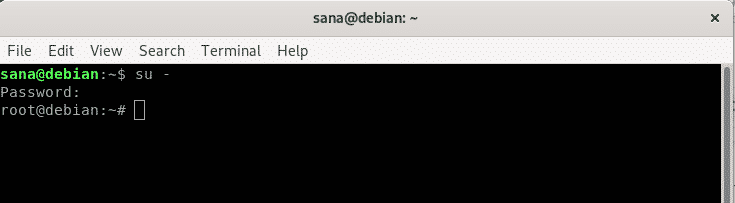
Most Debian installations do not come with the sudo utility installed by default. Therefore, we will first install it on our Debian-as an Administrator. Open the Terminal application through the Application Launcher search bar and then log in as root through the following command:

$ su –

The system will ask you the password for root; providing which, you will be logged in as root.

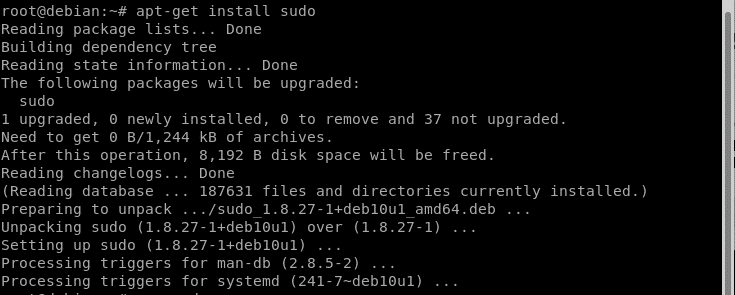
Now, run the following commands in order to install sudo on your system:

# apt-get update
# apt-get install sudo

The sudo utility should now be installed on your Debian.

The /etc/sudoers file contains a list of users that have sudo privileges on the system. Although it is a text file, we do not recommend opening it in any of the available text editors. One small mistake can cost a user access to sudo rights forever.

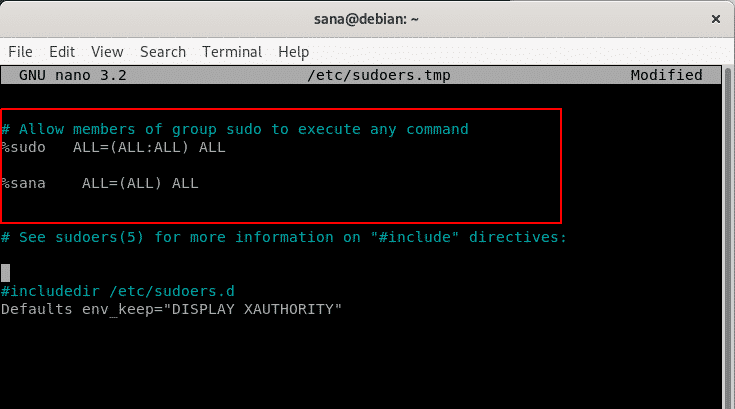
Therefore, let us use the highly preferred and safe way of editing the sudoers file by running the following command: # visudo

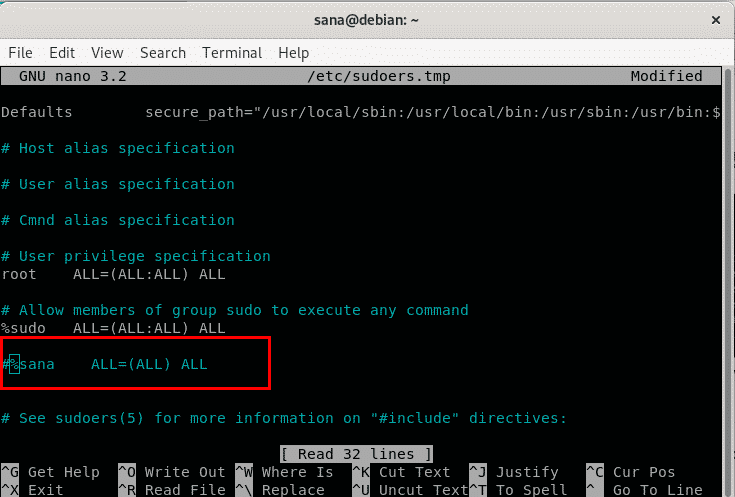
This will open the sudoers file in a safe mode. Locate the section of the file that is marked in the following screenshot and then add the following line: %user       ALL=(ALL:ALL) ALL

I have added a user by the name of “sana” as a sudo user. Exit the file by hitting Ctrl+X. Then enter Y in order to save the modified file.

Now the user is marked as a sudo user and can perform many privileged operations on your Debian.

How To Use Sudo Once It Is Granted

Log in as a user that is granted sudo rights on Debian and then open the Terminal application. Let us now verify the sudo login and also if we are able to perform any of the authority-restricted operations.

If you enter the following command in order to install the VLC player, you will get the error displayed in the screenshot: $ apt-get install vlc

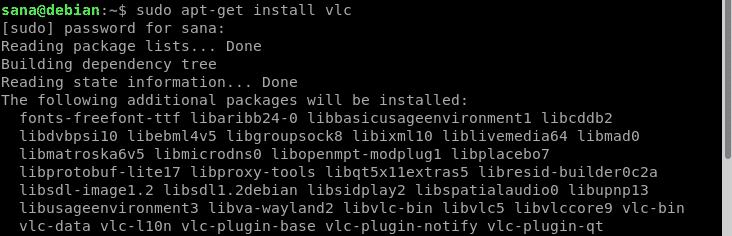
The reason here is that only an authorized user(root or sudo) is allowed to add and remove software on Debian. Therefore, we will run the same command as sudo now: $ sudo apt-get install vlc

As a sudo user runs this command, they will be asked to provide their own password.

After being verified as sudo, the installation process will begin- as shown above.

How To Remove Sudo Privilege From a User

The process of removing a user from the sudoers list is as simple as adding one. As root or as a sudo user, open the sudoers file as follows: # visudo

Or, $ sudo visudo

Then, remove or comment out the line which marks the user as sudo.

Save the file and the specified user is no longer recognized by the system as an authorized sudo user.

How To Check Which Users Have Sudo Privilege in The System

It is a good managerial check to see, from time to time, as to which users have been granted sudo rights on a system. It helps in deciding whose sudo status should retain and whose to let go. What we are looking for is a way to list the members of the ‘sudo’ group.

The following use of the Linux getent command will enable an Administrator to check which users have sudo privileges on your Debian: # getent group sudo

If you want to check whether a certain user is a member of the sudo group, you can make use of the Linux groups command as follows: # sudo groups [username]

After reading this article, not only will you be able to differentiate the terms sudo, root, Administrator, supervisor, etc, but also manage safely which ones you want to grant sudo rights to, on your Debian.

Publicado em Linux | Deixe o seu comentário

Configurações POP, IMAP e STMP

Pode utilizar o Outlook para ler e enviar correio da Yahoo, Gmail, Hotmail e outras contas de e-mail. Se quiser adicionar manualmente outra conta de e-mail ao Outlook, poderá ter de utilizar uma configuração avançada. Ver Adicionar uma conta de e-mail ao Outlook.

Você precisará das definições do servidor de entrada do seu fornecedor de e-mail (POP ou IMAP) e definições de servidor de saída (SMTP). Aqui está uma lista dessas configurações para vários fornecedores de e-mail. Se não vir o seu listado aqui, peça ao seu fornecedor de e-mail que as entregue.

Fornecedor de e-mailDefinições IMAPConfigurações POPDefinições SMTP
Microsoft 365 Outlook Hotmail Live.comServidor: outlook.office365.com Porta: 993 Encriptação: SSL/TLSServidor: outlook.office365.com Porta: 995 Encriptação: SSL/TLSServidor: smtp.office365.com Porta: 587 Encriptação: STARTTLS
MSNServidor: imap-mail.outlook.com Porta: 993 Encriptação: SSL/TLSServidor: pop-mail.outlook.com Porta: 995 Encriptação: SSL/TLSServidor: smtp-mail.outlook.com Porta: 587 Encriptação: STARTTLS
Publicado em Dicas | Deixe o seu comentário

Consulte o Gmail através de outras plataformas de email

Configure o IMAP e altere as definições de SMTP para ler mensagens do Gmail noutros clientes de correio, como o Microsoft Outlook e o Apple Mail. Quando utiliza o IMAP, pode ler as suas mensagens do Gmail em diversos dispositivos e as mensagens são sincronizadas em tempo real. Também pode ler mensagens do Gmail que utilizam o POP.

Nota: para evitar o bloqueio temporário da sua conta, certifique-se de que não excede 2500 MB por dia para transferências via IMAP e 500 MB por dia para carregamentos via IMAP. Se estiver a configurar uma única conta de IMAP em vários computadores, experimente fazer um intervalo entre cada configuração.

Configure o IMAP

Passo 1: verifique se o IMAP está ativado

  1. Num computador, abra o Gmail.
  2. Na parte superior direita, clique em Definições Definições e, em seguida, Ver todas as definições.
  3. Clique no separador Encaminhamento e POP/IMAP.
  4. Na secção “Acesso IMAP”, selecione Ativar IMAP.
  5. Clique em Guardar alterações.

Passo 2: altere as definições de SMTP e outras no seu cliente de email

Utilize a tabela abaixo para atualizar o seu cliente com as informações corretas. Para ajudar a atualizar as definições, pesquise o Centro de Ajuda do seu cliente de email para obter instruções sobre como configurar o IMAP.

Servidor de correio recebido (IMAP)imap.gmail.com Requer SSL: sim Porta: 993
Servidor de correio enviado (SMTP)smtp.gmail.com Requer SSL: sim Requer TLS: sim (se disponível) Requer autenticação: sim Porta para SSL: 465 Porta para TLS/STARTTLS: 587
Nome completo ou Nome a apresentarO seu nome
Nome da conta, Nome de utilizador ou Endereço de mailO seu endereço de email completo
Palavra-passeA sua palavra-passe do Gmail

Fonte: https://support.google.com/mail/answer/7126229?hl=pt

Publicado em Dicas | Deixe o seu comentário

Programa Internet Móvel Ensino

Pretende-se com este artigo esclarecer as dúvidas acerca da configuração do acesso à internet no kit escola, mais propriamente na Configuração dos Hotspot Thin Smartrix:

Em primeiro lugar recomenda-se o procedimento de ativação do cartão SIM, através do procedimento de configuração abaixo explicada a todos professores que tenham o kit escola.

O serviço de internet da vodafone encontra-se descrito no seguinte sítio:
https://www.vodafone.pt/business/educacao.html

Resumindo as Características do Plano

  • 12GB por mês de tráfego à velocidade máxima do plano (10Mbits).
  • Valor não utilizado (dos 12GB) acumula para mês seguinte.
  • Ultrapassando o tráfego incluído (12GB), redução da velocidade máxima do serviço para 2Mbps.
  • Para retomar a velocidade máxima do plano é necessário efetuar carregamento de €5 por cada 2GB adicionais.

Como ativar o seu equipamento?

  • Passo 1 Introduza o cartão SIM no seu equipamento (Hotspot, pen, tablet ou computador).
  • Passo 2 Aceda ao menu definições de rede móvel e configure a APN para ensino.vodafone.pt.
  • Caso possua o Hotspot Thin Smartrix vai anexo à mensagem um ficheiro com a informação de como configurar o seu equipamento.
    Nota importante: Utilize a indicação do APN da vodafone.

Como configurar o equipamento

Publicado em Dicas | Deixe o seu comentário

How To Delete Files Older Or Newer Than N Days Using find (With Extra Examples)

This article explains how to delete files older or newer than N days, with extra examples like matching only files using a particular extension, and more. For this we’ll use find, a command line tool to search for files in a directory.

You can delete all files and folders older than (with the file’s data modification time older than) N days from a directory by using:

find /directory/path/ -mindepth 1 -mtime +N -delete

An explanation of the whole command and what you need to replace:

  • find is the Unix command line tool for finding files (and more)
  • /directory/path/ is the directory path where to find (and delete) files. Replace it with the path of the directory from which you want to delete files and folders older than N days
  • -mindepth 1 is used to not apply any tests or actions at levels less than the specified level. -mindepth 1 means the command should process all files except the command line arguments. Without using this, the command would attempt to also remove /directory/path/ if it matches the find criteria. You can skip it in all the commands mentioned in this article if you want to also match the specified find path. Also, there’s no need to specify this if you only look for files (-type f for regular files for example), and not folders
  • -mtime +N is used match files that had their data (content) last modified N days ago. Replace N with a number (integer). In this command, files with a modification time older than N days will be deleted. It’s important to note that for example, if a file was last modified 1 day and 23 hours ago, -mtime +1 won’t match it, treating it as if the file was last modified 1 day, 0 hours, 0 minutes, and 0 seconds ago; see this explanation on why that’s the case, since the find man page doesn’t do this very well
  • -delete deletes matched files and folders

How To Delete Files Older Or Newer Than N Days Using find (With Extra Examples)

 Logix  Updated on console, how-to https://2333cfcb9c691179431d1ab1f195a4b8.safeframe.googlesyndication.com/safeframe/1-0-38/html/container.html This article explains how to delete files older or newer than N days, with extra examples like matching only files using a particular extension, and more. For this we’ll use find, a command line tool to search for files in a directory.

You can delete all files and folders older than (with the file’s data modification time older than) N days from a directory by using:

find /directory/path/ -mindepth 1 -mtime +N -delete

An explanation of the whole command and what you need to replace:

  • find is the Unix command line tool for finding files (and more)
  • /directory/path/ is the directory path where to find (and delete) files. Replace it with the path of the directory from which you want to delete files and folders older than N days
  • -mindepth 1 is used to not apply any tests or actions at levels less than the specified level. -mindepth 1 means the command should process all files except the command line arguments. Without using this, the command would attempt to also remove /directory/path/ if it matches the find criteria. You can skip it in all the commands mentioned in this article if you want to also match the specified find path. Also, there’s no need to specify this if you only look for files (-type f for regular files for example), and not folders
  • -mtime +N is used match files that had their data (content) last modified N days ago. Replace N with a number (integer). In this command, files with a modification time older than N days will be deleted. It’s important to note that for example, if a file was last modified 1 day and 23 hours ago, -mtime +1 won’t match it, treating it as if the file was last modified 1 day, 0 hours, 0 minutes, and 0 seconds ago; see this explanation on why that’s the case, since the find man page doesn’t do this very well
  • -delete deletes matched files and folders

It’s important to note that -delete is a GNU extension, so it’s not available in all find implementations. For other ways of deleting files that works with all implementations, read the observations further down this article.

Want to test the command without removing any files or folders? Remove -delete and the command will list all files it finds matching your criteria, without deleting them:

find /directory/path/ -mindepth 1 -mtime +N

Let’s take a look at an example. To delete all files and folders older than 10 days from the ~/Downloads folder you can use:

find ~/Downloads -mindepth 1 -mtime +10 -delete

To delete all files and folders newer than (with a file modification time newer than) N days, use -N instead of +N:

find /directory/path/ -mindepth 1 -mtime -N -delete

Example in which we’ll remove all files and folders from ~/Downloads that had their contents modified between now and 10 days ago:

find ~/Downloads -mindepth 1 -mtime -10 -delete

You might also like: 179 Color Schemes For Your Gtk-Based Linux Terminal (Gnome Terminal, Tilix, Xfce Terminal, More)

A few important observations that I recommend reading:

  1. The arguments order matters! You should add -delete after matching the files. If it’s the first argument, every file (and folder) will be deleted from /directory/path/, regardless of them matching your query or not. So always add -delete at the end of the command.
  2. Not all versions of find support -delete, which is a GNU extension. In case the find version you’re using doesn’t support -delete, you can use -exec rm -rf {} +, though there are find versions that don’t support this either from what I’ve read. Using -exec rm -rf {} + to remove files older than N days, and only matching files (keeping empty subdirectories):
  3. What should work with any find version is exec rm {} \;. However, this performs worse than the other two solutions already mentioned, because it spawns an external process for each file it removes. This is why I left this solution for last. Use this to remove all files and folders older than X days from a directory:

Other examples of using find to delete files or folders based on their modification time

Only delete regular files older than N days, keeping empty subdirectories:

find /directory/path/ -mindepth 1 -type f -mtime +N -delete

Here we’ve used -type f to match only regular files. You can also use -type d to match folders, or -type l to match symbolic links.

Only delete files matching .extension older than N days from a directory and all its subdirectories:

find /directory/path/ -type f -mtime +N -name '*.extension' -delete

You can add -maxdepth 1 to prevent the command from going through subdirectories, and only delete files and 1st level depth only directories:

find /directory/path/ -mindepth 1 -maxdepth 1 -mtime +N -delete

You may also use -ctime +N, used to match (and delete in this example) files that had their status last changed N days ago (the file attributes/metadata AND/OR file content was modified), as opposed to -mtime, which only matches files based on when their content was last modified:

find /directory/path/ -mindepth 1 -ctime +N -delete
Publicado em Linux | Deixe o seu comentário

Cron Backups for Moodle Db and Moodledata

Create directory /var/backups

mkdir /var/backups
crontab -e

Add Database backup to the cron file:

#Backup Database (Before each day starts, backup Moodle prod DB from MySQL/MariaDB)
4 4 * * * root mysqldump dbname -u user -ppsaaword | gzip > /var/backups/moodle-db-`date +\%Y-\%m-\%d-\%H-\%M-\%S`.sql.gz

Add moodledata backup to the cron file:

4 10 * * * zip -r /var/backups/moodledata-`date +\%Y-\%m-\%d-\%H-\%M-\%S`.zip  /var/www/moodledata

Save 30 lasts backups

# Keep 30 SQL database backups and moodledata backups (last 30 backups of moodle)
 2 2 * * * find /var/backups/* -mtime +10 -exec rm {} \;
Publicado em Linux | Deixe o seu comentário