ESXi on Raspberry Pi

General Information

During VMworld 2020, VMware announced the long-awaited availability of their ESXi hypervisor for Arm devices, which includes the Raspberry Pi. As of today, ESXi on Arm is not yet a final product and published as Fling. A VMware fling is an unsupported virtualization software tool created by VMware engineers.

Official Site: flings.vmware.com/esxi-arm-edition

Installation

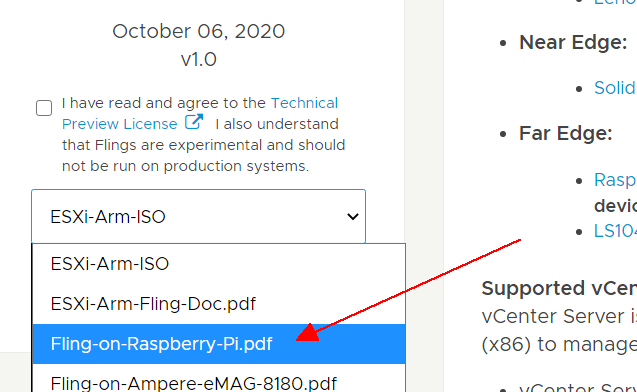
Download and Installation Instructions: flings.vmware.com/esxi-arm-edition

The installation steps are documented on the official ESXi-Arm Fling page. I highly recommend getting the latest version from there.
 

FAQ

Can you run every VM on ESXi-ARM?
No. ARM is a completely different CPU architecture and not compatible with x86 hardware. You need an Operating System that is compiled for the aarch64/arm64 architecture. The same applies to applications running inside the Guest OS. You can’t run software that is compiled for x86 on an ARM-based operating system.

Can you run a vCenter on ESXi-ARM?
No. VMware vCenter Server is an x86 based application that can not run on ARM hardware.

Can you migrate Virtual Machines from ESXi to ESXi-ARM using EVC?
No. You can’t migrate Virtual Machines across different CPU architectures. EVC is only intended to allow migrations across different CPU generations by limiting Virtual Machines to a defined instruction set that is compatible with the given, and newer, generations.

What is the difference between arm64 and aarch64?
ARM64 and AArch64 were developed for the Armv8-A architecture by different vendors. The code has been merged back in 2014 so as of today, both refer to the same thing. Most operating systems are using the “aarch64” term, but some (eg. Debian) refer to “arm64”.

Guest OS Options

Alpine Linux 3.12
Alpine Linux is a security-oriented, lightweight Linux distribution based on musl libc and busybox.

Installation: Use the Installer ISO. Guest OS: “Linux / Other 4.x or later Linux (64-bit)”
Download: https://alpinelinux.org/downloads/ (Get the aarch64 ISO)
VMware Tools: VMware Tools for Alpine 3 aarch64 on ESXi-Arm

CentOS 8
CentOS (Community Enterprise Operating System) is a Linux distribution that provides a free, community-supported computing platform functionally compatible with its upstream source, Red Hat Enterprise Linux (RHEL).

Installation: Use the Installer ISO.
Download: http://isoredirect.centos.org/centos/8/isos/aarch64/ (Choose any mirror)
VMware Tools: VMware Tools for CentOS 8 aarch64 on ESXi-Arm

Debian 10
Debian is a Linux distribution composed of free and open-source software, developed by the community-supported Debian Project. It is one of the oldest and the most popular edition for personal computers and servers. Debian is also the basis for many other distributions.

Installation: Use the Installer ISO.
Download: https://www.debian.org/distrib/netinst (Get the arm64 ISO)
VMware Tools: VMware Tools for Debian 10 arm64 on ESXi-Arm

Fedora 32
Fedora is a Linux distribution developed by the community-supported Fedora Project. Fedora contains software distributed under various free and open-source licenses and aims to be on the leading edge of free technologies.

Installation: Use the Installer ISO.
Download: https://getfedora.org/en/server/download/ (Get the aarch64 ISO)
VMware Tools: VMware Tools for Fedora 32 aarch64 on ESXi-Arm

OpenSUSE Tumbleweed
openSUSE is a Linux distribution sponsored by SUSE Software Solutions Germany GmbH and other companies. openSUSE offers Leap, a distribution built on a more tested base shared with SUSE Linux Enterprise (SLE), effectively making Leap a non-commercial version of its enterprise-grade operating system. Users that prefer more up-to-date free software can use its rolling release distribution Tumbleweed.

Installation: Use the Installer ISO.
Download: https://software.opensuse.org/distributions/tumbleweed  (Get the aarch64 ISO)
VMware Tools: VMware Tools for openSUSE aarch64 on ESXi-Arm

Photon OS 3.0
Photon OS is a lightweight Linux operating system developed by VMware and made for cloud-native apps. Photon is optimized for vSphere and vCloud Air, providing an easy way for our customers to extend their current platform with VMware and run modern, distributed applications using containers.

Installation: Use the Installer ISO.
Download: https://github.com/vmware/photon/wiki/Downloading-Photon-OS (Search for “Full ISO arm64”)
VMware Tools:

# tdnf -y update
# tdnf install -y open-vm-tools
# systemctl enable vmtoolsd.service
# systemctl start vmtoolsd.service

Raspberry Pi OS
Raspberry Pi OS (formerly Raspbian) is a Debian-based operating system for Raspberry Pi. Since 2015 it has been officially provided by the Raspberry Pi Foundation as the primary operating system for the Raspberry Pi family.

Installation: Raspberry Pi OS is only available as an image to write on an SD card. To use it as a Virtual Machine, you have to convert the image to a VMDK and fix the bootloader using Debian Rescue Mode. See this article by William Lam for a step-by-step guide.
Download: https://downloads.raspberrypi.org/raspios_arm64/images/
VMware Tools: Installing VMware Tools on Raspberry Pi OS for ESXi-Arm [virtuallyGhetto]

Ubuntu 20.04 LTS
Ubuntu is a Linux distribution based on Debian. It is officially released in three editions: Desktop, Server, and Core. Ubuntu is released every six months, with long-term support (LTS) releases every two years. As of 22 October 2020, the most recent long-term support release is 20.04 (“Focal Fossa”), which is supported until 2025 under public support

Installation: Use the Installer ISO.
Download: https://ubuntu.com/download/server/arm
VMware Tools: Compilation required -> VMware Tools for Ubuntu 20.04 LTS arm64 on ESXi-Arm


Troubleshooting

Error: Unable to push signed certificate to host [hostname]
When you try to add the Raspberry Pi running ESXi to a vCenter Server, the following error is displayed:

Task: Add standalone host
A general system error occurred: Unable to push signed certificate to host [hostname]

The problem is caused by the date and time configured on the Pi. The system does not have a battery-backed RTC which means that the time will reset on every boot. To solve the problem, you must configure NTP.

You can either configure NTP using the Host Client (https://[HOSTNAME]/ui/ -> Manage > System > Time & date) or from the command line by using the following commands:

# esxcli system ntp set -s pool.ntp.org
# esxcli system ntp set -e 1


/usr/lib/vmware/vsan/bin/iperf3: line 2: syntax error: unexpected “(”
When you try to run iPerf3 the following message is displayed:

[root@esxipi1:~] /usr/lib/vmware/vsan/bin/iperf3
/usr/lib/vmware/vsan/bin/iperf3: line 2: syntax error: unexpected “(“

The version of iPerf3 that comes with the ESXi-ARM Fling is not compiled for arm64. In Fling version 1.1, the broken iPerf has been removed. If you want to use iperf to analyze network throughput, you have to compile it yourself or use the version published in this article.

Publicado em Dicas, Linux | Deixe o seu comentário

How to Create a Bootable Linux Live USB on Your Mac

Creating Bootable Linux USB Drives in macOS

Publicado em Dicas, Linux | Deixe o seu comentário

CURA 3D: aprenda os primeiros passos desse fatiador 3D!

O CURA 3D Ultimaker é um dos softwares mais utilizados na impressão 3D. Ele permite uma gama de ajustes e configurações interessantes. Vamos te mostrar como usar, desde a instalação até a impressão.

O Cura 3D é um dos principais softwares utilizados na impressão 3D. Com uma interface bastante amigável, seu uso se popularizou entre a comunidade. Como um software fatiador, basicamente a função do Cura é gerar a preparação da sua peça para a impressora 3D.

Além de ser totalmente gratuito, o software ainda é de código aberto. Ou seja, melhorias e ajustes podem ser feitos por toda a comunidade.

Se você compará-lo a outros softwares de fatiamento 3D, tudo parecerá muito simples, com opções e ajustes ilimitados. Mas as configurações mais complexas do Cura estão lá, se você precisar delas: ele foi projetado para ser organizado e fácil de usar.

Quer entender todo o passo a passo para utilizar o Cura 3D? Então continue lendo este conteúdo!

Qual a principal função do Cura

O Cura 3D é um software fatiador para impressoras 3D. Ele transforma um modelo 3D em camadas que quando sobrepostas formam o objeto que será impresso.

O arquivo gerado é conhecido como G-Code, que é o código que uma impressora 3D entende.

Ou seja, o fatiador é responsável por transformar um arquivo do modelo criado em 3D para um formato de leitura da impressora, com as configurações de impressão.

Como preparar os arquivos 3D

Antes de explicarmos o passo a passo para você saber tudo sobre o Cura, vamos entender um pouco mais de todo o processo de impressão.

Existem basicamente três estágios na preparação de arquivos para impressão 3D:

  • modelagem: para modelar um objeto 3D você precisará de um aplicativo de modelagem, como por exemplo o TinkerCad, AutoCad ou StetchUp;
  • exportação de arquivo 3D: depois de ter seu modelo 3D, você precisará exportá-lo como um um arquivo STL, OBJ ou 3MF. Esses são os formatos de arquivo reconhecidos pelo Cura;
  • exportação do arquivo fatiado: o arquivo STL ou OBJ pode ser importado para o software Cura, fatiado e produzido como código G. Esse código G é um documento com uma lista de comandos para a impressora 3D ler e seguir, como as configurações da temperatura, movimentação etc.

Como fazer o download e instalação do Cura 3D

Atualmente a última versão do software é a 4.7 (Setembro/2020). Ela funciona em todas as principais plataformas de sistema operacional: Windows, MAC e Linux.

Para instalar o Cura, primeiro faça o download para o seu computador. Assim o que download for feito, conclua a instalação.

Como configurar o software para a sua impressora 3D

Ao iniciar o software pela primeira vez, será solicitado que você selecione a impressora que utiliza.

Encontre o modelo da sua máquina na listagem que o Cura apresentará.  Caso não o apareça você terá que personalizar os detalhes para adicionar a impressora.

Cura 3D Ultimaker: Tela inicial

Basta digitar as configurações da sua impressora 3D na janela de configurações do Cura Machine.

Como importar um modelo para o Cura 3D 

Depois de configurar o Cura para sua impressora, chegou a hora de importar um modelo para o software. Para isso acompanhe os seguintes passos:

  • clique no ícone da pasta flutuante à esquerda ou selecione Arquivo > Abrir arquivos (no menu superior);
  • escolha um arquivo STL, OBJ ou 3FM do seu computador e o selecione para fazer a importação;
  • CURA 3D Ultimaker - importação

Como alterar o modo de exibição do modelo 

Depois que o arquivo for carregado ele aparecerá no software. Você pode alterar o aspecto de exibição da peça das seguintes formas:

  • navegue pela área de construção do software: mantenha pressionada a tecla Shift e clique com o botão esquerdo para mover a área de construção pela tela. Isso geralmente é útil se você quer ampliar o modelo para verificar alguns detalhes mais refinados;
  • ver todos os ângulos do modelo: Pressione e segure o botão direito do mouse para girar em torno da área de construção;
  • amplie a área de construção: use a rolagem do mouse para ampliar e reduzir o modelo.

Além disso, há três formas básicas de visualização do modelo. Cada uma é adequada para diferentes necessidades, especialmente quando surgem problemas nas peças impressas:

  • sólido: é a a visualização padrão do Cura. Permite que você tenha uma boa ideia de como o modelo ficará depois de pronto;
  • raio-X: basta clicar em visualizar para ativar esse modo. O recurso é recomendado quando as peças não saem do jeito que você deseja. Ele permite que você analise o que precisa ser retrabalhado;
  • camadas: se uma impressão falhar repetidas vezes em determinado ponto, ou se você tiver programado algo diferente e quiser verificar se a impressão está correta, recomendamos o modo de visualização em camadas. À medida que você avança no Cura, esse recurso é útil para identificar camadas nas quais você deseja alterar as configurações no código G, como aumentar a velocidade do cooler, a altura ou o fluxo da camada.

Quais são as configurações fundamentais de impressão no Cura 3D

Altura da camada

É o que determinará a resolução de sua impressão. Define a altura de cada camada de filamento depositada durante a impressão. Como já dissemos em outro conteúdo, quanto maior a altura da camada, menos detalhado será seu objeto.

Velocidade da impressão

Diz respeito à velocidade que o extrusor se move enquanto está depositando o filamento. A otimização da velocidade de impressão está diretamente ligada ao nível de detalhes do objeto e ao material que está sendo utilizado.

A velocidade de impressão altera o nível de aderência das camadas. Uma dica para você que quer uma impressão mais rápida é aumentar a temperatura. Dessa forma você garante que as camadas manterão uma boa adesão.

Espessura da parede

Está ligado a parede externa da peça. Logo, se você quer uma peça com parede mais grossa (objetos mais rígidos), configura uma maior espessura da parede.

Densidade ou infill da peça 3D

É medido de acordo com porcentuais, por isso, peça com infill de 100% é um objeto sólido. Por outro lado, com infill zero você terá um objeto oco.

Preenchimento na impressão 3D

Retração

Durante a movimentação do carro extrusor de um ponto a outro pode acontecer vazamento do material que está aquecido. Para evitar isso usa-se o retract.

Na prática, o sistema alimentador retorna um pouco do filamento e evita o escorrimento.

Como usar as configurações básicas, intermediárias e avançadas

O Cura é um dos softwares mais completos em termos de configurações possíveis. Porém, no seu desenvolvimento foi pensado no público iniciante até o mais experiente.

Por isso, é possível habilitar ou desabilitar conjunto de recursos. Por exemplo, se você ainda está começando a trabalhar com a impressora 3D, pode deixar habilitado somente as configurações iniciais. Já para os mais experientes há o conjunto de experimentações e testes mais complexos.

Para alterar esse padrão basta acessar o menu superior > Preferences > Configure Cura > Settings e escolher a opção na lista suspensa que aparecerá, entre o Basic, Advanced e Expert.

Portanto, vimos que o Cura 3D é um software bem completo e útil para a impressão 3D. São muitas as possibilidades de configuração que o software nos proporciona.

Sua interface e usabilidade foram desenvolvidas para facilitar o trabalho dos usuários. Porém, sabemos que é necessário ter um conhecimento detalhado caso você queira aprimorar suas técnicas de impressão.

Em breve lançaremos um novo conteúdo, agora mais completo, sobre o Cura. Então, fique atento e acompanhe as postagens nas redes sociais, seguindo nossas páginas.

Créditos: https://3dlab.com.br/cura-3d-ultimaker/

Publicado em 3D Printing | Deixe o seu comentário

How to Install Chrome OS on PC (Intel and AMD)

Chrome OS for PC: One stop guide

Key Takeaways

  • Chrome OS is an operating system from Google which is aimed at providing a simple and easy-to-use experience for its users.
  • Users can run Android apps natively on Chrome OS using the Play store.
  • Google Chromebooks are known for running Chrome OS but are not yet mainstream across the world.
  • This guide will help users install Chrome OS on their old Windows PCs.

Google’s Chrome OS has been gaining much attention lately due to its ease of use and overall functionality. In fact, Chromebooks cover the majority of the education market in the US. You might be wondering why I should install Chrome OS if I already have Windows? Well, the simple answer to that is performance and battery life. Chrome OS is not as heavy as Windows and hence can work relatively better on low spec PCs. Also, the ability to run Android apps natively is a bonus.

If you are a casual user who spends most of the time browsing or binge-watching the latest shows on Netflix, you should install Chrome OS on your PC. With that out of the way, let us have a detailed look at how you can install Chrome OS on your old PC.

Table of Contents
Background Check on our PC
Prerequisites for installing Chrome OS for PC
Quick Disclaimers
Installing Linux Mint
Creating a bootable drive using Rufus
Steps to check partition (MBR or GPT)
Managing Files (Intel)
Managing Files (AMD)
Booting into Linux Mint Cinnamon
Installing Chrome OS on Laptop PC
Fixing Common Chrome OS Issues on PC
Troubleshooting the Trackpad issue on Chrome OS
Troubleshooting Internal Hard Disk (Applying multiple fixes)
FAQs: Installing Chrome OS for Laptop
1. Can I install Windows again if I do not like Chrome OS?
2. Do Android Apps work on Chrome OS running on a PC?
3. Will I get future Chrome OS updates?
4. Can you dual boot Chrome OS with Windows 7, 8, 10 or 11?
5. What’s the difference between Chrome OS and Chromium OS?
6. Can you download Google Chrome OS for free?

Background Check on our PC

The PC we are using for this guide is a twelve-year-old Sony Vaio and is currently running on Windows 11 (we wrote a guide on how to install Windows 11 without TPM). The device runs on an Intel i3 M330 chipset which is clocked at 2.13GHz. Furthermore, it has just 4GB of RAM and Intel UHD graphics. We installed Chrome OS on this device, and it has been a smooth experience so far on this 12-year old machine. So let us have a detailed look at how you can do the same.

Prerequisites for installing Chrome OS for PC

  1. Download Linux cinnamon
  2. Chrome OS Download (Intel)
  3. Chrome OS Download (AMD)
  4. install.sh (Credits- Jagat Gyan)
  5. Brunch
  6. Brunch MBR Fix
  7. USB drive (minimum 8GB)
  8. Rufus

Quick Disclaimers

  1. All the Intel Gen 1 GPUs support only versions of Google Chrome OS 80. All other generations support the latest version of Google Chrome OS – (Currently Chrome OS 91)
  2. Users with legacy boot must download the Brunch MBR Fix file. That being said, users with UEFI boot should not download the MBR fix file.
  3. Both Intel and AMD CPUs are supported. Check the list for supported AMD CPUs here.
  4. All data in the disk you install on Chrome OS will be wiped.

Installing Linux Mint

Why are we installing Linux Mint? This might be the first question in your mind. The reason is we are first going to boot our PC into Linux Mint using a USB stick and then continue the Google Chrome OS installation process. But, first, let us have a look at how to create a bootable drive using Rufus.

Creating a bootable drive using Rufus

  1. Open Rufus which we downloaded earlier.
  2. After opening Rufus, connect your USB flash drive to your PC. Please note- All the data on the USB flash drive will get wiped.
  3. Now choose your USB in Rufus.
  4. Once that is done, just below devices there is an option to choose an ISO file. Click on Select ISO and choose the Linux mint ISO.
    Windows 11 rufus
  5. Under the partition scheme, there will be 2 options – GPT and MBR. Now, this will depend upon your Disk. In our case, it is MBR so we chose MBR.
  6. Hit start and wait patiently as this may take some time.

Steps to check partition (MBR or GPT)

As we saw in the steps above, choosing the correct partition scheme is essential. If we choose the wrong partition scheme, then the trick to install Chrome OS on PC will not work. So let us have a detailed look at the steps on how you can check your partition scheme.

  1. Go to the start menu and search “Create and format disk partitions” and open it.
  2. After opening, you will see all your drives. Here, click on the drive you are going to install Windows 11 on and right-click and select Properties.
  3. In the properties tab, click on Hardware and choose Properties again
  4. Look for the Volumes tab and select it.
    Windows 11 MBR/GPT
  5. Hit Populate and you will find the partition scheme under the partition style. Now, you can go back and continue making a bootable USB drive.

Managing Files (Intel)

  1. Connect the USB flash drive we just installed Linux mint to PC.
  2. Once connected, create a folder named ” Chrome OS ” inside the USB stick.
  3. Now, Extract the brunch 91 and MBR fixes file which we downloaded earlier using WinRAR.
  4. Once both the files are extracted, place the extracted files inside the Chrome OS folder in the USB stick.
  5. We also have to extract the Chrome OS file we downloaded earlier. Extract the file and place it in the Chrome OS folder.
  6. Here comes the most important step. Rename the Chrome OS file to “rammus_recovery.bin”.
  7. Finally, also copy the install.sh file inside the Chrome OS folder.

Managing Files (AMD)

  1. While the process is same for AMD users, the file names are a bit different.
  2. Where intel users renamed the chrome OS file rammus_recovery.bin. The AMD users have to rename it to zork_reovery.bin.
  3. AMD users also need to change the name in install.sh file. So lets do that.
  4. Open install.sh file with a text editor and change rammus_recovery.bin to zork_recovery.bin.
  5. Click save and continue the installation process.

Booting into Linux Mint Cinnamon

  1. Open BIOS settings on your laptop. That being said, the process to enter bios (boot menu) is different for different manufactures. In our case on Sony Vaio, it is the F2 key when the device is booting.
  2. After you have successfully entered bios settings, search for the boot preferences. Again, this differs from device to device.
  3. In the boot, preferences select USB device as first boot priority and restart your device.
  4. During bootup from USB, you will see multiple options, choose the Linux cinnamon option.
    linux boot screen
  5. Boom, you have now successfully booted into Linux Mint.

Installing Chrome OS on Laptop PC

  1. After booting into Linux Mint successfully, it is extremely important to connect to a Wi-Fi network. The installation process will get hampered if you do not connect to the internet.
    linux wifi
  2. Once you have successfully connected to the internet, click on the green file manager icon in the bottom left of the taskbar.
  3. In File Manager, click on the file system option in the left panel of the screen.
    file manager linux
  4. Under file manager, navigate to the cdrom folder.cd rom folder linux
  5. In the cdrom folder, go to the Chrome OS folder.
    Chrome OS folder linux
  6. Now, right-click anywhere in the folder and choose the open terminal option.
  7. Here, type ” sudo sh install.sh ” and press enter. The Google Chrome OS installation process will now begin.
    Linux terminal
  8. During the installation process, it will ask permission for wiping the data. Here, type yes and press enter. That being said, make sure the internet connection is up and running.
  9. After successful installation, it will display a message saying Chrome OS installed.
  10. Now, Shut down your pc and remove the USB drive from your PC.
  11. Turn on your PC and choose Chrome OS. Done, you have successfully installed Chrome OS on your Windows laptop.

It’s now ready to be used to browse the internet with Google Chrome, access your Google Drive files, or do anything else you would normally do with a Chromebook.

Fixing Common Chrome OS Issues on PC

After installing Chrome OS and logging in with your Google accounts, there might be chances that you might face certain issues. Like in our case, the trackpad of the Laptop was not working. Similarly, a few things might not work for you as well. Don’t worry. The developers have already found fixes for these common issues. You can check the complete list of commands here. Let us have a look at how you can apply these fixes.

Troubleshooting the Trackpad issue on Chrome OS

  1. Open Chrome and press Ctrl + Alt + T  together to open the terminal.
  2. In terminal type “shell” and press enter.
  3. Now type “sudo edit-grub-config” and press enter.
    chrome os terminal
  4. Here go down and right next to cros debug type “options= alt_touchpad_config2”. Similarly, do the same under Chrome OS debug. Check image for reference.
    chrome os touchpad fix
  5. After adding the lines, press ctrl+x and then click on Y.
  6. Finally, press the enter key and restart your device. (It might take some time to boot and apply changes)

Troubleshooting Internal Hard Disk (Applying multiple fixes)

  1. Open Chrome and press Ctrl + Alt + T  together to open the terminal.
  2. In terminal type “shell” and press enter.
  3. Now type “sudo edit-grub-config” and press enter.
  4. Since we already added a touchpad fix just add a comma and type command for the hard disk. Similarly. this way you can add multiple fixes.
  5. After adding the lines, press ctrl+x and then click on Y.
  6. Finally, press the enter key and restart your device. (It might take some time to boot and apply changes)

FAQs: Installing Chrome OS for Laptop

Let’s take a look at some of the most frequently asked questions.

If you are wondering if Android apps work on Chrome OS installed on a PC, then YES, there is support for the Google Play store. One can simply sign in and enjoy their favorite Android apps on their PC running Chrome OS. Do note, however, that Windows 11 comes with Android apps support in case your primary motive to install Chrome OS is to run Android apps on a PC.

If you are wondering if you continue to get Chrome OS updates after installing it on a Windows PC, the answer to this question of automatic updates is a bit tricky. Yes, you can add a command to enable Chrome OS update, but you might want to do this at your own risk. As sometimes, it might leave the PC unbootable.

Technically, yes. You can dual boot Chrome OS and Windows 11 (or other versions like Windows 10/8/7) on the same PC. But the procedure is too technical for this guide. If more people are interested, we can do a dedicated guide for dual-booting Windows and Chrome OS by raising a separate partition on Windows to install Chrome OS.

Chrome OS is built on top of Chromium OS. Chromium OS is a free, open-source project that anyone is encouraged to take and freely use. Therefore, you can get pretty close to a Chrome OS experience if you install Chromium OS like Cloudready on your computer. There is, however, a certain level of technical expertise required.

Chrome OS was previously reserved for Chromebook users but is now available on other devices as well. Unlike Windows or Linux, it doesn’t require installation and can be used without a system. All you have to do is download Chrome OS to a USB drive and make it bootable using Etcher or some other software. We have provided a link to download Chrome OS above (for both Intel-based and AMD-based PCs).

Fonte: How to Install Chrome OS on PC (Intel and AMD) (techpp.com)

Publicado em Linux | Deixe o seu comentário

How to Create a Bootable Debian USB Drive on MacOS

Fonte: https://zerotoroot.me/create-bootable-debian-usb-drive-macos/

There are some things, which are more difficult than they initially seem. This is true for creating a bootable USB drive on Mac with a Linux distro on it.

In this article, we will go through each step necessary to come out with a bootable Linux USB drive.

Let’s begin!

1. Download Debian and Verify the Source

Download the Debian ISO (or any other Linux distro) as well as the signature and checksum files.

Since we are trying to become more security-aware, it’s important to verify the checksum and signature of the Debian image, before continuing.

GPG does just that for us.

$ gpg --verify SHA256SUMS.sign SHA256SUMS
gpg: Signature made Sun May  7 20:28:23 2017 CEST using RSA key ID 6294BE9B
gpg: Good signature from "Debian CD signing key <debian-cd@lists.debian.org>" [unknown]
gpg: WARNING: This key is not certified with a trusted signature!
gpg:          There is no indication that the signature belongs to the owner.
Primary key fingerprint: DF9B 9C49 EAA9 2984 3258  9D76 DA87 E80D 6294 BE9B

If you get the same “Good signature”, you should be on the safe side.

Converting the Debian ISO to an IMG File

In order for the copying to work, we first need to convert the ISO to an IMG file. This can be done using the hdiutil command.

$ hdiutil convert -format UDRW -o /path/to/output-file.img /path/to/input.iso

I had the file in the folder I was in, thus, I inputted:

$ hdiutil convert -format UDRW -o ./debian-8.8.0-amd64-DVD.img debian-8.8.0-amd64-DVD-1.iso
Reading Driver Descriptor Map (DDM : 0)…
Reading Debian 8.8.0 amd64 1             (Apple_ISO : 1)…
Reading Apple (Apple_partition_map : 2)…
Reading Debian 8.8.0 amd64 1             (Apple_ISO : 3)…
Reading EFI (Apple_HFS : 4)…
Reading Debian 8.8.0 amd64 1             (Apple_ISO : 5)…

.......................................................................................
Elapsed Time: 15.632s
Speed: 243.7Mbytes/sec
Savings: 0.0%
created: ~/Downloads/debian-8.8.0-amd64-DVD.img.dmg

The resulting file, might also have .dmg appended to it, as is the case above.

One more step is missing before we can write the file to the USB drive. We first need to unmount the USB drive.

Run diskutil list to see what disk the correct one is. If you are unsure, run the command twice. Once without USB drive plugged in, once with.

$ diskutil list
/dev/disk0 (internal, physical):
  #:                       TYPE NAME                    SIZE       IDENTIFIER
  0:      GUID_partition_scheme                        *251.0 GB   disk0
  1:                        EFI EFI                     209.7 MB   disk0s1
  2:                  Apple_HFS Macintosh HD            210.8 GB   disk0s2
  3:                 Apple_Boot Recovery HD             650.0 MB   disk0s3
/dev/disk1 (external, physical):
  #:                       TYPE NAME                    SIZE       IDENTIFIER
  0:      GUID_partition_scheme                        *30.8 GB    disk1
  1:                        EFI EFI                     209.7 MB   disk1s1
  2:                  Apple_HFS Debian Boot             30.4 GB    disk1s2

In this case, it’s /dev/disk1. Then unmount it.

$ diskutil unmountDisk /dev/disk1
Unmount of all volumes on disk1 was successful

Write the Operating System to the USB Drive

Now this is the step, where you really need to pay attention. Writing to the wrong disk could cause your operating system to be overwritten. Thus, backup before and double check that the output file is the correct disk.

$ sudo dd if=/path/to/inputfile.img of=/dev/rDISK bs=1m

An r is placed before the disk-identifier, because using it during writing will speed up the process. Everything else is the same as above.

$ sudo dd if=debian-8.8.0-amd64-DVD.img.dmg of=/dev/rdisk1 bs=1m

It will take a bit, till it’s finished. Once it is, two things will happen:

  1. You will see a popup such as this:

    Ignore it for now.
  2. In the console you will see an output similar to this:3809+1 records in
    3809+1 records out
    3994091520 bytes transferred in 74.693837 secs (53472839 bytes/sec)

Meaning the program has finished writing. First, eject the USB drive.

$ diskutil eject /dev/disk1
Disk /dev/disk1 ejected

Then choose ignore on the dialog box option.

You are now all set. Plug in the USB drive the next time you want to boot from it or install the operating system.

Publicado em Dicas | Deixe o seu comentário

macOS X Mount NFS Share / Set an NFS Client

ow do I access my enterprise NAS server by mounting NFS filesystem onto my Mac OS X based system using GUI and command line based tools?

Network File System (NFS), a distributed file system protocol developed by Sun Microsystems. NFS is the common for file sharing on NAS server and Linux / UNIX systems like, HP-UX, Solaris, Mac OS X, and

Tutorial details
Difficulty level Intermediate
Root privileges Yes
Requirements OSX 10.6.x/10.7.x
Est. reading time 10m

others. Mac OS X can be setup as an NFS client to access shared files on the network. Mounting NFS volumes in OS X can be done using following methods:

a] Command line option.

b] GUI option.

macOS X Mount NFS Share / Set an NFS Client

Our sample setup for macOS client and nfs server:

        nas01                                   Laptop/Desktop
   +--------------+                           +--------+
   |  UNIX/Linux  |                           | Mac    |
   |    NFS       +---------------------------+ OS X   |
   |   SERVER     |  mount nas01:/mp3 /nfs    | Client |
   +--------------+                           +--------+
         |                                    (192.168.3.100)
     (shared dirs)
         /
         --/Sales
         --/Mp3
         --/Data
         --/wwwroot
   (192.168.3.1) 

nas01 allows your users or client compute to access files over a network. Mac OS can mount file system over a network and work as they are mounted locally. This is perfect for sharing files or centralized home directories. See how to setup an NFS server under RHEL / CentOS Linux and Ubuntu Linux here.

How Do I Find Out Shared Directories?

To mount an NFS file system, the resource must be made available on the NAS or NFS server. To verify that resource available open the terminal and type the following command:
$ showmount -e nas01
$ showmount -e nfs-server-ip-address-here
$ showmount -e nas01.lan.nixcraft.net.in

Sample outputs:

Fig.01: UNIX showmount command lists all clients that have remotely mounted a filesystem from NFS server

Fig.01: UNIX showmount command lists all clients that have remotely mounted a filesystem from NFS server

The showmount command show remote NFS mounts (resources).

Mac OS X Nfs mount Command

First, create a directory to mount an nfs share, enter:
$ sudo mkdir /private/nfs
$ sudo mkdir /private/mp3

To mount an NFS file system, enter:
$ sudo mount -t nfs nas01:/mp3 /private/nfs
OR
$ sudo mount -t nfs 192.168.3.1:/mp3 /private/nfs
To mount an NFS file system in read/write mode, enter:
$ sudo mount -o rw -t nfs nas01:/mp3 /private/nfs

Tip: Operation not permitted Error

If you get an error which read as follows:

 192.168.3.1:/mp3 Operation not permitted

Try to mount it as follows with -o resvport command:
$ sudo mount -t nfs -o resvport 192.168.3.1:/mp3 /private/nfs
OR mount an NFS in read/write mode, enter:
$ sudo mount -t nfs -o resvport,rw 192.168.3.1:/mp3 /private/nfs
From the man page:

resvport
Use a reserved socket port number. This is useful for mounting
servers that require clients to use a reserved port number on the
mistaken belief that this makes NFS more secure. (For the rare
case where the client has a trusted root account but untrustwor-
thy users and the network cables are in secure areas this does
help, but for normal desktop clients this does not apply.)

Verify: NFS Is Working or Not

Type the following commands:
df -H
$ cd /private/nfs
$ ls -l

Sample outputs (note I’ve mounted it at /private/mp3/ dir):

Fig.02: UNIX df command

Fig.02: UNIX df command which displays information about total space and available space for NFS

How Do I Copy Files?

Use the cp command:
cp /path/to/file.doc /private/nfs/
$ cp -a /path/to/*pl /private/nfs/
$ cp /private/nfs/mp3/*.mp3 ~/mp3

Using the Finder

Note: The following entry “NFS mounts” in the Disk Utility does NOT exist in MAC OS X v10.8+. The following discussion only applies to the older Mac OS X version <= 10.7.x and eariler.

The Finder is the default file manager used on the Mac OS and Mac OS X operating systems that is responsible for the overall user-management of files, disks, network volumes and the launching of other applications. Open Finder > Shared (select from the left sidebar) > NFS server (nas01 or 192.168.3.1):

Fig.03: The Finder in action (browse an NFS share)

Fig.03: The Finder in action (browse an NFS share)

Now, you can copy and paste files as usual.

Recommend mount Command Options

I suggest that you run the mount command it as follows to get better a performance:
$ sudo mount -t nfs -o soft,intr,rsize=8192,wsize=8192,timeo=900,retrans=3,proto=tcp nas01:/sales /private/sales
OR
sudo mount -t nfs nfs -o soft,timeo=900,retrans=3,vers=3, proto=tcp nas01:/sales /private/sales
See mont_nfs(8) for more information.

GUI Method: HowTo Set Mac OS X As an NFS Client

To mount an NFS share from OS X using GUI tools, follow these steps:

[1] Start Finder, and go to Applications / Utilities / Disk Utility:

Fig.04: Starting Disk Utility

Fig.04: Starting Disk Utility

You will see the disk utility as follows:

Fig.05: Click the 'Mounts' icon at the top of the Directory Utility panel

Fig.05: Click the ‘Mounts’ icon at the top of the Directory Utility panel

[2] Alternatively, you can select “Disk utility” > click on File > Mount NFS as follows:
You will see an “NFS mounts” window as follows:

Fig.07: OS X NFS Mounts to set it as an NFS Client

Fig.07: OS X NFS Mounts to set it as an NFS Client

[3] Click on “+” icon:

Fig.08: Setting up an NFS mount options in the dialog box

Fig.08: Setting up an NFS mount options in the dialog box

You need to enter your remote NFS server URL (IP address or dns name) in the following format:
nfs://192.168.3.1/mp3
nfs://nas01/mp3

Where,

  1. 192.168.3.1: NFS server IP address.
  2. nas01: NFS server dns name.
  3. mp3: Shared nfs directory name.

You need to set mount location as follows:
/Volumes/mp3
/Volumes/mp3 is nothing but the mount location. This is a convenient place. In this example, you entered the URL as nfs://192.168.3.1/mp3, enter /Volumes/mp3 as the mount location. Please note that don’t create the subdirectory (mp3); it will be created dynamically when the share is mounted.

Optional

Click the arrow in front of “Advanced Mount Parameters”. A new text entry box is displayed. Enter: resvport (this is only required if you get some sort of error [see above for more info or read mount_nfs man page]).
[4] Finally, click “Verify” button at the bottom right:

Fig.09: Verify NFS mount configuration which only checks that your NFS server is enabled and working correctly.

Fig.09: Verify NFS mount configuration which only checks that your NFS server is enabled and working correctly.

[5] You will see a popup window, stating that “The NFS server appears to be functional” > Click “OK” button to continue. Finally, Click “Save” button. You may be prompted for the password to make changes. Your NFS share should appear at the mount location you entered above i.e. /Volumes/mp3.

Fig.10: NFS Share mounted

Fig.10: NFS Share mounted

You can access /Volumes/mp3 using the Finder:

Fig.11: The finder in action

Fig.11: The finder in action

You can also use command line options:
$ ls /Volumes/mp3
$ cd /Volumes/mp3
cp /path/to/something.file.in file.out
rsync -av user@server3.nixcraft.com:/var/www/html/ server.backups/

Fonte: https://www.cyberciti.biz/faq/apple-mac-osx-nfs-mount-command-tutorial/

Publicado em Dicas | Deixe o seu comentário

Setup NFS server on Debian 10/11[NFS share mount]

How to setup NFS server on Debian 10[NFS share mount]

Fonte: https://markontech.com/linux/setup-nfs-server-on-debian/

Overview

In this post, we’ll walk you through a process how to setup NFS server on Debian 10 and the process is same for Debian 11. Earlier on this site, we covered the other method as well where we showed the process mounting the network shared drive on Linux, but with this method we used cifs-utils tools(LINK). The principle behind this process is basically the same – mount a network shared folder or drive from another machine and access it via local network.

NFS server and client

NFS tools consists of the server application and client application. The server application, of course you install on the machine of which folder or drive you want to share over the network. The client application you install on all other machines from which you use to access the network shared folder/drive on the server.

One small note:

For this to work, your server machine needs to have  a static IP address.

Setup NFS server

NFS server installation

On you server machine, run this command to install NFS:

sudo apt install nfs-kernel-server

Next step – NFS server configuration. Run this command to access the NFS server config:

sudo nano /etc/exports

The configuration syntax needs to look something like this(the configuration line will explained in detail). I  will explain the syntax more in detail bellow:

/home/sharedfolder     192.168.100.0/24(rw,sync,no_subtree_check)

Save the file and exit. Then run the command:

sudo exportfs -ra

And restart the NFS server:

sudo systemctl restart nfs-kernel-server.service

And that’s the NFS server configuration part. The file needs to look something like this:

setup NFS server on Debian

Note for the shared folder

Also, for the folder you shared… if the folder was created by a root user, or with a user with the sudo privileges and from the client machine, you’re using an account which is not root – there could be read and write issues when accessing the folder from the client.

In that case, you should change the directory permissions and ownership of the server’s shared folder like this:

sudo chown -R nobody:nogroup /home/sharedfolder/
sudo chmod -R 755 /home/sharedfolder/

This means that the shared folder is not owned by any account or local group and has read and write permissions.

Another thing

If you’re running a  ufw firewall on your server, then also we need to add a firewall rule in order that from the client machine we can access the shared folder. Run this command for the ufw firewall:

sudo ufw allow from 192.168.100.0 to any port nfs

The IP address needs to be of your IP pool.

NFS server configuration syntax

Ok, let’s cover the NFS server configuration. So, in previous paragraph I used this command as an example:

/home/sharedfolder 192.168.100.0/24(rw,sync,no_subtree_check)

This configuration syntax is for a scenario where you want for your NFS shared folder to be available on entire local network for anyone under 192.168.100.0 IP pool.

We’ll cover this syntax in detail:

  • /home/sharedfolder – this is of course, the directory path of the folder you want to share over the network. This also can be any directory on the system(replace sharedfolder with the actual folder name)
  • 192.168.100.0/24 – the IP address of clients/network pool and subnet mask. Above I already mentioned one case with the IP address where you want for the NFS shared folder to be accessed by any client on entire local network. In this case you need to know the IP pool of your router. This also can be configured so that only specific clients can access the NFS network share. For this to work, clients also needs to have a static IP address which you can assign by yourself. In this case a syntax would look like something like this:
    • /home/sharedfolder 192.168.100.14(rw,sync,no_subtree_check)
    • And if you need to have a scenario for multiple specific clients to access the NFS share, then you need to add multiple lines for each client individualy… like this:
    • /home/sharedfolder 192.168.100.14(rw,sync,no_subtree_check)
    • /home/sharedfolder 192.168.100.38(rw,sync,no_subtree_check)
  • (rw,sync,no_subtree_check) – in this part, in between these brackets we are adding the share properties like client permissions and etc…
    • rw -This option gives the client machine both read and write access to the shared folder.
    • sync – This option forces NFS to write changes to disk before replying. This results in a more stable and consistent environment since the reply reflects the actual state of the remote volume. However, it also reduces the speed of file operations.
    • no_subtree_check – This option prevents subtree checking, which is a process where the server must check whether the file is actually still available in the exported tree for every request. This can cause many problems when a file is renamed while the client has it opened. In almost all cases, it is better to disable subtree checking.

NFS client installation and mounting the NFS network share

On the client machine, run these commands to install the NFS client:

sudo apt update
sudo apt install nfs-common

Next step is to create a mount point on the client machine. Command bellow is used as an example. This can also be any location:

sudo mkdir /mnt/nfs-share

Now we can mount our NFS network share folder:

sudo mount 192.168.100.119:/home/sharedfolder/ /mnt/nfs-share

Again, the IP in the above command needs to be of your server and this command should mount the network share on your client machine. The shared folder should appear in the file manager right away… Like this(Example picture bellow):

setup NFS server on Debian

Testing the NFS network share with the terminal

You can, of course, test the network share using the file manager and through the desktop environment . But, I also like to test the share via terminal. The method testing with the terminal is also good for scenario where you don’t have a monitor and accessing a remote server.

sudo touch /mnt/nfs-share/test.txt

This command will create a .txt file on our mount point and that file should appear right away on our server. Like in the pictures bellow:

setup NFS server on Debian

setup NFS server on Debian

Mounting the network share on boot

The mount command we used earlier – basically, that was a manual mount and it’s not permanent. Meaning that, as soon as you restart or turn off your client machine… the mount will be gone and you need to manually mount it again.

However, there’s a way to mount it permanently and that is with the configuration to mount the network share on boot. So, when your client machine boots up, it will automatically mount the network share.

This method is optional and you do it if you want to.
!!!PLEASE PAY ATTENTION ON THIS STEP!!!

If you don’t do it properly, you could lock up your machine on the next restart. Fstab file is the boot process configuration file which has your HDD’s in it as well. So, if the file is not configured properly, you could prevent the machine from booting.
On client machine, run this command to access the fstab file:

sudo nano /etc/fstab

Then… AT THE END OF THE FILE add this command line:

192.168.100.119:/home/sharedfolder   /mnt/nfs-share   nfs   rw,soft,noatime,x-gvfs-show

It should look like this:

setup NFS server on Debian

Save the file and exit. And that is it. The first two parts of the command tells the client to access the server and to mount the network shared folder on the client’s mount point. For this mount method, we used quite few mount options and properties and that is in order to make the mount stable as much as possible and avoid any read write issues. You can check the explanation of the option in the man page of the NFS on terminal:

man nfs

or on the web versions of the NFS man page – manpage1 and manpage2

Summary

That was the process how to setup NFS server on Debian 10 and on Debian 11. Here, not only we covered the installation process and the configuration for the client and server machine – but, also covered the mounting process and how to access the NFS share and some potential risks as well.

Thank you very much for your time.

Publicado em Dicas | Deixe o seu comentário

How to Install Debian 11 (Bullseye) Server Using Net Install

Fonte: https://www.tecmint.com/install-debian-11-minimal-server/

In this guide, we will walk you through the installation of a Debian 11 (Bullseye) Minimal Server, using the netinstall CD ISO image. This installation you will carry out is appropriate for building a future customizable server platform, without a GUI (Graphical User Interface).

[ You might also like: A Fresh Installation of Debian 11 Bullseye Desktop ]

You can use it to install only the necessary software packages that you need to work with, which we will show you in future guides. However, before you move further, read the system requirements, download the netinstall CD ISO image and then proceed to the Debian 11 installation instructions.

Requirements

  • Minimum RAM: 512MB.
  • Recommended RAM: 2GB.
  • Hard Drive Space: 10 GB.
  • Minimum 1GHz Pentium processor.

Important: These are only values for a test scenario, in a production environment, you probably want to use suitable RAM and Hard disk size to meet your local environment needs.

Download Debian 11

Debian 11 server system network installation minimal CD image:

Installation of Debian 11 Minimal Server

1. After downloading the Debian 11 minimal CD image from the above links, burn it to a CD or create a bootable USB stick using LiveUSB Creator called Unetbootin or Rufus.

2. Once you have created the installer bootable media, place your CD/USB into your system appropriate drive.

Then start the computer, select your bootable device, and the first Debian 9 installer boot menu should appear as shown below. Choose Install and press the [Enter] key.

Debian 11 Install Menu

3. The system will start loading the media installer and a page to select the installation language should appear as shown below. Select your installation process language and click on Continue.

Debian 11 Install Language

Configuring Location and Keyboard Settings

4. Now select your location used for setting the system timezone and locales, if not on the list go to Other and click on Continue. Find the region and the country. Once you are done click Continue as shown below.

Select Country Location

5. Next, choose your Keyboard Layout to use and click Continue.

Select Keyboard Layout

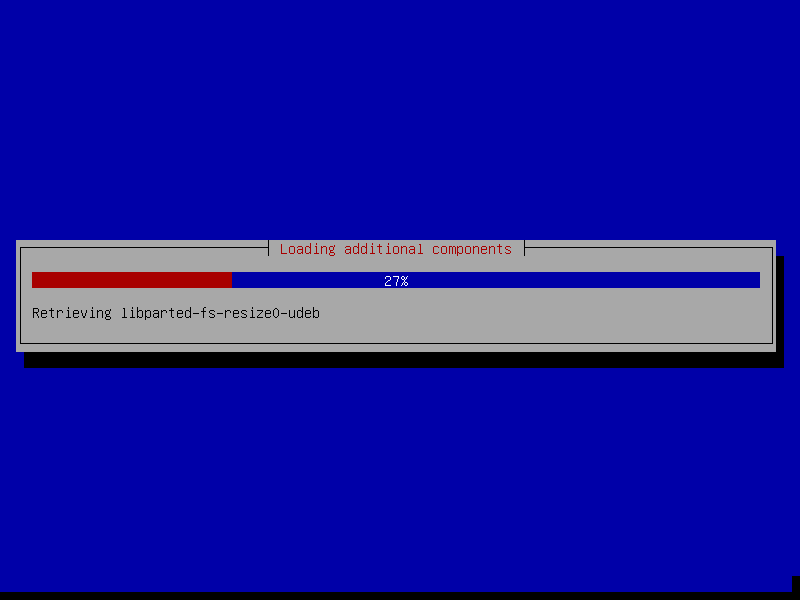
6. The installer will now load components from the CD shown below.

Debian 11 Components

Configure Hostname and Domain Name

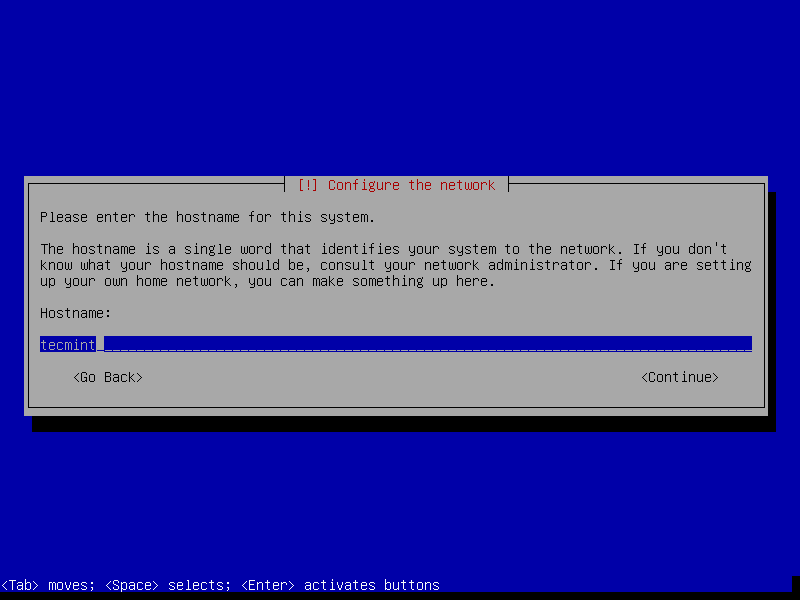
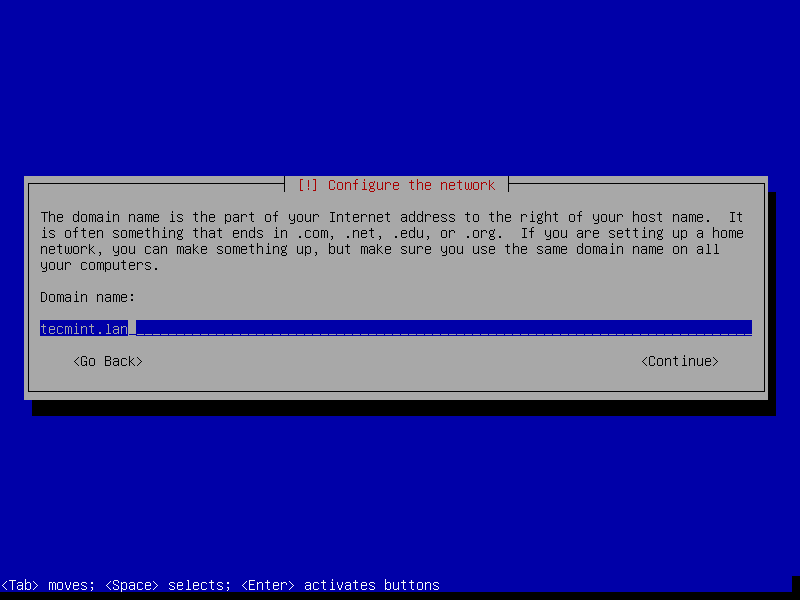
7. The next step is to set your system hostname and domain name and click Continue.

Set Hostname
Set Hostname
Set Domain Name
Set Domain Name

Configure Users and Password

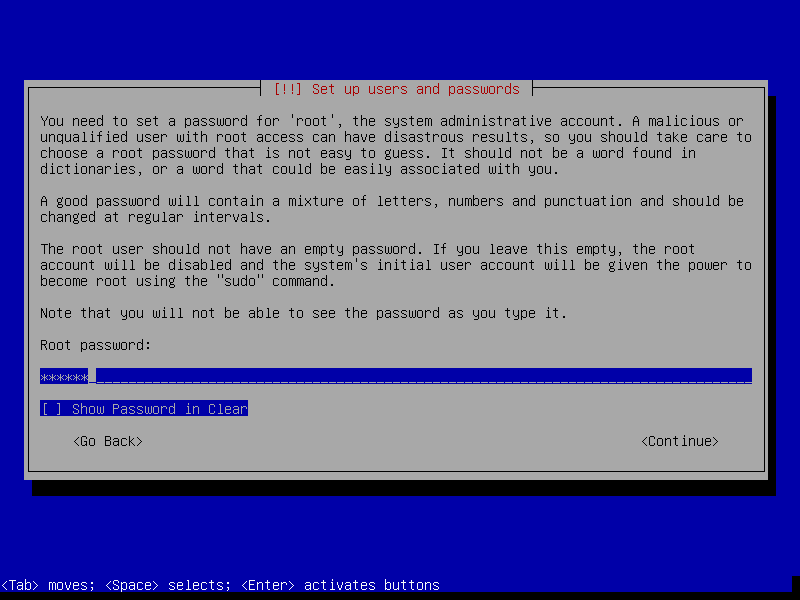
8. Here, you will configure system users and their passwords. Start by setting the root user password as shown below and click Continue when you are done.

Set Root Password
Set Root Password

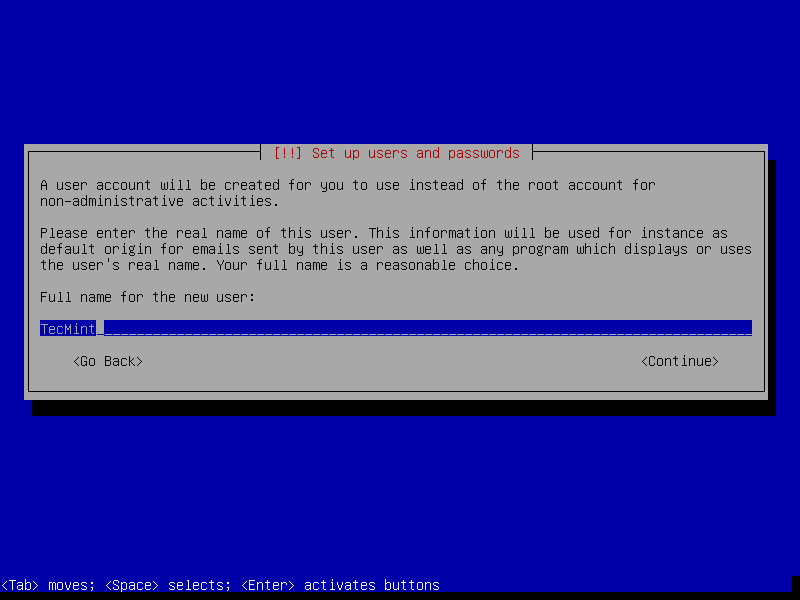
9. Then create a user account for the system administrator. First set the user’s full name as shown below and click Continue when you are done.

Set Account Name
Set Account Name

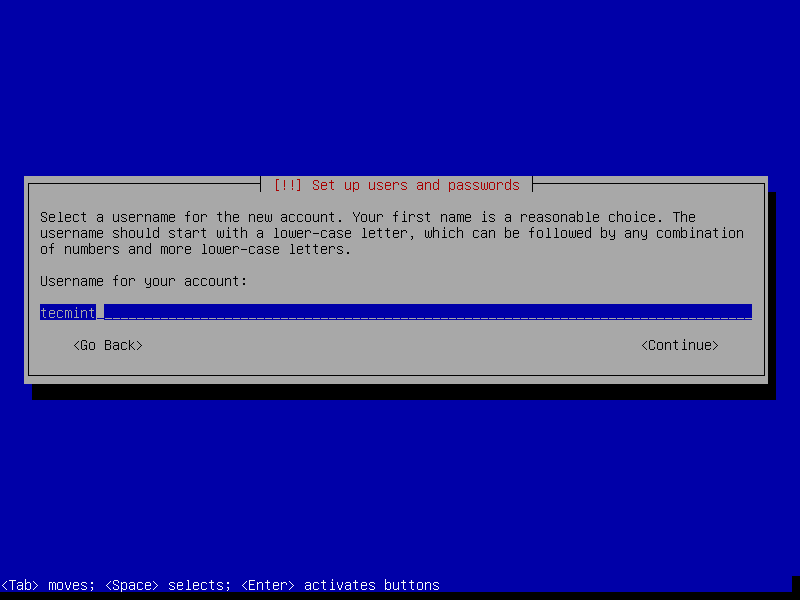
10. In this step, set the user’s system name and click Continue.

Set User Name
Set User Name

11. Now set the above user’s password and click Continue.

Set User Password
Set User Password

12. Configure your system clock.

Set System Clock
Set System Clock

Partitioning Disk

13. On the next screen, choose Manuel to perform disk partitioning.

Note: You can select Guided – use the entire disk and set up LVM (Logical Volume Manager) as partition layout for efficient disk space management and follow the instructions.

Choose Manual Partitioning

14. You will see an overview of your current system disks and mount points. Select the disk to be partitioned and click Continue.

After that, select Yes to create a new empty partition table on the disk.

Choose Disk for Partitioning
Create New Empty Partition Table

15. Next, select the free space on the disk to partition it and click Continue.

Choose Free Space
Choose Free Space

Creating Swap Partition

16. Now create the Swap area by selecting Create a new partition and set appropriate size as shown in the screenshots below. Then click Continue.

Create Swap Partition
Set Swap Size
Set Swap Size

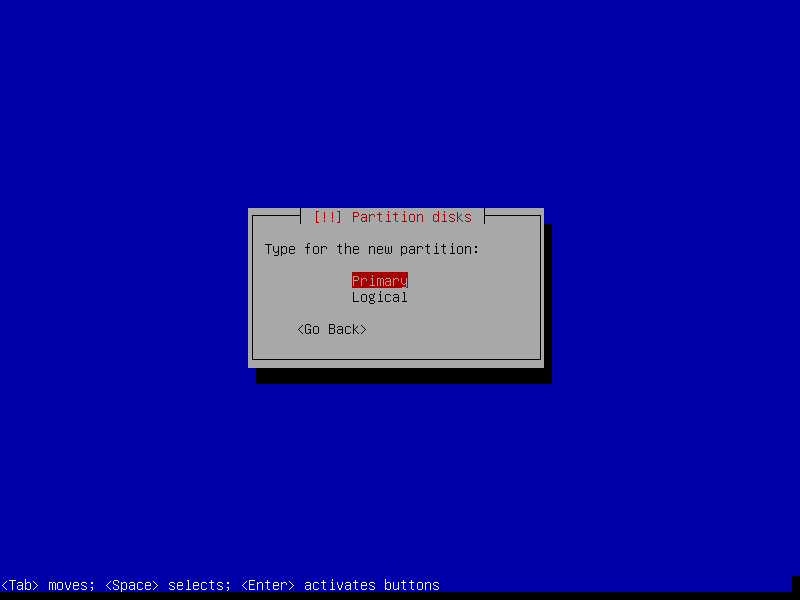
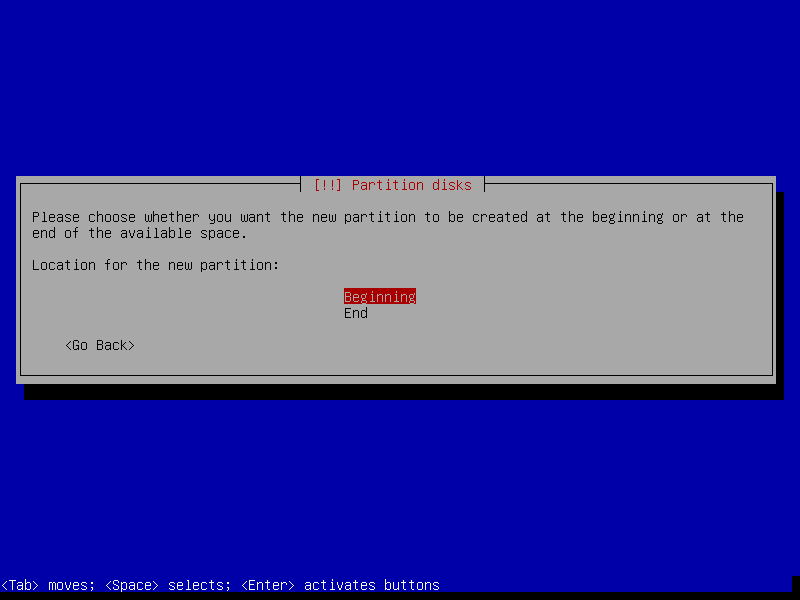
17. Set swap partition as Primary and choose the Beginning of the free space on disk and click Continue.

Set Swap Partition to Primary
Set Swap Partition to Beginning

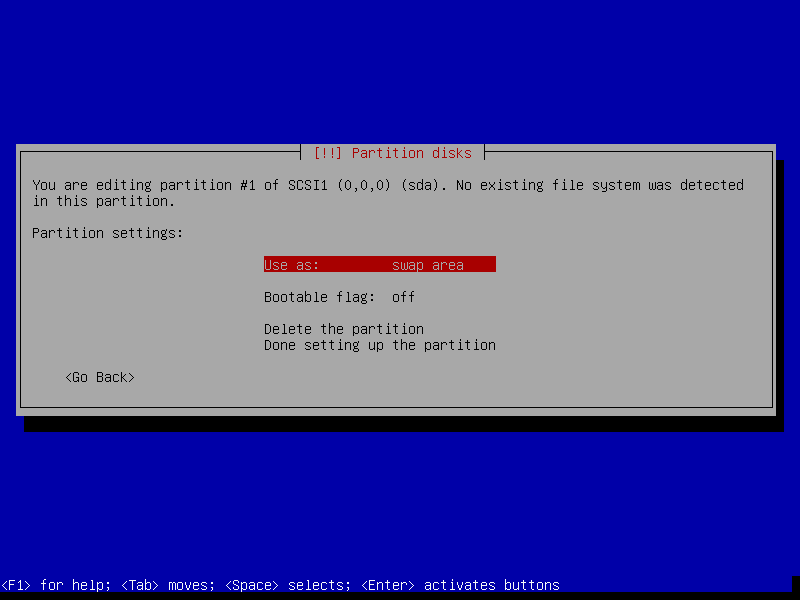
18. Now set partition as Swap area as shown in the following screenshot.

Set Swap Area
Set Swap Area

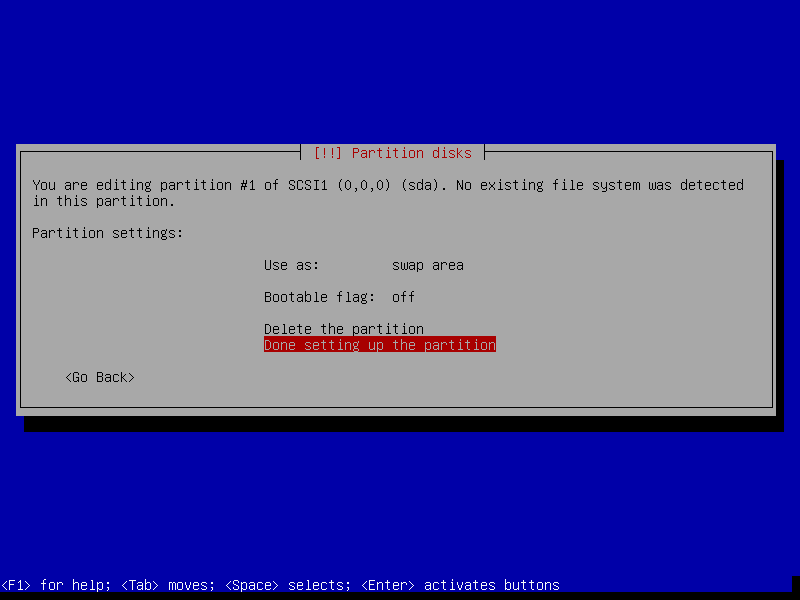
19. Now select Done setting up the partition and click Continue.

Done Setting Swap Partition

Create Root Partition

20. In this step, you can now create the root partition by selecting the free space, then select Create a new partition. Afterward set the root partition size, make it Primary and set it at the beginning of the free space.

Then use the Ext4 file system on it and finally select Done setting up partition and click Continue as shown in the following screenshots.

Create Root Partition
Set Root Partition Size
Set Root Type
Set Root Type
Done Root Settings
Done Root Settings

Create Home Partition

21. Similarly to create a /home partition follow the same instruction as explained above using the remaining free space if you have.

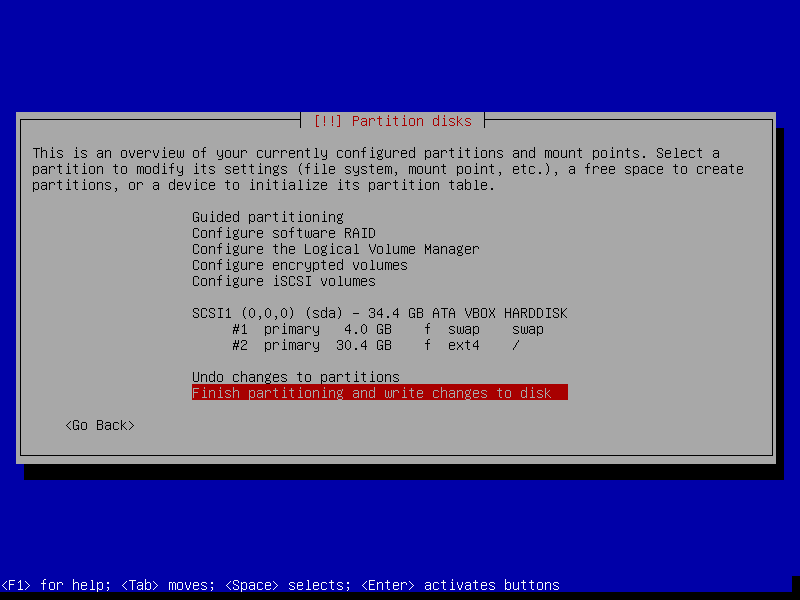
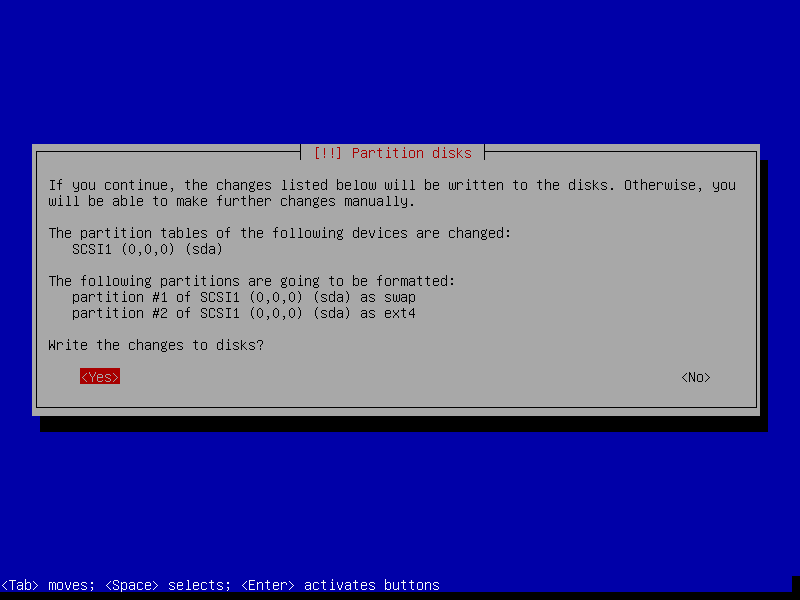
22. Once you have created all the necessary partitions, click on Finish partitioning and write changes to disk.

Finish Partitioning
Finish Partitioning
Finish Partitioning Changes

Finalizing Debian 11 Installation Process

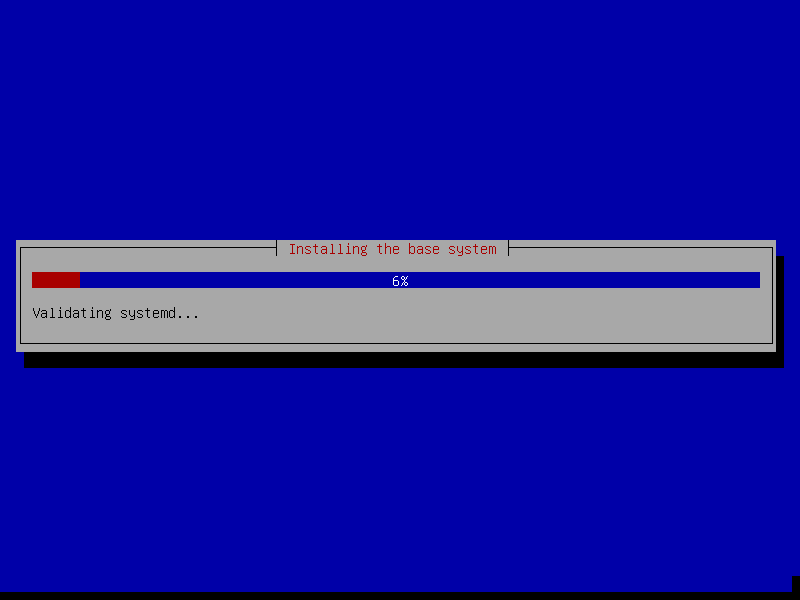
23. At this point, installation of the base system should begin as shown below.

Installing Debian Base System

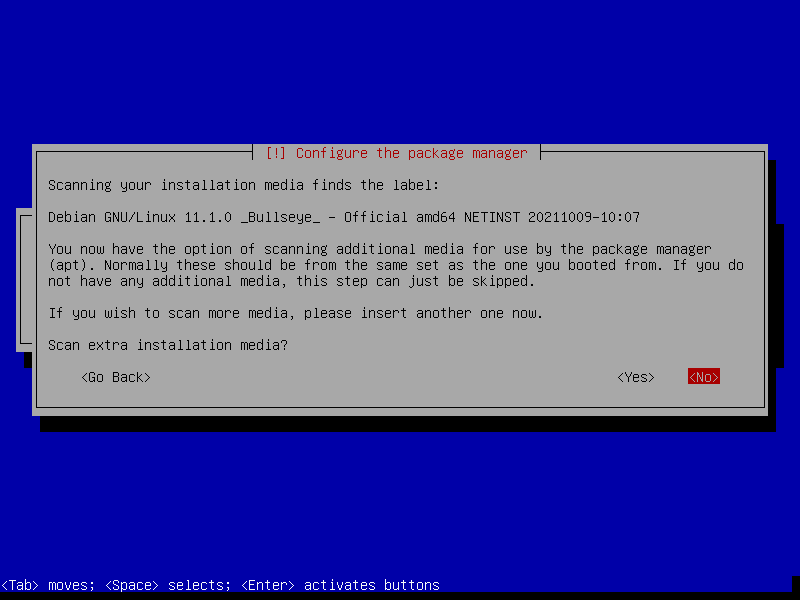
24. Now configure the package manager as shown in the screenshot below. Select No and click Continue.

Configure Package Manager

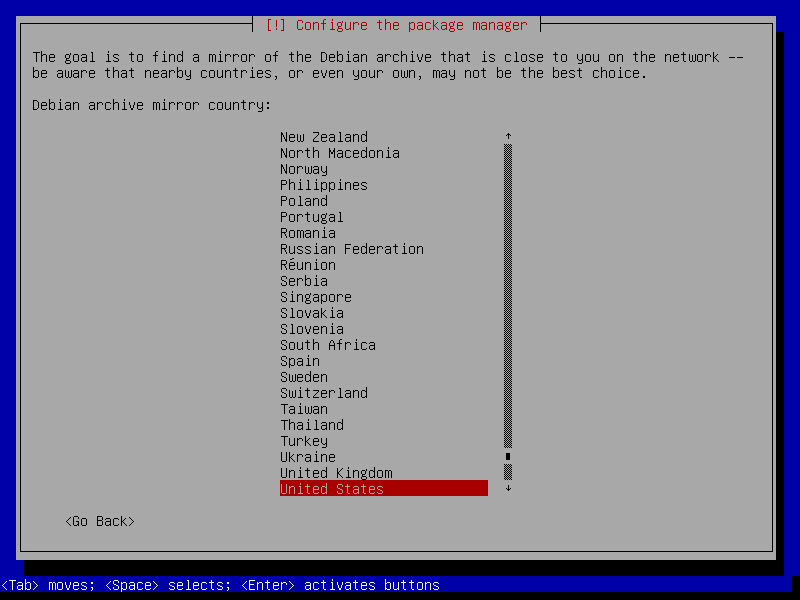
25. Afterwards, configure a network mirror by selecting the nearest country and then click Continue.

Choose Debian Archive Mirror

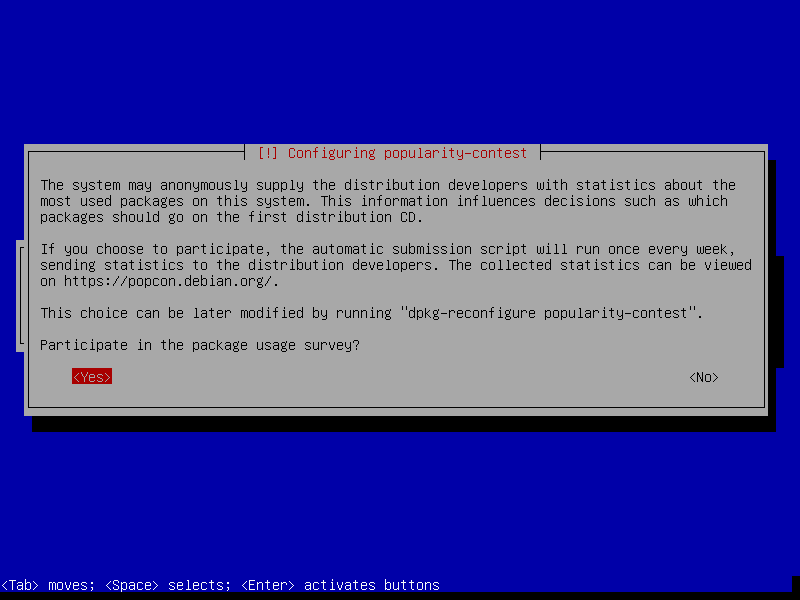
26. Next, choose whether to participate in the package usage survey or not. Then click Continue.

Configure Popularity Contest

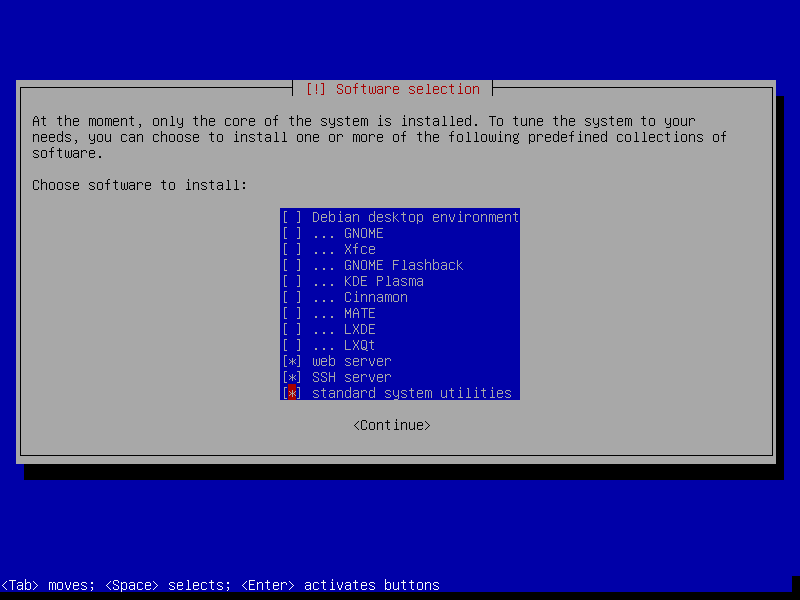
27. Now install standard system utilities and click Continue.

Installing Debian Software

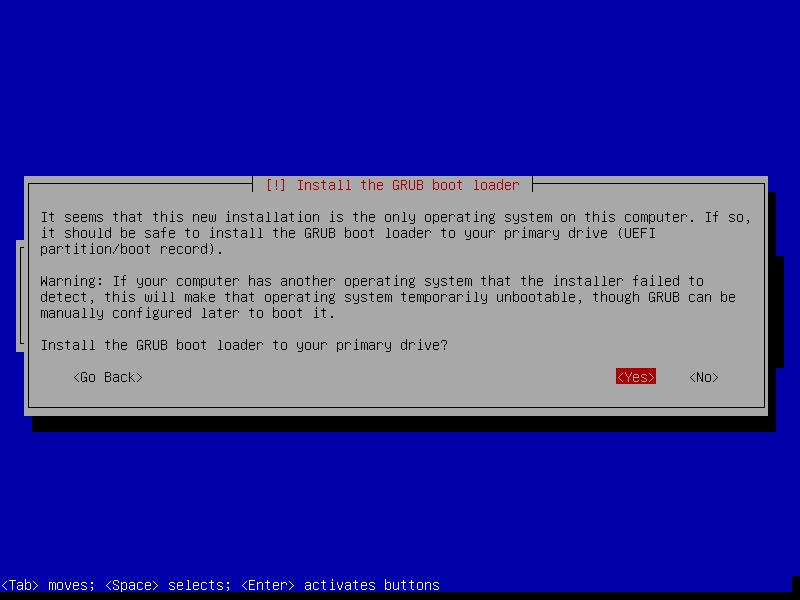
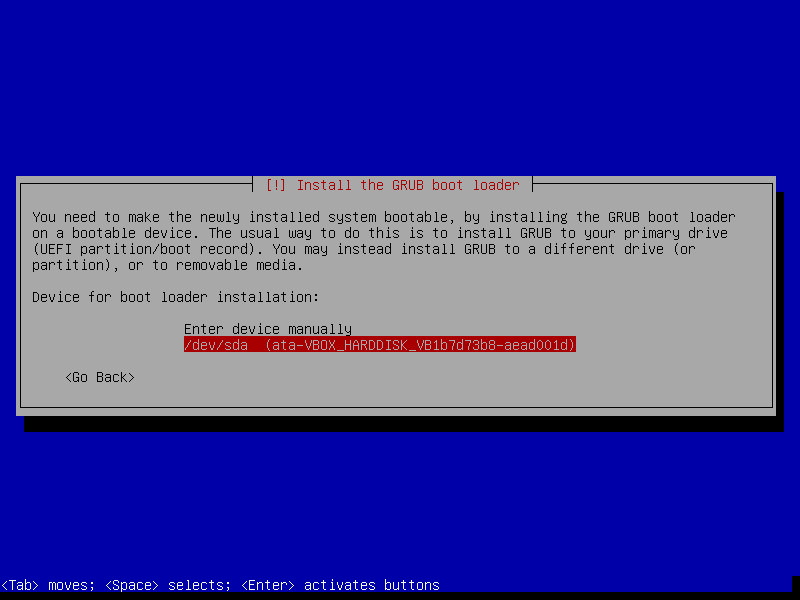
28. In this step, you will install the Grub boot loader by choosing Yes. After which you should choose the disk to install it.

Install Grub Boot Loader
Install Grub on Disk

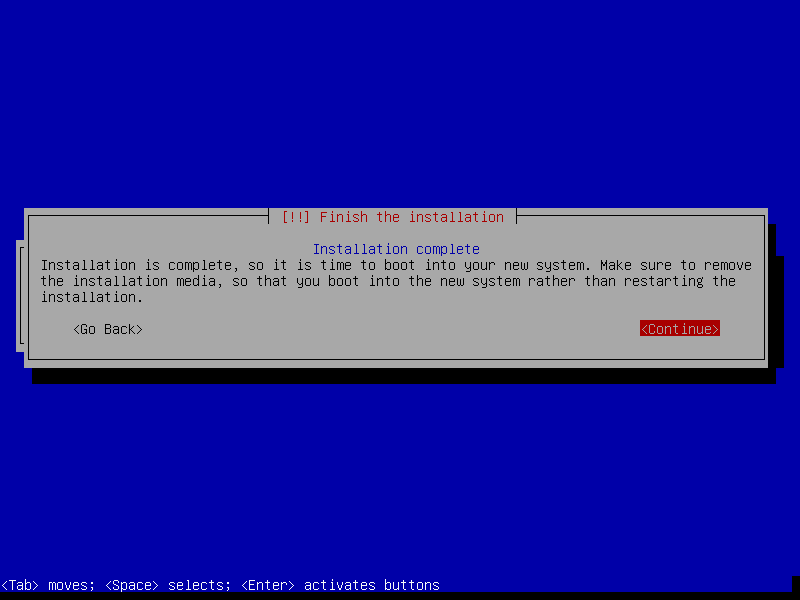
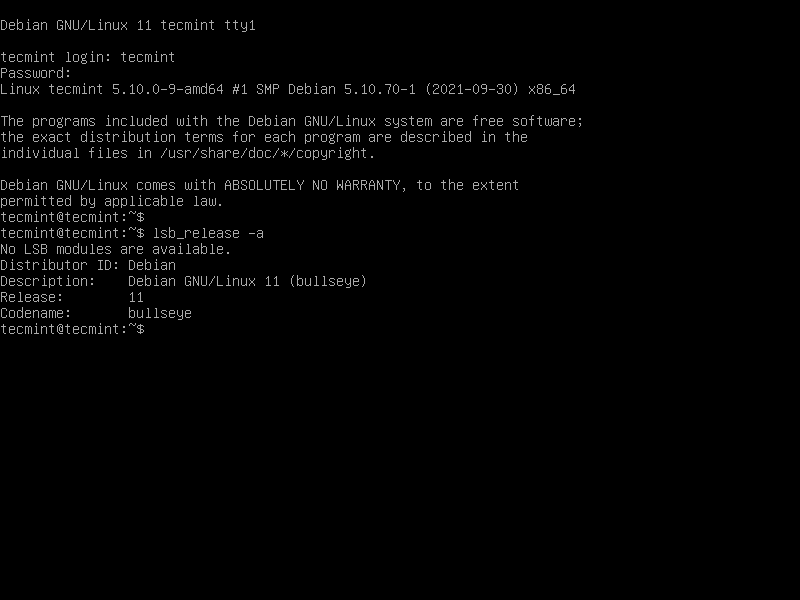
29. Finally, the installation is done, click Continue to reboot the machine and remove the bootable media, then boot in your system and login.

Finish Debian 11 Install
Debian 11 Login
Debian 11 Login

That’s all. You now have a working Debian 11 (Bullseye) Minimal Server for developing a future customizable server platform. If you are looking to deploy a web server such as Apache or Nginx, go through the following articles.

To send us any queries or thoughts, use the comment section below.

Publicado em Dicas | Deixe o seu comentário

How to Install LAMP Stack on Debian 11/10/9

Fonte: https://www.tecmint.com/install-lamp-in-debian/

On (August 14, 2021), the Debian project announced the availability of the new stable version (Debian 11) codenamed Bullseye.

With this release, the well-known and widely-used Debian 10 Buster gained old-stable status, which designates the previous stable repository. As it always happens with the release of a new stable version, Bullseye includes hundreds of new packages and updates to thousands of others.

Since Debian powers a large percentage of web servers all over the world, in this article we will explain how to install the LAMP stack in Debian 11 and also works on older Debian 10 and Debian 9 releases.

This will allow system administrators to set up brand new web servers on top of Bullseye using the recent updates to the distribution’s official repositories. It is assumed that you have installed Debian 11 minimal server on a bare metal, virtual machine, or VPS, or have upgraded from Debian 10 to Debian 11.

Installing LAMP in Debian

The “M” in LAMP stands for MariaDB or MySQL, the database server for the stack. Depending on your choice, you can install the database server and the other components (the Apache web server and PHP) as follows.

Install LAMP with MariaDB on Debian

# apt update && apt install apache2 mariadb-server mariadb-client mariadb-common php php-mysqli

Install LAMP with MySQL on Debian

# apt update && apt install apache2 mysql-server mysql-client mysql-common php php-mysqli

As a personal preference, I will use MariaDB in the rest of this article.

Once the installation is complete, let us make sure all the services are running. If so, the following commands.

# systemctl is-active apache2
# systemctl is-active mariadb

should return active for both. Otherwise, start both services manually:

# systemctl start {apache2,mariadb}

Securing MariaDB in Debian

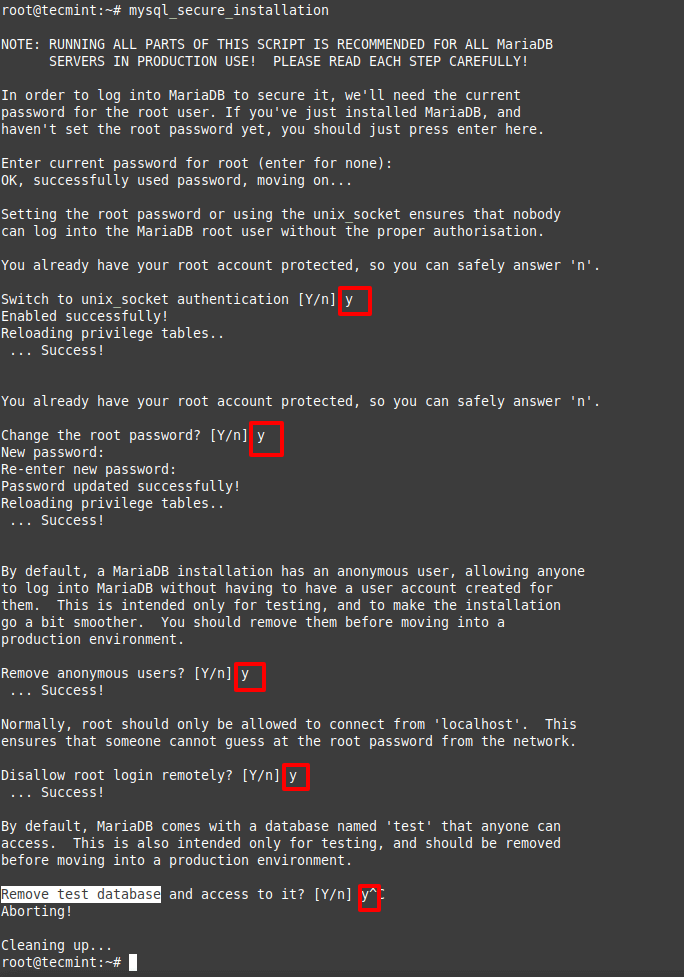
Finally, before proceeding let’s use mysql_secure_installation to set up the password for the database root account, remove anonymous users, disallow root login remotely and remove test database.

# mysql_secure_installation
Secure MariaDB Installation

Testing LAMP on Debian

To begin, we are going to create and populate a sample database. Next, we will use a basic PHP script to retrieve a set of records from the database in JSON format.

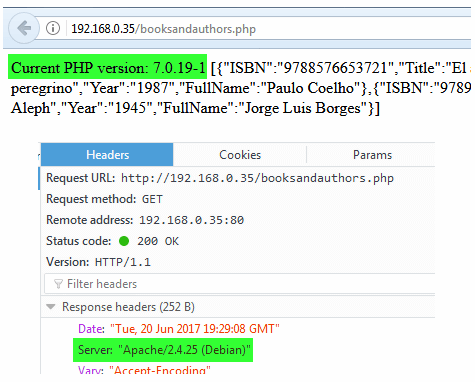
Finally, we will use Firefox’s developer tools to verify the version of Apache being used. Although we could find out this same information with.

# apache2 -v

Server version: Apache/2.4.51 (Debian)
Server built:   2021-10-07T17:49:44

the reason why we’re using a script is to make sure all the components of the stack are working properly when bundled together.

Creating and Populating a Database

Let’s enter the MariaDB prompt with the following command.

# mysql -u root -p

and enter the password that was chosen in the previous section.

Now we will create a database named LibraryDB as follows:

MariaDB [(none)]> CREATE DATABASE LibraryDB;

and add two tables named AuthorsTBL and BooksTBL:

MariaDB [(none)]> USE LibraryDB;
CREATE TABLE AuthorsTBL (
AuthorID INT NOT NULL AUTO_INCREMENT,
FullName VARCHAR(100) NOT NULL,
PRIMARY KEY(AuthorID)
);

MariaDB [(none)]> CREATE TABLE BooksTBL (
BookID INT NOT NULL AUTO_INCREMENT,
AuthorID INT NOT NULL,
ISBN VARCHAR(100) NOT NULL,
Title VARCHAR(100) NOT NULL,
Year VARCHAR(4),
PRIMARY KEY(BookID),
FOREIGN KEY(AuthorID) REFERENCES AuthorsTBL(AuthorID)
);

For security reasons, we will create a special account to access our database:

MariaDB [(none)]> CREATE USER 'librarian'@'localhost' IDENTIFIED BY 'Today123';
MariaDB [(none)]> GRANT ALL PRIVILEGES ON LibraryDB.* TO 'librarian'@'localhost';

The last step now consists of populating the tables with Authors and Books:

MariaDB [(none)]> INSERT INTO AuthorsTBL (FullName) VALUES ('Paulo Coelho'), ('Isabel Allende'), ('Jorge Luis Borges');
MariaDB [(none)]> INSERT INTO BooksTBL (AuthorID, ISBN, Title, Year) VALUES
(1, '9788576653721', 'El alquimista', '1988'),
(1, '9780061194740', 'El peregrino', '1987'),
(2, '9789500720380', 'La casa de los espiritus', '1982'),
(3, '9789875666481', 'El Aleph', '1945');

Testing Database Connection with PHP Script

The following PHP script will first connect to the database and retrieve the records that match the query. If an error occurs, a descriptive message will be displayed so as to give us a hint on what’s wrong.

Save the following script as booksandauthors.php under /var/www/html:

<?php
	// Show PHP version
	echo "Current PHP version: " . phpversion() .  "\r\n";

	// Connect to database
	$connection = mysqli_connect("localhost","librarian","Today123","LibraryDB") or die("Error " . mysqli_error($connection));

	// SQL query
	$sql = "SELECT A.ISBN, A.Title,
        	A.Year, B.FullName
        	FROM BooksTBL A JOIN AuthorsTBL B
        	ON A.AuthorID = B.AuthorID;";
	$result = mysqli_query($connection, $sql) or die("Error " . mysqli_error($connection));

	// Populate an array with the query results
	$libraryarray = array();
	while($row = mysqli_fetch_assoc($result))
	{
    	$libraryarray[] = $row;
	}

	// Convert to JSON
	echo json_encode($libraryarray);
?>

Change the ownership to www-data and add the appropriate permissions:

# chown www-data:www-data /var/www/html/booksandauthors.php
# chmod 600 /var/www/html/booksandauthors.php

Finally, open a web browser and point it to the URL where the script resides.

http://192.168.0.35/booksandauthors.php
Verify LAMP on Debian

That’s it! In this article, we have explained how to install and test the LAMP stack on Debian 11. If you have questions or comments about this article, don’t hesitate to let us know by using the form below.

Publicado em Dicas | Deixe o seu comentário

How to Fix the XAMPP Error “MySQL Shutdown Unexpectedly” (3 Methods)

If you use a local development environment, you may run into problems that are similar to those on a live server. In some cases, your WordPress website may be unable to connect with its database because MySQL isn’t running or it shut down unexpectedly.

Depending on which local environment you use, the process of troubleshooting your MySQL database might vary a bit. With XAMPP, the process is remarkably straightforward since you get access to a control panel instead of having to rely on the command line only.

In this article, we’ll explain what XAMPP is and what the “MySQL shutdown unexpectedly” error means. Then we’ll walk you through three methods you can use to fix it. Let’s get to it!

Publicado em Dicas | Deixe o seu comentário