Get Raspberry Pi CPU Temperature on ESXi-Arm

Having proper cooling is very important when you run the ESXi-Arm Fling on a Raspberry Pi. With the Fling itself, it is not possible to get the actual CPU temperature.

Luckily, a few days ago a repository created by Tom Hebel (@tom_hebel) popped up on GitHub that contains a native driver for the Raspberry Pi 4’s GPIO interface. This driver allows you to poll the CPU temperature. This article explains how to install the driver.


Get the Native ESXi driver for RPi 4’s GPIO interface
The driver is available on GitHub (thebel1 / thgpio). To use the driver, you need to install the ESXi-Arm on your Raspberry Pi 4B.

The driver installation is very simple. The steps are:

  1. Download the VIB file from the build directory (thgpio/build/vib/)
  2. Copy the .vib file to ESXi-Arm running on your Raspberry Pi
  3. Set the host acceptance level changed to CommunitySupported
  4. Install the driver using esxcli
  5. Reboot the ESXi Host (The reboot is required! Ignore that esxcli tells a reboot is not required.)

You can directly download and install the driver from the ESXi host by using SSH:

# cd /
# esxcli software acceptance set --level=CommunitySupported
# esxcli network firewall ruleset set -e true -r httpClient
# wget https://github.com/thebel1/thpimon/raw/main/build/vib/thpimon-0.1.0-1OEM.701.1.0.40650718.aarch64.vib
# esxcli network firewall ruleset set -e false -r httpClient
# esxcli software vib install -v /thpimon-0.1.0-1OEM.701.1.0.40650718.aarch64.vib
# reboot

After the reboot, you should see a new device: /dev/vmgfxXX

This device is used to connect to the Raspi’s GPIO interface. To understand how to use the device, get the thpimon repository from GitHub. The repository contains a Python Library in ./pyUtil/pimonLib/ and an example script.

Note: Files in the ESXi root directory do not persist a reboot. If you want the script to survive a reboot, download it to a VMFS or VMFS-L Datastore. To list all datastores, run esxcli storage filesystem list.

# wget https://github.com/thebel1/thpimon/archive/main.zip
# unzip main.zip
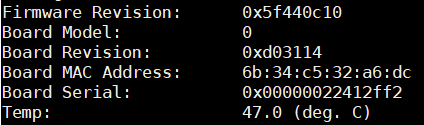
# ./thpimon-main/pyUtil/pimon_util.py
Firmware Revision:   0x5f440c10
Board Model:         0
Board Revision:      0xd03114
Board MAC Address:   6b:34:c5:32:a6:dc
Board Serial:        0x00000022412ff2
Temp:                47.0 (deg. C)

Note: If you get the following error message:

Traceback (most recent call last):
FileNotFoundError: [Errno 2] No such file or directory: ‘/dev/vmgfx33’

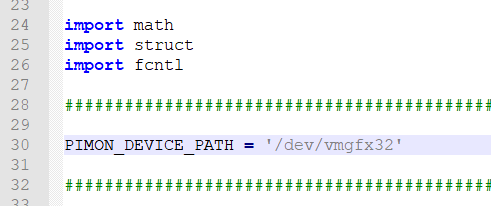
You have to change the PIMON_DEVICE_PATH variable in ./pyUtil/gpioLib/__init__.py to reflect the correct name for your device. Get the device with the following command:

# ls /dev/vmgfx*
/dev/vmgfx32

Change the variable to /dev/vmgfx32 (Or whatever the output above is) and save the file:

If you still get the error, delete the python cache directory: ./pyUtil/gpioLib/__pycache__

Follow up: ESXi-Arm on Raspberry Pi – Send CPU Temperature to Graphite

Crédits to: https://www.virten.net/2020/11/get-raspberry-pi-cpu-temperature-on-esxi-arm/

Publicado em Dicas | Deixe o seu comentário

VMware Tools for Ubuntu 20.04 LTS arm64 on ESXi-Arm

VMware Tools is a set of utilities and drivers that improve the performance and management of your Virtual Machines. They are essential when running VMs on ESXi. With the recently released ESXi Arm Edition Fling, you want to make sure that you have them installed.

Ubuntu is a Linux distribution based on Debian. It is officially released in three editions: Desktop, Server, and Core. Ubuntu is released every six months, with long-term support (LTS) releases every two years. As of 22 October 2020, the most recent long-term support release is 20.04 (“Focal Fossa”), which is supported until 2025 under public support

Unfortunately, a compiled version of open-vm-tools for arm64 is not available for many common Guest Operating Systems, so you have to compile them from VMwares Repository at GitHub.

This article explains how to compile open-vm-tools for Ubuntu 20.04 LTS arm64.


Prerequisites
Ubuntu 20.04 LTS (arm64) installed as a Virtual Machine on ESXi-Arm Fling.
Ubuntu Download: https://ubuntu.com/download/server/arm
ESXi Arm Edition: https://flings.vmware.com/esxi-arm-edition
open-vm-tools Documentation: https://github.com/vmware/open-vm-tools


Installation

  1. Open a Terminal or connect with SSH to your Ubuntu.
  2. Install tools and libraries that are required to build open-vm-tools.
    # apt install -y git automake make gobjc++ libtool pkg-config libmspack-dev libglib2.0-dev libpam0g-dev libssl-dev libxml2-dev libxmlsec1-dev libx11-dev libxext-dev libxinerama-dev libxi-dev libxrender-dev libxrandr-dev libxtst-dev libgdk-pixbuf2.0-dev libgtk-3-dev libgtkmm-3.0-dev
  3. Clone VMware’s official open-vm-tools repository from GitHub.
    # git clone https://github.com/vmware/open-vm-tools.git
    # cd open-vm-tools/open-vm-tools/
  4. Compile open-vm-tools.
    # autoreconf -i
    # ./configure --disable-dependency-tracking
    # make
    # make install
    # ldconfig
  5. Create a unit file. The file is required to run vmtoolsd as service with systemd.
    # cat > /etc/systemd/system/vmtoolsd.service << EOF
    [Unit]
    Description=Service for virtual machines hosted on VMware
    Documentation=http://github.com/vmware/open-vm-tools
    After=network-online.target
    
    [Service]
    ExecStart=/usr/local/bin/vmtoolsd
    Restart=always
    TimeoutStopSec=5
    
    [Install]
    WantedBy=multi-user.target
    EOF
  6. Enable and start the open-vm-tools service.
    # systemctl enable vmtoolsd.service
    # systemctl start vmtoolsd.service
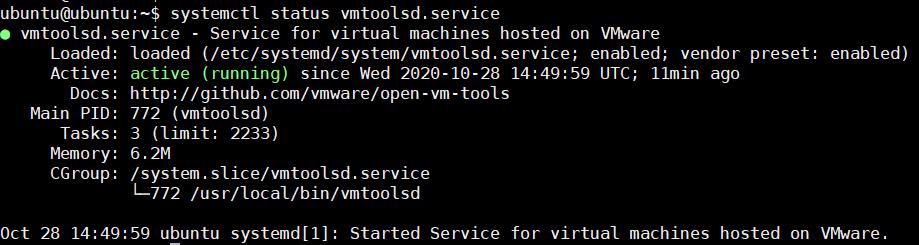
  7. Verify that open-vm-tools are running
    # systemctl status vmtoolsd.service

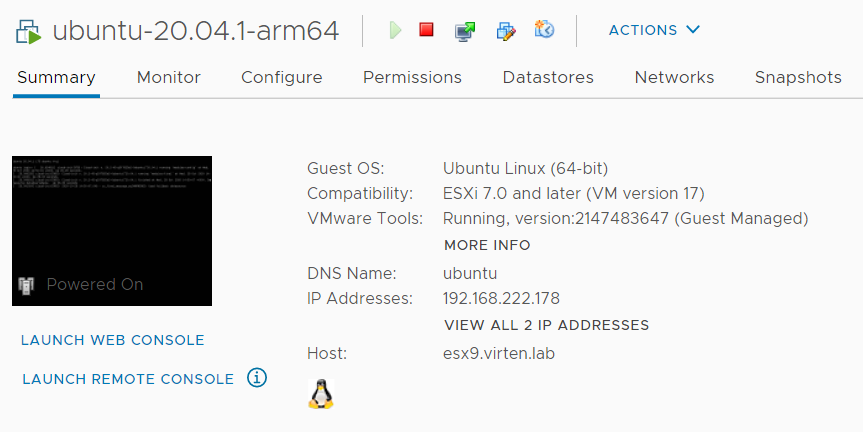
You should now see that VMware Tools are running in the vSphere Client.

Publicado em Dicas | Deixe o seu comentário

Qual é a melhor maneira de armazenar dados por décadas ou séculos?

Dica:

Discos ópticos de nível arquivístico como o M-DISC prometem durar centenas ou até milhares de anos. O armazenamento em fita dura algumas décadas, enquanto discos rígidos e SSDs podem ser confiáveis ​​por 5 a 10 anos, mas tudo depende de como os trata e armazena.

Enquanto algumas pessoas tiveram o luxo de escrever coisas importantes em tábuas de pedra, infelizmente a maioria de nós tem necessidades de preservação que vão além de dez linhas de texto. Então, qual é a próxima melhor coisa para manter bits nítidos por séculos?

A importância da preservação de dados

É fácil pensar na preservação de dados como algo com que grandes empresas ou pessoas importantes precisam se preocupar, mas e se tiver informações de que precisará daqui a dez ou até cinquenta anos? E se precisar preservar informações de alguma forma e lugar para alguém daqui a 100 anos ou mais?

Por vários motivos, pode ser necessário manter os dados por um longo período de tempo. Talvez tenha alguns documentos ou registos antigos que gostaria de passar para as gerações futuras, ou talvez precise manter registos financeiros e outros documentos necessários por motivos legais. Mesmo se estiver tentando preservar suas memórias pessoais, como fotos ou vídeos, precisará descobrir uma maneira de armazenar tudo isso.

A chave para preservar os dados a longo prazo é encontrar um formato de armazenamento confiável para durar. Isso pode significar o uso de métodos de armazenamento físico, como papel ou filme de alta qualidade projetado para durar muito tempo, ou opções de armazenamento digital, como armazenamento em nuvem ou discos rígidos externos.

Os desafios de armazenar dados digitais por décadas ou séculos

Se está pensar em armazenar dados digitais a longo prazo, há vários desafios dos quais deve estar ciente.

Primeiro, a meio de armazenamento digital, como discos rígidos e SSDs, pode degradar com o tempo e eventualmente falhar. Isso significa que deve continuar fazendo novas cópias de dados de longo prazo antes que seus dispositivos de armazenamento falhem.

Outro desafio a ser considerado é a obsolescência do formato de ficheiro. Alguns formatos de ficheiro podem ficar desatualizados ou incompatíveis com softwares mais recentes à medida que a tecnologia avança. Isso significa que, mesmo que o seu meio de armazenamento sobreviva, pode não haver unidades para o ler e, mesmo que haja, os detalhes dos formatos de ficheiro utilizador ​​para armazenar esses dados podem ser perdidos.

Por outro lado, toda vez que migrar os dados atuais para um formato mais novo para preservá-los por mais alguns anos, eles podem degradar-se de alguma forma que não ficará aparente até que alguém tente aceder/utilizar.

Hackers , malware e desastres naturais podem ameaçar seus dados armazenados, por isso é importante implementar medidas de segurança fortes para proteger suas informações   armazenar nos meios e num ambiente que seja seguro para esse meio e ofereça estabilidade a longo prazo.

Armazenamento Frio vs. Dados Quentes

No jargão de armazenamento de dados, o armazenamento “frio” refere-se a quão raramente os dados guardados ​​são acedidos. Geralmente, são dados mantidos para conformidade ou outra manutenção de registo necessário são irrelevantes para os negócios do dia-a-dia.

O armazenamento frio geralmente está offline e os meios que contém os dados é armazenada em um estado desligado ou separada das unidades que podem ler a impressora relevante. Se os dados forem mantidos em armazenamento frio, isso pode afetar sua duração.

Os dados “quentes” estão sempre acessíveis ​​e geralmente armazenados no meios que estão sempre acessíveis e ligados. Como se pode esperar, esses meios desgastam-se com o uso diário, portanto, dados de ficheiro e backups não são uma boa opção.

A melhor mídia de armazenamento digital de longo prazo

Discos ópticos de nível arquivístico, como M-DISC, são projetados especificamente para armazenamento de dados de longo prazo. Eles usam um tipo especial de camada de dados feita de materiais resistentes à degradação ao longo do tempo, incluindo luz ultravioleta e umidade. Dois fatores são comumente responsáveis ​​pela “ podridão do disco ”. Esses discos podem durar até 1.000 anos ou mais – pelo menos é o que afirmam vários fabricantes. Obviamente, é impossível realmente testar essa afirmação, mas eles podem fazer um palpite por meio de testes.

A melhor mídia de armazenamento digital de longo prazo

Discos ópticos de nível arquivístico, como M-DISC, são projetados especificamente para armazenamento de dados de longo prazo. Eles usam um tipo especial de camada de dados feita de materiais resistentes à degradação ao longo do tempo, incluindo luz ultravioleta e umidade. Dois fatores são comumente responsáveis ​​pela “ podridão do disco ”. Esses discos podem durar até 1.000 anos ou mais – pelo menos é o que afirmam vários fabricantes. Obviamente, é impossível realmente testar essa afirmação, mas eles podem fazer um palpite por meio de testes.

Discos rígidos mecânicos têm sido usados ​​há décadas como armazenamento primário para computadores. Eles são confiáveis, rápidos e relativamente baratos.

Dito isso, eles não foram projetados para armazenamento de longo prazo e a vida útil média de um HDD é de apenas 3 a 5 anos . Se você optar por usar HDDs para armazenamento de longo prazo, faça backup regularmente de seus dados e substitua as unidades a cada poucos anos.

Os SSDs são mais rápidos e confiáveis ​​do que os HDDs, mas são mais caros e não são projetados para armazenamento de longo prazo, e a vida útil média de um SSD é de cerca de 5 a 10 anos . Se você usa SSDs para armazenamento de longo prazo, também deve fazer backup regularmente de seus dados e substituir as unidades a cada poucos anos. Se o SSD não for ligado periodicamente, ele ainda pode sofrer perda de dados devido ao vazamento de carga elétrica de suas células de memória.

A última opção é o armazenamento em nuvem , que coloca a responsabilidade de manter seus dados seguros nas mãos de uma empresa terceirizada como o Google ou a Microsoft. Essas empresas precisam estar em conformidade com os padrões de armazenamento de dados para garantir que seus dados estejam seguros, mas não é realmente uma opção para armazenamento de longo prazo, porque não há garantia de que a empresa em questão ainda existirá em dez, vinte ou cinquenta anos.

Fonte: https://www.howtogeek.com/858426/whats-the-best-way-to-store-data-for-decades-or-centuries/

Publicado em Dicas | Deixe o seu comentário

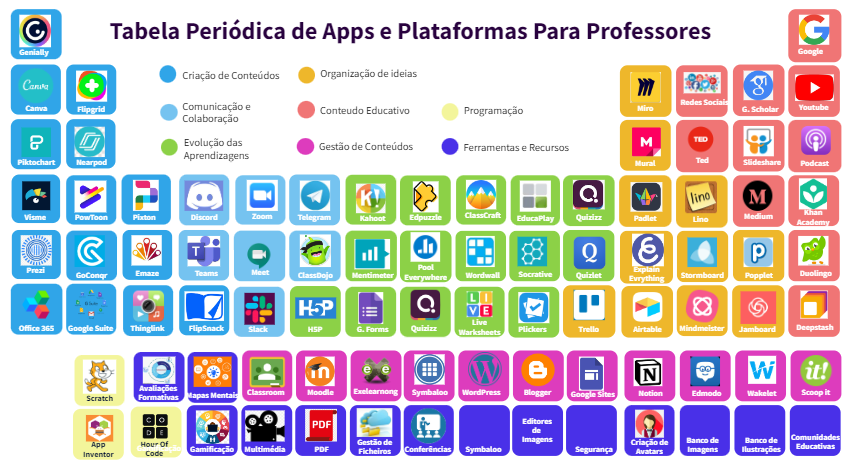
Tabela Periodica de Apps para Professores

Ver ligação

1. Witeboard – Drawing
2. Blush – Illustration
3. Carrd – Create one-page sites
4. Whatruns – Digital marketing
5. Coverr – Free videos
6. Flourish – Data visualization
7. Untools – Thinking tools and framework
8. Lumen5 – Video maker

Publicado em Dicas | Deixe o seu comentário

How To Import QCOW2 Image Into Proxmox

Introduction

Some OSes, firewall or network appliances are shipped only in QCOW2 format.

For those wondering, QCOW, stands for QEMU copy-on-write, is the default storage format for virtual disks of QEMU/KVM instances.

Using the QCOW2 images, we can instantly create and run new virtual machines with hypervisor. We already have documented the steps to import QCOW2 images in KVM hypervisor here.

Step 1 – Create a Directory To Store QCOW2 Images

First, we need to create a directory to store the QCOW2 images. I am going to create a directory called qcow under the Proxmox default storage directory.

$ sudo mkdir /var/lib/vz/template/qcow

Please note that you can save the images on any location of your choice.

Step 2 – Copy The QCOW2 Images To Proxmox Storage Directory

Download and copy the QCOW2 image to the directory that you created earlier. For the purpose of this guide, I will be using FreeBSD 12.3 QCOW2 image file.

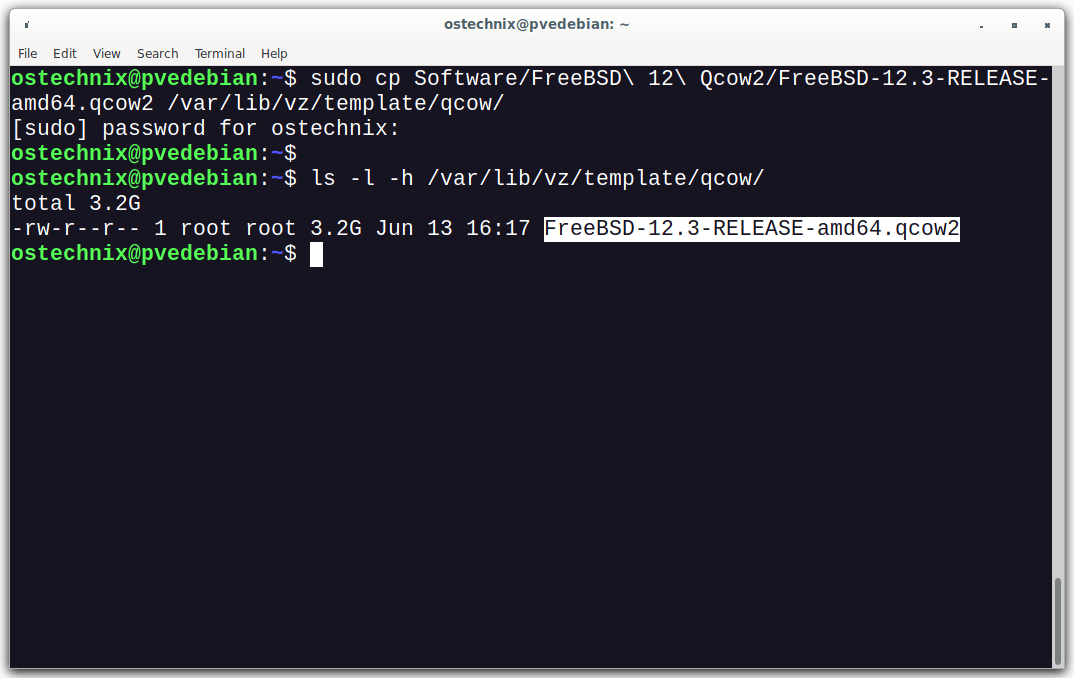
$ sudo cp Software/FreeBSD\ 12\ Qcow2/FreeBSD-12.3-RELEASE-amd64.qcow2 /var/lib/vz/template/qcow/

You can verify if the image is really copied or not.

$ ls -l -h /var/lib/vz/template/qcow/

Sample Output:

total 3.2G
-rw-r--r-- 1 root root 3.2G Jun 13 16:17 FreeBSD-12.3-RELEASE-amd64.qcow2
Copy QCOW2 Image To Proxmox Storage

Step 3 – Create A VM Without OS

Log in to the Proxmox Web UI dashboard by navigating to https://ip-address:8006 URL.

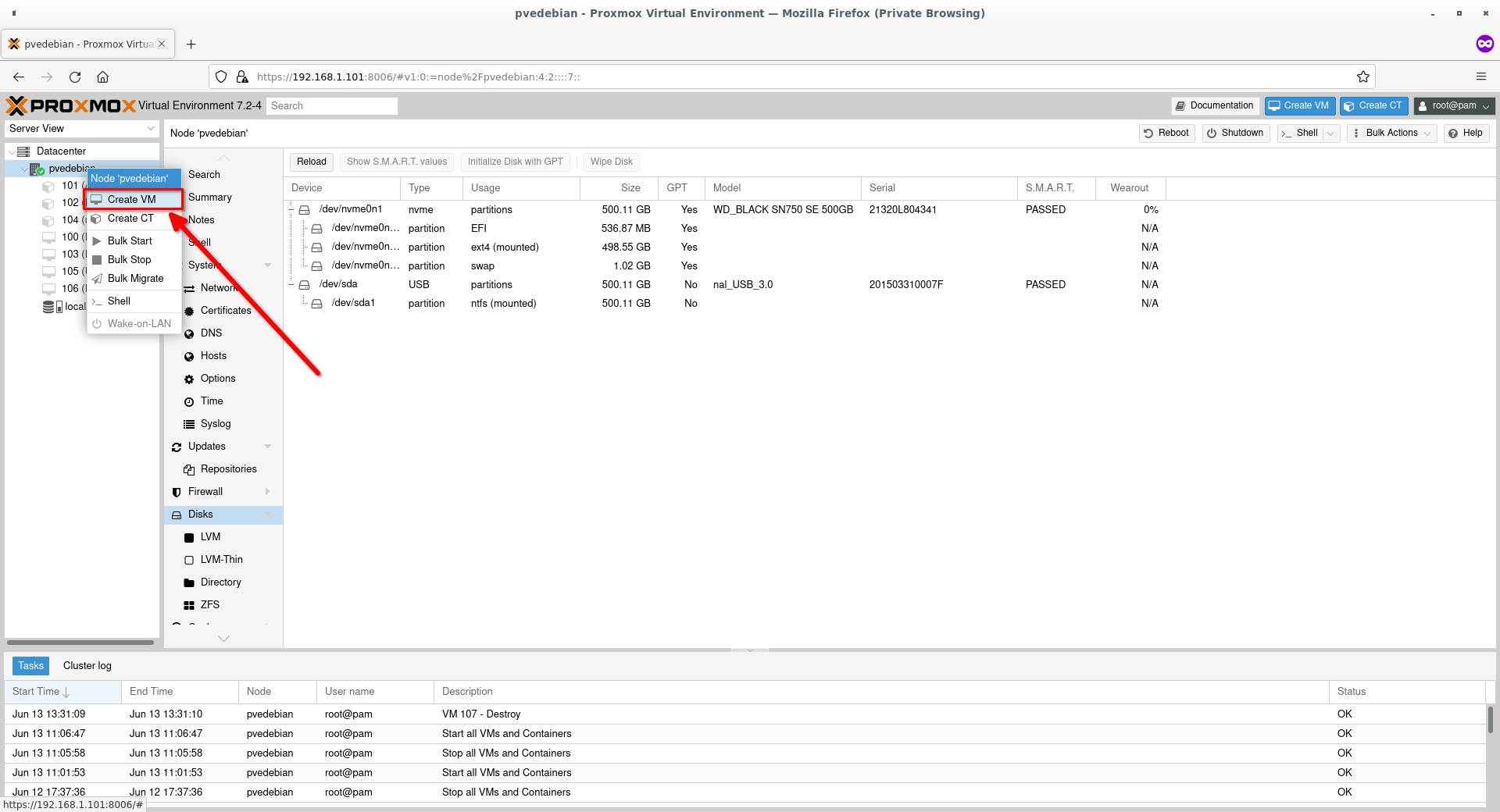
Right click on your Proxmox node and click “Create VM” option from the context menu.

Create New VM In Proxmox

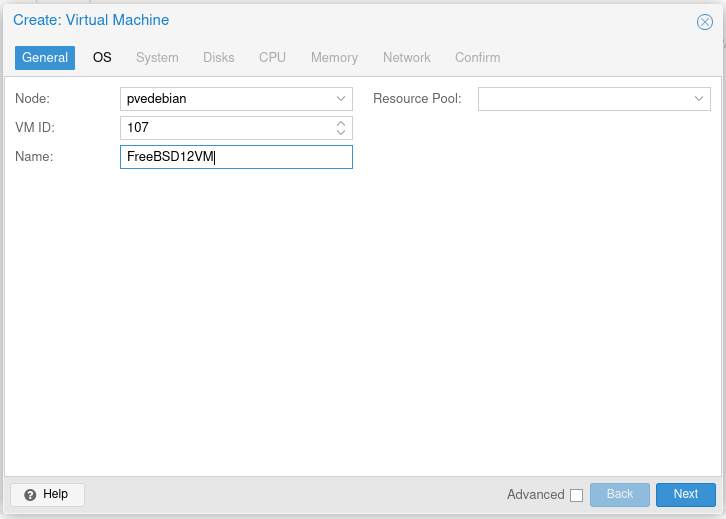
Enter the name of the VM. Also make a note of the VM ID (i.e. 107 in my case). The ID will be auto-created based on the existing number of available VMs. We are going to need the VM ID when we attach the QCOW2 image to the VM. Click OK to continue.

Enter VM Details
Enter VM Details

Next choose “Do not use any media” option. Because we already have a pre-installed OS in the QCOW2 image, right? Yes! Also choose the guest type and version. There is no entry for Unix guest OS in Proxmox, so I simply selected “Other”.

Choose 'Do Not Use Any Media' Option
Choose ‘Do Not Use Any Media’ Option

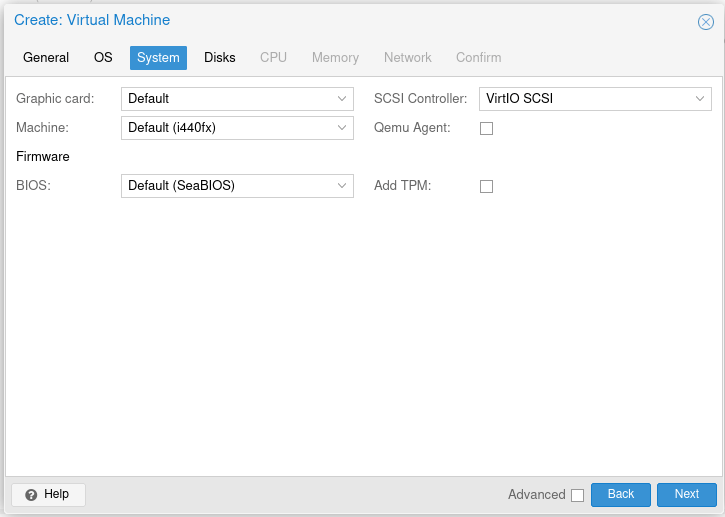
Choose the graphics card, firmware and SCSI controller settings for your VM. usually, the default values are sufficient. I will go with default values.

Enter System Details For VM

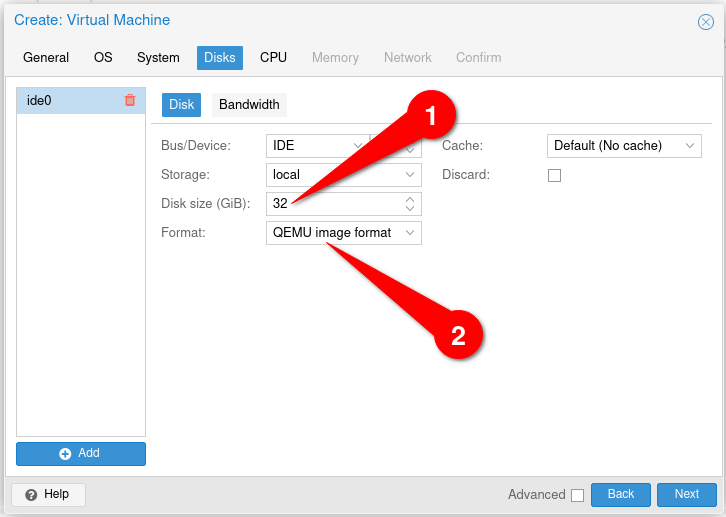
Enter the size for the virtual machine’s disk. Here, I will keep the default size i.e. 32 GB. Also make sure you’ve chosen the disk format as “QEMU image format” as shown in the following screenshot.

Enter Disk Size For VM

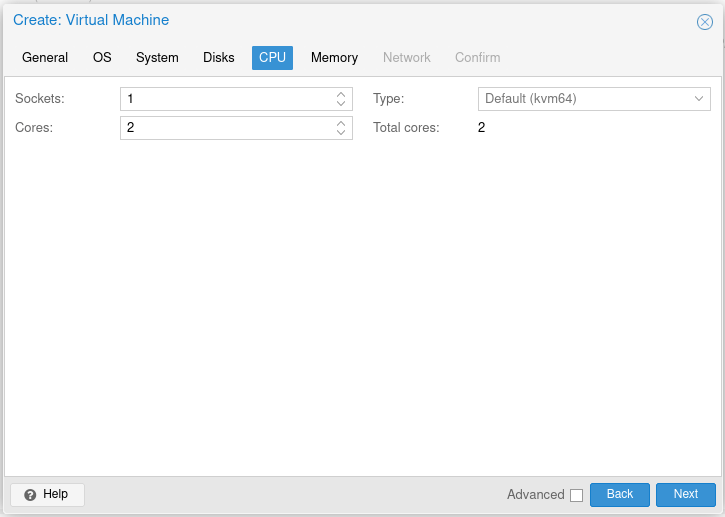
Enter the CPU details such as number of sockets and cores.

Enter CPU Details
Enter CPU Details

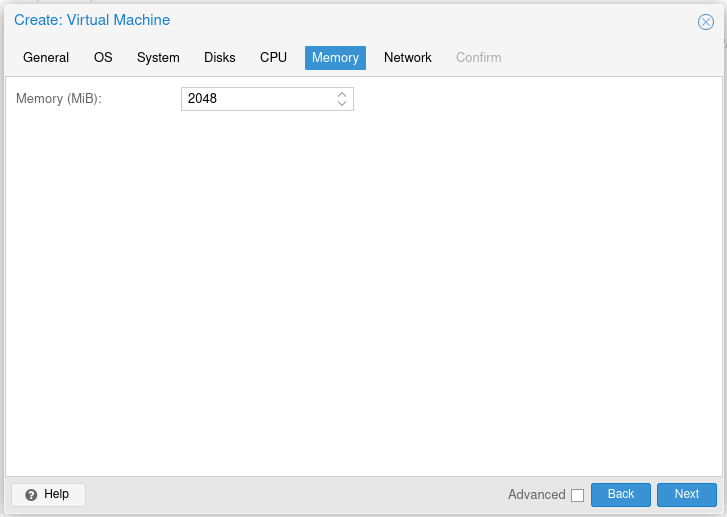
Enter the RAM size for your VM. here, I have given 2 GB.

Enter Memory Details

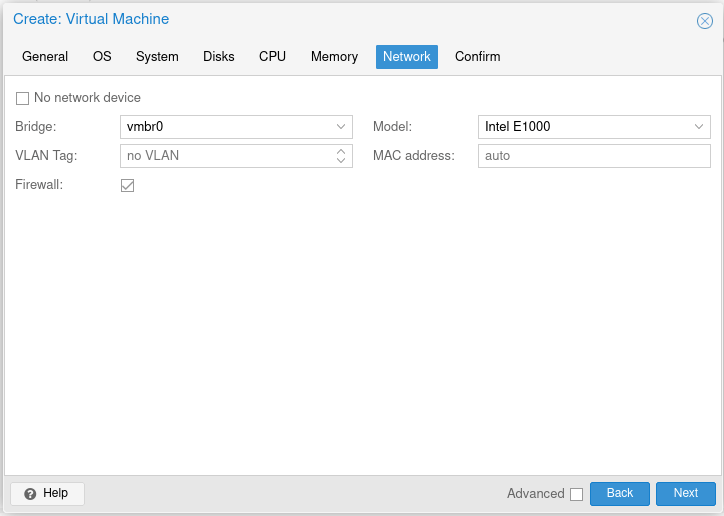
Enter network details. Mostly the default settings will work just fine. If you wish to change the network settings (E.g. enable or disable firewall), do it as you wish.

Enter Network Details

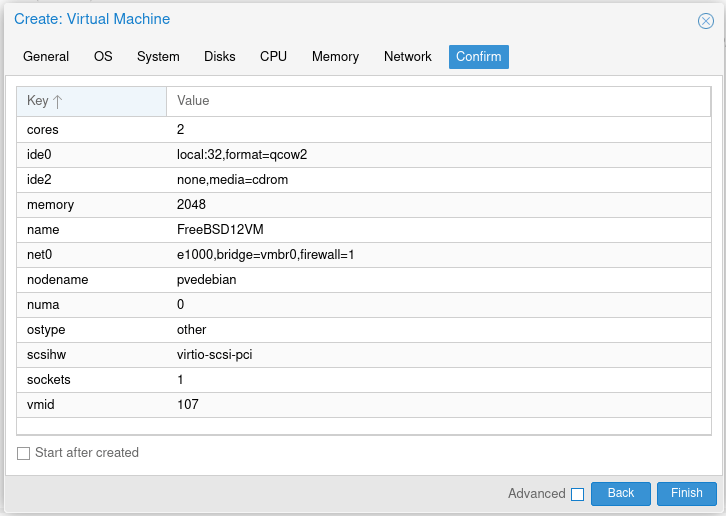
You will see the summary of the VM’s settings. Review them and if you’re OK with it, click Finish to create the VM. Or click “Back” button and change the settings as you wish.

Confirm VM Creation
Confirm VM Creation

We just created a VM without OS. It is time to attach the QCOW2 image to the VM.

Step 4 – Import QCOW2 Image Into Proxmox Server

Before importing the QCOW2 into your Proxmox server, make sure you’ve the following details in hand.

  1. Virtual machine’s ID,
  2. Proxmox storage name,
  3. Location of the Proxmox QCOW2 image file.

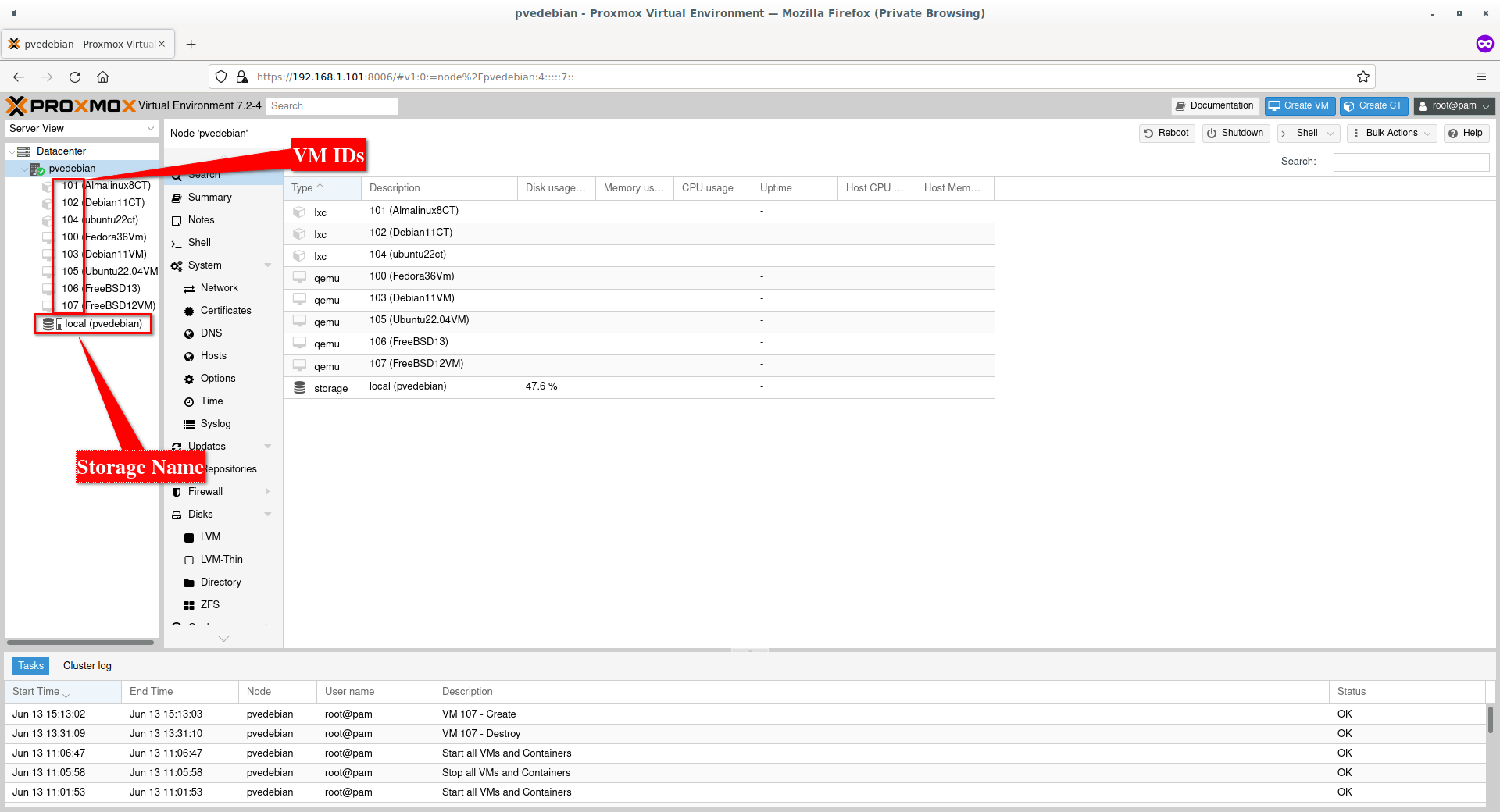
If you don’t have them or don’t know where to find them, just open your Proxmox web UI dashboard. On the left pane, you will see the virtual machine’s IDs and the storage name.

Virtual Machine IDs And Storage Name In Proxmox

Here, my FreeBSD 12 VM id is “107” and Proxmox storage name is “local”. And the directory path where I saved the QCOW2 image is /var/lib/vz/template/qcow/ (Please refer Step 2.).

Change into the /var/lib/vz/template/qcow/ directory:

$ cd /var/lib/vz/template/qcow/

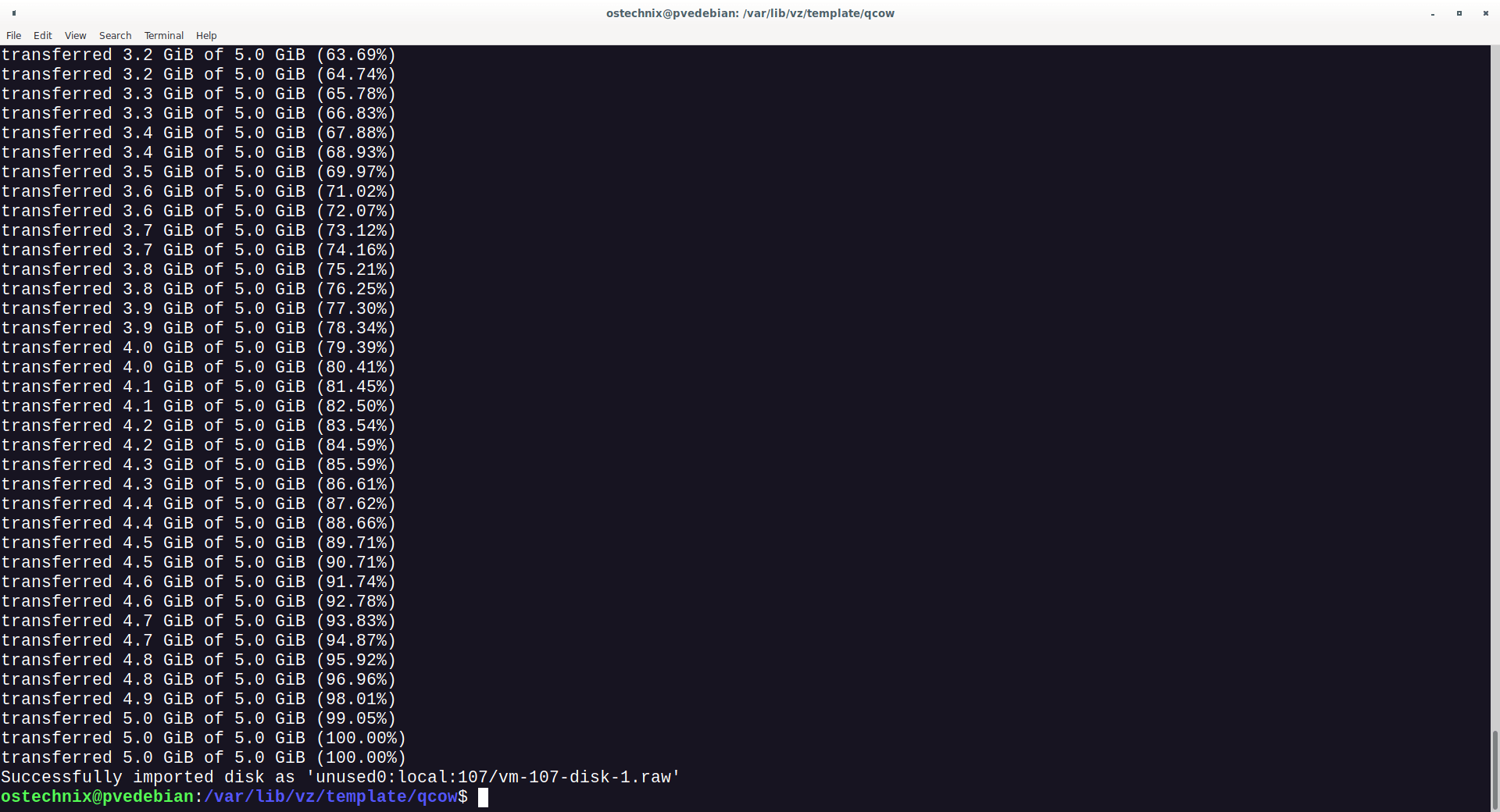
Now, import the QCOW2 image into the Proxmox server using command:

$ sudo qm importdisk 107 FreeBSD-12.3-RELEASE-amd64.qcow2 local

Replace the VM id (107) and storage name (local) with your own.

Sample Output:

importing disk 'FreeBSD-12.3-RELEASE-amd64.qcow2' to VM 107 ...
Formatting '/var/lib/vz/images/107/vm-107-disk-1.raw', fmt=raw size=5369626624 preallocation=off
transferred 0.0 B of 5.0 GiB (0.00%)
transferred 52.7 MiB of 5.0 GiB (1.03%)
[...]
transferred 5.0 GiB of 5.0 GiB (100.00%)
Successfully imported disk as 'unused0:local:107/vm-107-disk-1.raw'
Import QCOW2 Into Proxmox

We imported the virtual disk to Proxmox. Now go back to the Proxmox web UI dashboard and attach the virtual disk to the VM.

Step 5 – Attach QCOW2 Virtual Disk To VM

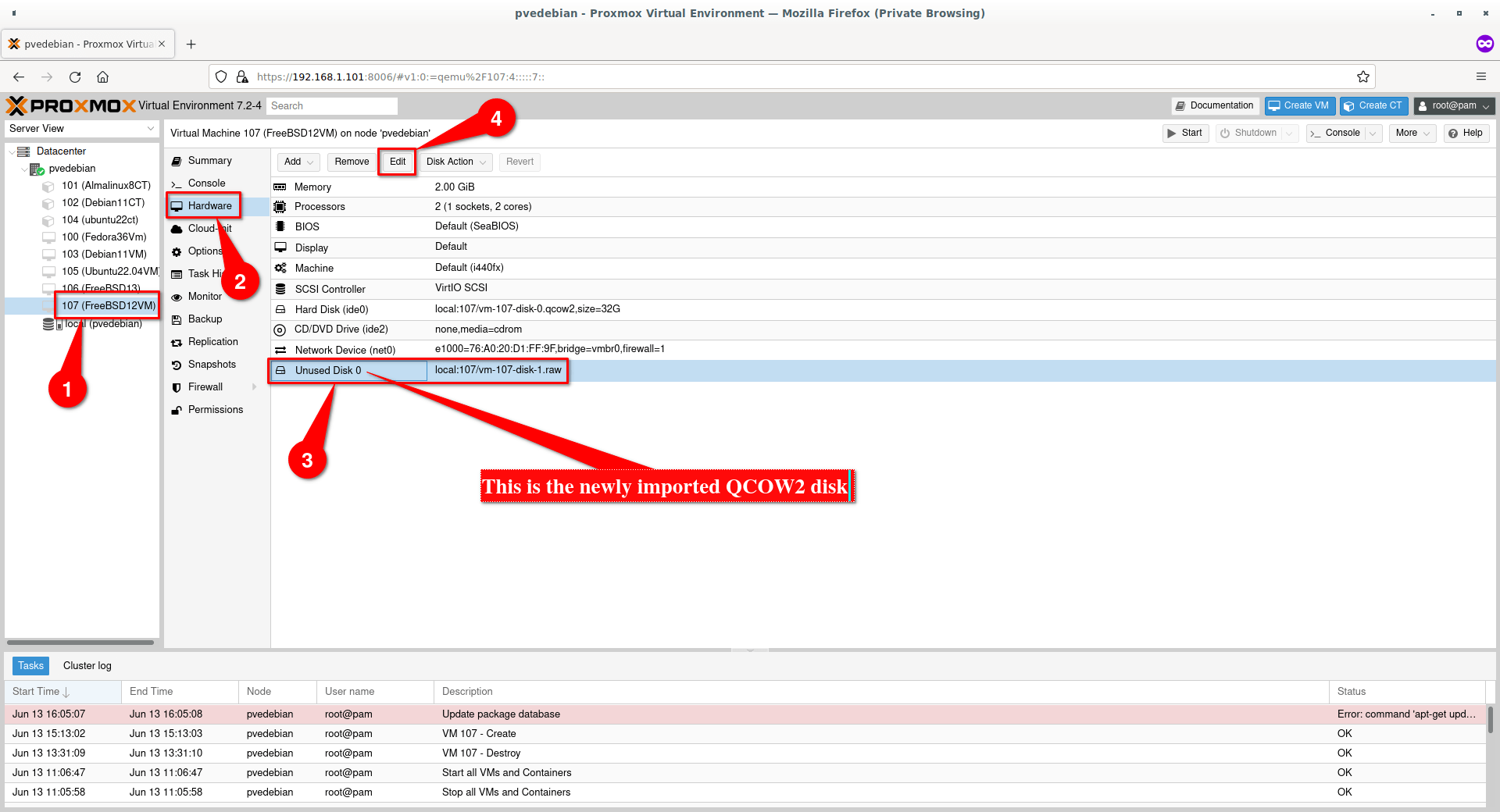
Click on the Virtual machine that you created in step 3. In my case, it is FreeBSD 12 VM. Select “Hardware” tab. On the right hand side, you will the newly imported QCOW2 disk as unused disk. Select the unused disk and then click “Edit” button.

Edit Unused Disk
Edit Unused Disk

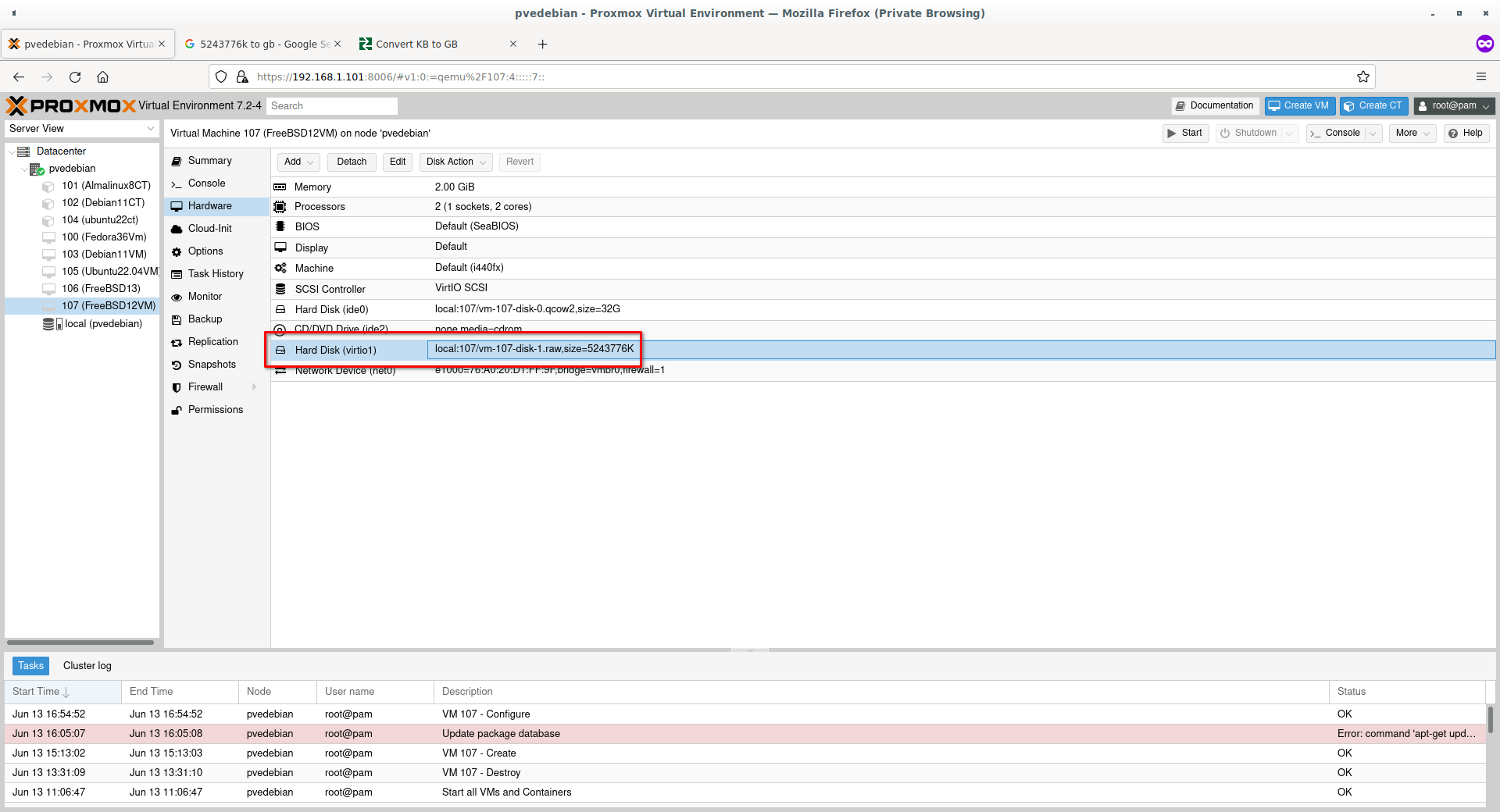
Choose the bus type as “VirtIO Block” to get best disk I/O performance and hit “Add” button.

Change Bus Type To VirtIO Block

You will now see a newly disk with VirtIO as bus type has been attached to the VM.

Attach New Disk To Proxmox VM

Great! We successfully attached a new disk to the Proxmox VM.

Step 6 – Change The Boot Order

To make the VM to boot from the newly added disk, we must change the boot order.

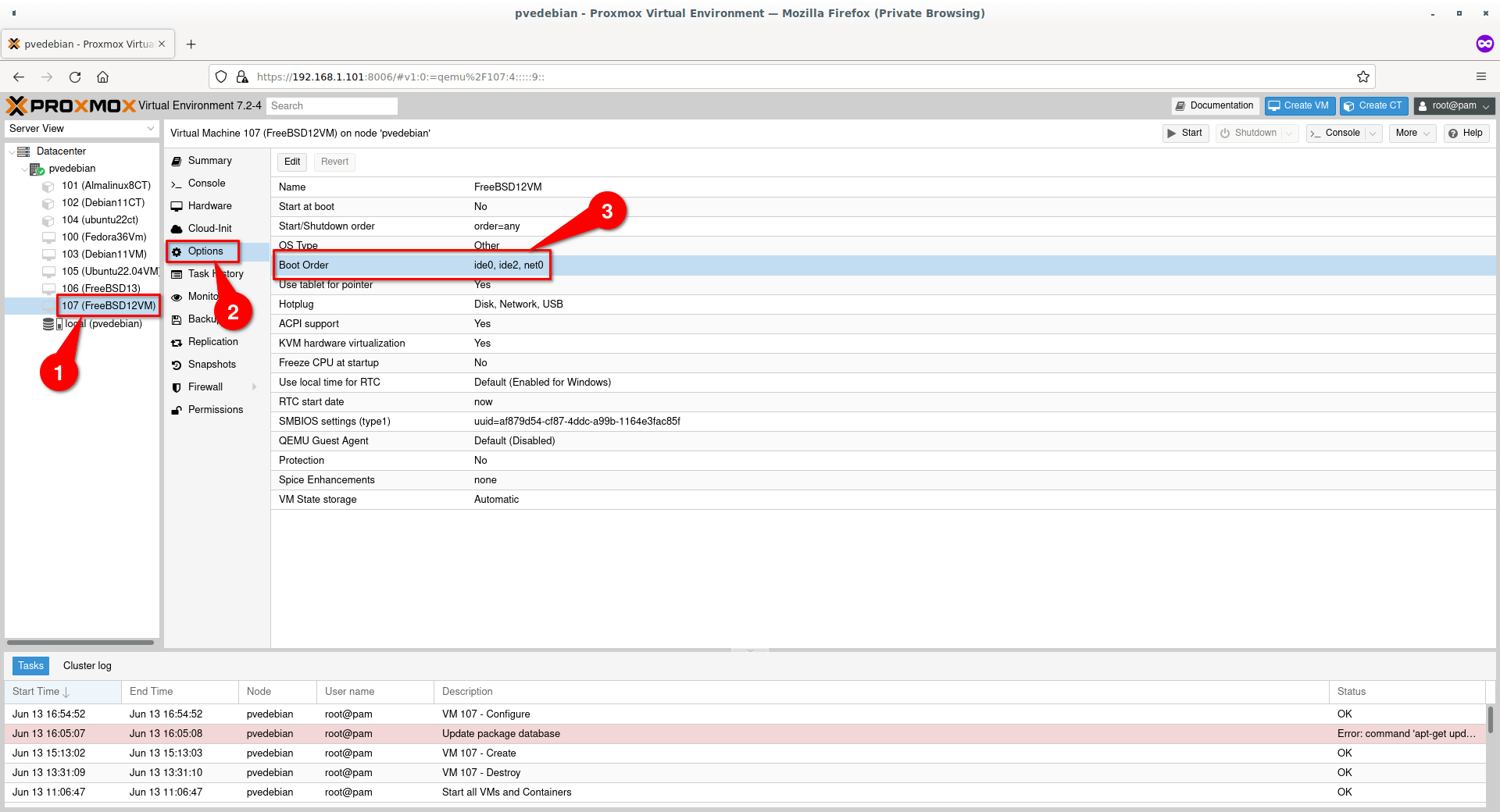
Select Virtual machine -> Options -> Boot Order.

Select Boot Order
Select Boot Order

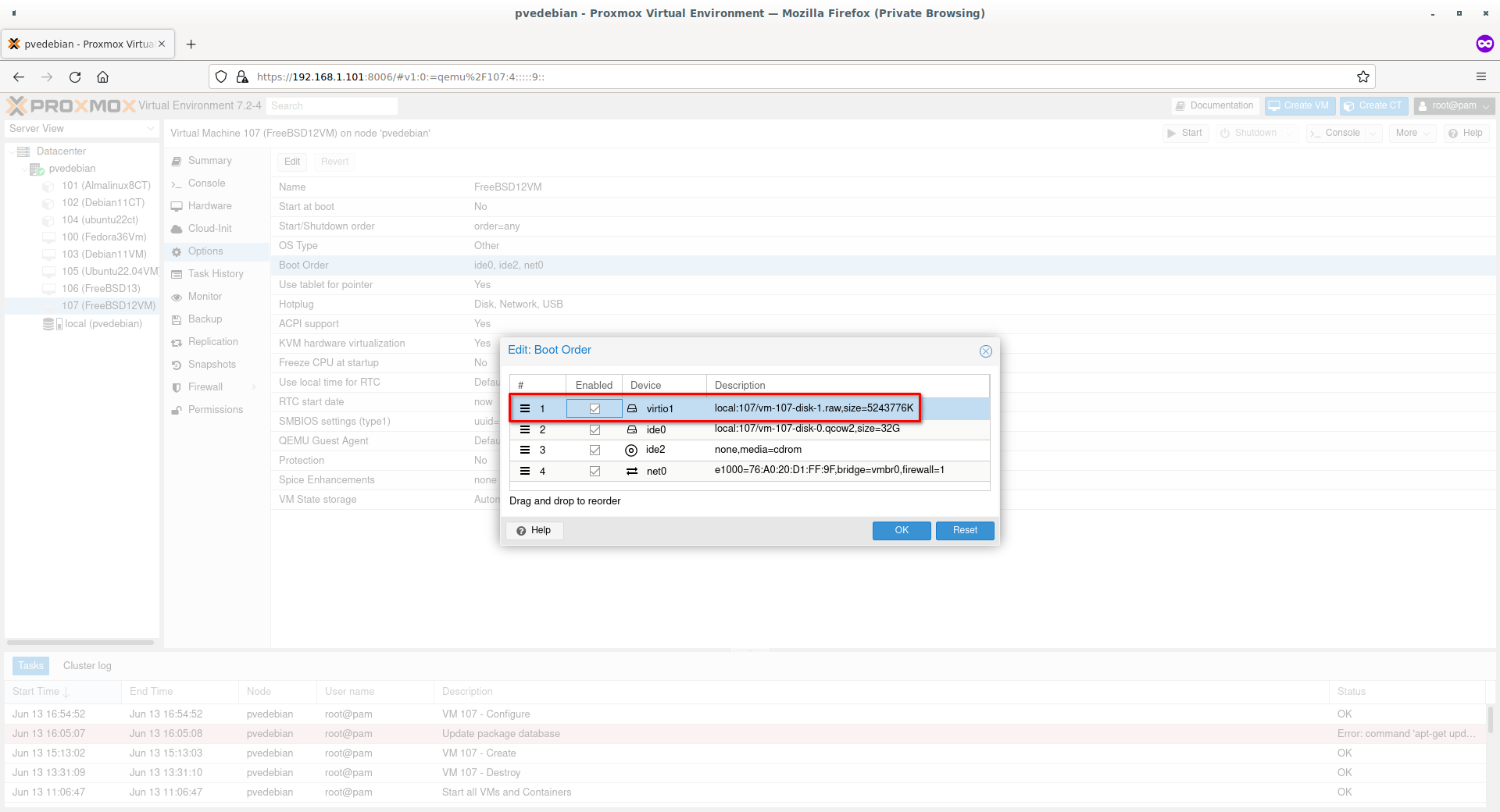
In order to boot from the new disk, it must be on top in the boot order window. Select the newly added VirtIO disk and drag it to the top. Make sure you checked the tick box to enable the disk. Click “OK” to save.

Change Disk Boot Order In Proxmox

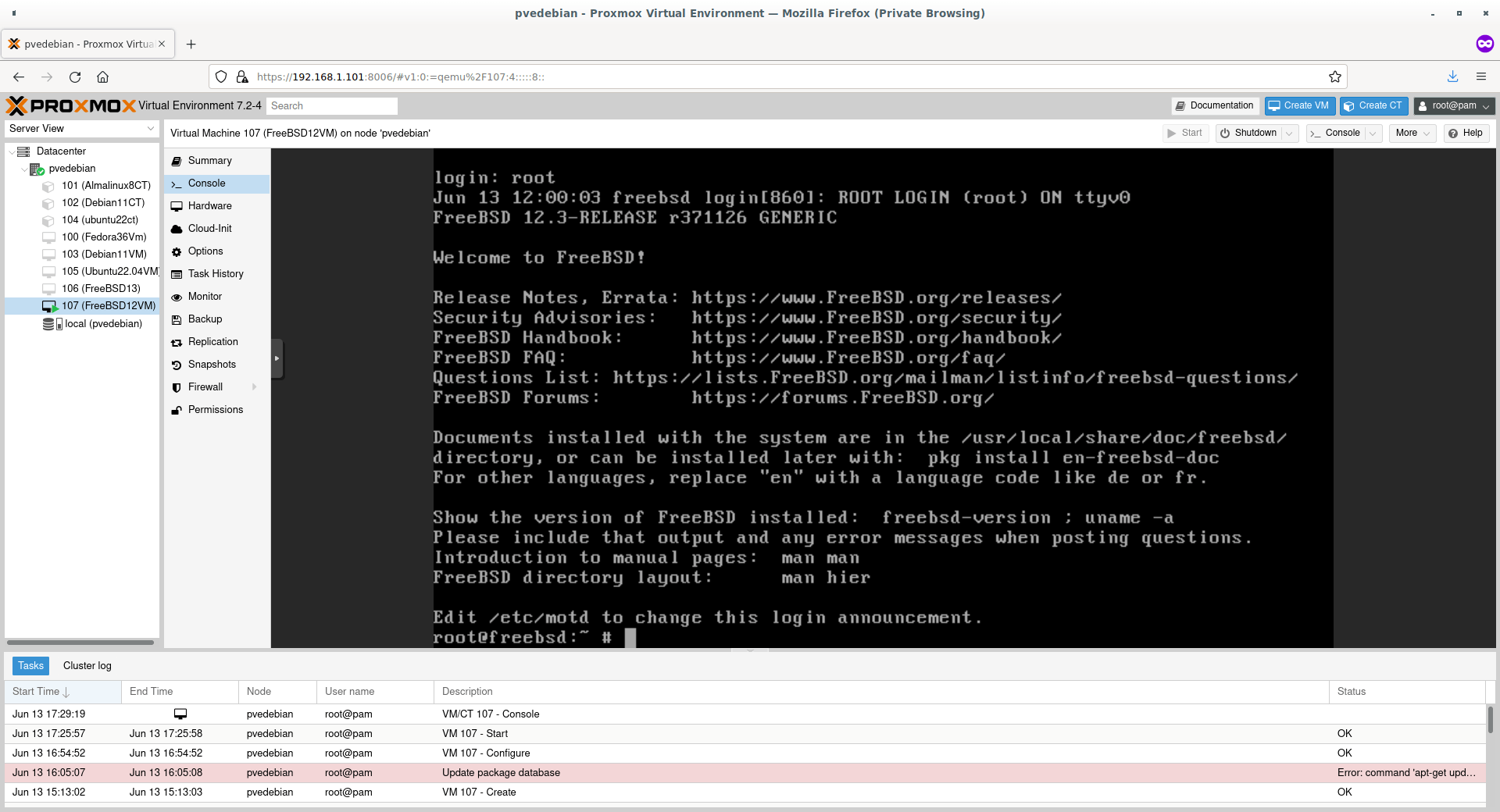
Now start the virtual machine. It should boot from the new disk.

FreeBSD Virtual Machine Running In Proxmox

That’s it. Start using the newly created virtual machine.

Conclusion

This guide explained how to import a QCOW2 disk image into Proxmox VE and how to create a new virtual machine using the QCOW2 virtual disk. By following this guide, you can import any software appliances that are available in QCOW2 format in Proxmox hypervisor.

Crédits to: https://ostechnix.com/import-qcow2-into-proxmox/

Publicado em Dicas | Deixe o seu comentário

How to Install Moodle on Debian 11

Moodle is a popular, free, and open-source Course Management system based on PHP released under the GNU General Public License.

The Moodle platform is highly customizable and takes a modular approach to features, so it is extensible and adaptable to your needs. It is probably most popular open source learning management platform available today.

In this tutorial, we will show you how to install Moodle on your Debian 11 OS.

Step 1: Update Operating System

Update and upgrade the system repositories to make sure all existing packages are up to date:

$ sudo apt update && sudo apt upgrade

Step 2: Install Apache webserver

Apache web server is available on the Debian repository and can be installed via apt package manager by executing the following command:

$ sudo apt install apache2

You can start the Apache service and configure it to run on startup by entering the following commands:

$ sudo systemctl start apache2
$ sudo systemctl enable apache2

Verify the status of the Apache service using systemctl status command:

$ sudo systemctl status apache2

Output:

● apache2.service - The Apache HTTP Server
     Loaded: loaded (/lib/systemd/system/apache2.service; enabled; vendor preset: enabled)
     Active: active (running)
       Docs: https://httpd.apache.org/docs/2.4/
    Process: 459 ExecStart=/usr/sbin/apachectl start (code=exited, status=0/SUCCESS)
   Main PID: 666 (apache2)
      Tasks: 6 (limit: 2301)
     Memory: 24.3M
        CPU: 439ms
     CGroup: /system.slice/apache2.service
             ├─666 /usr/sbin/apache2 -k start
             ├─677 /usr/sbin/apache2 -k start
             ├─678 /usr/sbin/apache2 -k start
             ├─679 /usr/sbin/apache2 -k start
             ├─680 /usr/sbin/apache2 -k start
             └─681 /usr/sbin/apache2 -k start

You can test to make sure everything is working correctly by navigating to:

http://your-IP-address

If everything is configured properly, you should be greeted by the Apache2 Debian Default Page, as seen below.

Apache2 Debian Default Page

Step 3: Install PHP and PHP extensions for Moodle

By default, Debian 11 comes with PHP version 7.4.

You can install PHP and required PHP extensions using the following command:

$ sudo apt install php libapache2-mod-php php-iconv php-intl php-soap php-zip php-curl php-mbstring php-mysql php-gd php-xml php-pspell php-json php-xmlrpc

Verify if PHP is installed.

php -v
Output: PHP 7.4.28 (cli) (built: Feb 17 2022 16:17:19) ( NTS )
Copyright (c) The PHP Group
Zend Engine v3.4.0, Copyright (c) Zend Technologies
    with Zend OPcache v7.4.28, Copyright (c), by Zend Technologies

Step 4: Install MariaDB

We will use MariaDB as the database system for Moodle (Moodle supports MariaDB/MySQL and PostgreSQL).

You can install MariaDB with the following command:

$ sudo apt install mariadb-server mariadb-client

The commands below can be used to stop, start and enable MariaDB service to start automatically at the next boot:

$ sudo systemctl start mariadb
$ sudo systemctl stop mariadb
$ sudo systemctl enable mariadb

Also, you can verify the status of the MariaDB service using systemctl status command:

$ sudo systemctl status mariadb

Output:

● mariadb.service - MariaDB 10.5.15 database server
     Loaded: loaded (/lib/systemd/system/mariadb.service; enabled; vendor preset: enabled)
     Active: active (running)
       Docs: man:mariadbd(8)
             https://mariadb.com/kb/en/library/systemd/
   Main PID: 16987 (mariadbd)
     Status: "Taking your SQL requests now..."
      Tasks: 8 (limit: 2287)
     Memory: 63.0M
        CPU: 1.403s
     CGroup: /system.slice/mariadb.service
             └─16987 /usr/sbin/mariadbd

Then open the MariaDB default configuration file:

$ sudo nano /etc/mysql/mariadb.conf.d/50-server.cnf

Under ‘[mysqld]‘ line, paste the following configuration:

default_storage_engine = innodb
innodb_file_per_table = 1
innodb_file_format = Barracuda

Save and exit, then restart MariaDB service:

$ sudo systemctl restart mariadb

Step 5: Create Database

Log into the MariaDB prompt:

$ sudo  mysql -u root

To create a database, database user, and grant all privileges to the database user run the following commands:

MariaDB [(none)]> CREATE DATABASE moodledb;
MariaDB [(none)]> CREATE USER 'moodle_user'@'localhost' IDENTIFIED BY 'Moodle_Passw0rd!';
MariaDB [(none)]> GRANT ALL ON moodledb.* TO 'moodle_user'@'localhost';
MariaDB [(none)]> FLUSH PRIVILEGES;
MariaDB [(none)]> EXIT

Step 6: Download Moodle

We will now download the latest stable Moodle version from the Moodle Official site.

Use the following command to download Moodle:

$ sudo wget https://download.moodle.org/download.php/direct/stable400/moodle-4.0.1.zip

Extract file into the folder /var/www/html/ with the following command:

$ sudo unzip moodle-4.0.1.zip -d /var/www/html/

Then, create a new directory in /var/www/html directory:

$ sudo mkdir /var/www/html/moodledata

Enable permission for the Apache webserver user to access the files:

$ sudo chown -R www-data:www-data /var/www/html/moodle/
$ sudo chmod -R 755 /var/www/html/moodle/
$ sudo chown -R www-data:www-data /var/www/html/moodledata/

Step 7: Configure Apache Web Server for Moodle

Navigate to /etc/apache2/sites-available directory and run the following command to create a configuration file for your installation:

$ sudo nano /etc/apache2/sites-available/moodle.conf

Add the following content:

<VirtualHost *:80>

ServerAdmin webmaster@your-domain.com

ServerName your-domain.com
ServerAlias www.your-domain.com
DocumentRoot /var/www/html/moodle

<Directory /var/www/html/moodle/>
        Options Indexes FollowSymLinks
        AllowOverride All
        Require all granted
</Directory>

ErrorLog ${APACHE_LOG_DIR}/your-domain.com_error.log
CustomLog ${APACHE_LOG_DIR}/your-domain.com_access.log combined

</VirtualHost>

Save the file and Exit.

Enable the virtual host:

$ sudo a2ensite moodle.conf

After that, restart the Apache web server.

$ sudo systemctl restart apache2

Step 8: Access Moodle Web Installer

Open your browser type your domain e.g http://your-domain.com You will see the Moodle installation page.

Choose a language, and then click ‘Next‘:

Moodle Install Page

Configure the URL, web root directory, and data directory and then click ‘Next‘:

Configure the URL, web root directory, and data directory and then click ‘Next‘:

Moodle Confirm Path

Configure ‘Database driver‘, use MariaDB database server and then click ‘Next‘.

Moodle Chose Database Driver

Type in the database information and then click ‘Next‘ to continue.

Moodle Database Settings

Accept the Copyright Agreement. Just click ‘Continue‘.

Moodle Conditions

System Checking, checks the server configuration and all PHP extensions needed by Moodle.


If all the requirements are OK click ‘Continue

Moodle Minimum Requirements

Make sure all results are ‘Success‘. Then click ‘Continue‘ again.

Plugins Installer

Fill in your admin info and click ‘Update profile‘.

Admin Information

You will be redirected to the user admin ‘Dashboard‘:

Admin Welcome

Comments and Conclusion

That’s it. You have successfully installed Moodle on Debian 11 OS.

Crédits to: https://www.linuxtuto.com/how-to-install-moodle-on-debian-11/

Publicado em Dicas | Deixe o seu comentário

Tunnel RDP through SSH & PuTTY

Reconfigure PuTTY for Remote Desktop Protocol (RDP) tunneling through ssh

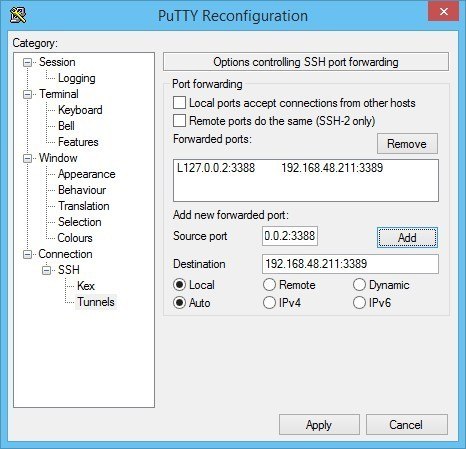
Once you are connected to your remote network with ssh/PuTTY, you need to reconfigure the connection to support SSH-tunneling. In the PuTTY Reconfiguration screen, go to Connection → SSH → Tunnels. This is where we can set up an SSH tunnel for Remote Desktop.

Under Source port, add your local IP address and port. Because the RDP 6+ client in Windows has issues with the loopback to TCP Port 3390, you need to use a different port. I use TCP port 3388 on IP address 127.0.0.2, and my remote internal IP address and RDP port 3389 as Destination (192.168.48.211:3389). See the image:

SSH port forwarding in PuTTY

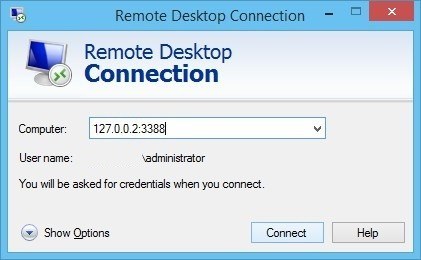
After clicking Apply, the SSH-tunnel for remote desktop is active, and you can connect the Remote Desktop Connection to 127.0.0.2:3388:

Remote Desktop Connection through SSH tunnel

For Windows, PuTTY is the de-facto standard SSH client.

Tunnel RDP using OpenSSH and PowerShell in Windows 10

If you have the OpenSSH client installed in Windows 11/10, then you can use a command similar to Linux’ ssh tunnel:

ssh -N -L 13389:[Windows Server RDP address]:3389 [address ssh server] -l [ssh username]
Code language: CSS (css)

To ease the usage, I wrapped in a PowerShell script, that connects to my on-premise stepping-stone host with ssh:

$remHost = (Read-host -Prompt ("RDP host: "))
Write-Output "Setting up an SSH RDP tunnel with ${remHost}"
Start-Process ssh -ArgumentList "-N -L 13389:${remHost}:3389 -l [ssh username] steppingstone-host.example" -Verb open
[void](Read-Host 'Press Enter to continue...')
&mstsc /V:localhost:13389 /w:800 /h:600 /prompt
Code language: JavaScript (javascript)

use this PowerShell one-liner to verify whether OpenSSH client is installed on your Windows 10 system. It should print Installed.

(Get-WindowsCapability -Online | ? Name -like 'OpenSSH.Client*').State

crédits: https://www.saotn.org/tunnel-rdp-through-ssh/

Publicado em Dicas | Deixe o seu comentário

Leitura assistida

Extensões de leitura para navegadores (Browsers)

Read Aloud: A Text to Speech Voice Reader 
Chrome
https://chrome.google.com/webstore/detail/read-aloud-a-text-to-spee/hdhinadidafjejdhmfkjgnolgimiaplp
Firefox
https://addons.mozilla.org/pt-PT/firefox/addon/read-aloud/?utm_source=addons.mozilla.org&utm_medium=referral&utm_content=search

Publicado em Dicas | Deixe o seu comentário

Sintetizador

Nesta página encontram-se reunidas várias aplicações de síntese de fala/narrador, reconhecimento de voz/ditado, mas nem todas contemplam a língua portuguesa (por vezes funcionam com certas versões dos sistemas operativos e noutros casos não). Nas tecnologias móveis, o Android tem incorporado o narrador TalkBack e o iOS o VoiceOver.

Balabolka

É um sintetizador de fala gratuito (text-to-speech) que reconhece todas as vozes que estejam instaladas no computador. O texto no ecrã pode ser gravado em vários formatos de ficheiros de som (WAV, MP3, MP4, OGG or WMA file).

Imagem website Balabolka

Download (PT) – https://balabolka.br.uptodown.com/windows

http://www.cross-plus-a.com/balabolka.htm

Tutorial (PT) – https://youtu.be/Hf663–0544

Tutorial (BR) – https://youtu.be/xj9YTHtAvRE

WordTalk

É um add-in para o MS Word, útil para dificuldades de leitura, desenvolvido para as diferentes versões do MS Word. Dá voz ao texto que se lê ou escreve, sublinhando-o. Contém um dicionário falante. Dá a possibilidade de configurar cores de sublinhado, alterar a velocidade da fala, converter texto em fala e gravar em ficheiro mp3. Está aferido às diversas línguas, mediante selecção.

Imagem website  WordTalk

http://www.wordtalk.org.uk/Download/

Tutoriais:

Overview WordTalk – https://youtu.be/SicL4gkIR5g

Using WordTalk – https://youtu.be/AHPeeeI4CAo

Comando Speak Microsoft

O sintetizador de fala do sistema operativo da Microsoft também pode ser configurado para aparecer na barra de ferramentas do Word, Outlook, PowerPoint, e OneNote.

Instruções de configuração nas páginas do apoio do MS Office (quick access toolbar) – https://support.office.com/en-us/article/using-the-speak-text-to-speech-feature-459e7704-a76d-4fe2-ab48-189d6b83333c#__toc282684835 

speak - quick access toolbar

Philips FreeSpeech 2000

O programa Free Speech 2000 da Philips é um software que disponibiliza reconhecimento por voz em português, permitindo a criação de textos sem o uso de teclado.
Através do microfone, o utilizador pode ditar palavras que são convertidas em texto, na maioria dos aplicativos do Windows.
Com o comando de voz em português é possível controlar várias operações do computador (abrir, fechar, maximizar, etc.) e também navegar na Internet (poderá não funcionar com versões mais atualizadas do Windows)

A Philips tem várias soluções no seu site – https://www.dictation.philips.com/products/

Imagem website  philips_free_speech

A solução gratuita pode ser descarregada de http://uploaded.net/file/33brpy – vide site brasileiro – http://distrofico.amplarede.com.br/2010/02/philips-freespeech-2000-em-portugues/

Wordflashreader

Aplicação para Linux faz leitura de páginas Web, leitura de email e outros textos. Trabalha melhor com ficheiros de texto e de html. Realça cada palavra ou frase de forma sequencial, fazendo pausa na pontuação.

Imagem website wordflashreader

http://wordflashreader.sourceforge.net/

Dictate (Microsoft)

Aplicação livre (add-in) da Microsoft com a funcionalidade de reconhecimento de voz/ditado para o Word, Powerpoint e Outlook. Reconhece várias línguas, entre as quais o português. Permite ainda tradução para outras línguas. Há que fazer teste de leitura para a ferramenta aprender a reconhecer a voz do utilizador.

dictate

Download – http://dictate.ms/

As FAQ dão orientações e esclarecem dúvidas – http://dictate.ms/FAQ 

Tutorial «Unboxing MS Dictate – https://youtu.be/OdVvo3c4uDQ

TalkTyper

É um sofware online de reconhecimento de voz que inclui língua portuguesa, mas é pouco rigoroso. Traduz a voz para texto com muitas imprecisões e erros, mesmo falando lentamente e com frases curtas.

Imagem website  talk_typer

https://talktyper.com/pt/index.html

Vídeo de apresentação de várias aplicações de PC Speech Recognition – https://youtu.be/_8KgwiGvsOs

Listen N Write

É uma aplicação livre de reconhecimento de voz, que converte ficheiro audio em texto, mas não suporta a língua portuguesa.

Imagem website  Listen_N_Write

 http://download.cnet.com/.

Tutorial  How to Transcribe Audio or Video Recordings into Text – https://youtu.be/WEUHZr9Bwdk

e-Speaking

É uma aplicação livre de reconhecimento de voz que permite controlar o computador, ditar emails e textos e permite que os documentos do computador lhe sejam lidos.

Imagem website  e-Speaking

http://www.e-speaking.com/

Tutorial – https://youtu.be/pYu6_cNRCD4

Natural Reader

É um sintetizador de fala muito versátil e que tem uma versão online com vozes em português, aceitando vários formatos de documentos.

Natural Reader online screen

http://www.naturalreaders.com/index.html

Um vídeo que compara as vozes de vários sintetizadores de fala gratuitos – https://youtu.be/cKAguaMiA6A

TTSReader

Aplicação Web para Android

TTSReader

https://ttsreader.com/

DSpeech

É um sintetizador de fala (text to speech) com reconhecimento de voz integrado (automatic speech recognition).
DSpeech v1.62.5 (Windows NT/2000/XP/Vista/Seven/8/Win10)

Imagem website  DSpeech

http://dimio.altervista.org/eng/

eSpeak

Síntetizador de fala com voz portuguesa (de má qualidade)

Imagem website  eSpeak

http://espeak.sourceforge.net/

yRead

É um sintetizador de fala, aplicação livre.

Imagem website  yRead

http://download.cnet.com/yRead/3000-10248_4-77705.html

e-Triloquist

É uma aplicação com uma caixa para entrada de texto ou audio para ser falada ou escutada por um sintetizador de voz.

Imagem website  e-Triloquist

http://www.etriloquist.com/index.html
Manual: http://www.etriloquist.com/Etriloquist%20Help.pdf

Loquendo

Sintetizador de fala

Imagem website  Loquendo

http://www.mediafire.com/download/e22k2kqjnztpmpi/Loquendo+TTS+7.rar

http://loquendo-tts-portuguese.software.informer.com/7.4/ 

Vídeo tutorial (BR) – https://youtu.be/Yzg4XRzCQIM

Vozes em várias línguas – https://vocalizer-nvda.com/downloads

IVONA

É um sintetizador de fala online (Text-to-Speech) que tem voz portuguesa de qualidade mas está limitado a 250 caracteres de texto que deixa copiar para ser lido.

Imagem website  ivona_tts

https://www.ivona.com/

ODDCAST TTS

É um sintetizador de fala online (Text-to-Speech) que tem voz portuguesa de qualidade mas está limitado a frases curtas. Tem a possibilidade de personalizar o Avatar.

Imagem website  oddcast_tts

http://www.oddcast.com/home/demos/tts/tts_example.php

VOKI

É uma ferramenta online para criação de personagens/avatares falantes.

Imagem website  Voki

http://www.voki.com/

ReadSpeaker

É um sintetizador de fala/narrador comercial que tem uma versão demo online que permite testar as vozes (voz masculina e feminina portuguesa de qualidade) e aceita texto até 250 caracteres.

Imagem website  ReadSpeaker

http://www.readspeaker.com/voice-demo/

iSpeech

É uma solução comercial de sintetizador de fala e reconhecimento de voz, com  aplicações para telemóveis numa grande variedade de línguas. Permite uma utilização TTS livre com limitações.

Imagem website  ispeech

Demo – http://www.ispeech.org/text.to.speech

Tutorial (free use) – https://www.youtube.com/watch?v=kgZwPyXylAo

Mec Daisy

Uma solução brasileira que permite a produção de livros em formato digital acessível, no padrão Daisy.

Imagem website  Mec_Daisy

http://intervox.nce.ufrj.br/mecdaisy/

DDReader

O Dorina Daisy Reader Mais (DDReader+) é um leitor de livros digitais em formato DAISY 3.0.,oferecido em três idiomas: português, inglês e espanhol. A interface foi desenhada tendo como objetivo atender às necessidades de pessoas com deficiência visual e com baixa visão.

Imagem website  DDReader

http://www.daisylatino.org/agora/doc.cfm?id_doc=2060

Daisy MS Word Add-in

Uma extensão ao MS Word, com uma última versão para o Office 2013.

Imagem website  Daisy_MS_Word_Add-in

http://www.daisy.org/project/save-as-daisy-microsoft-word-add-in

Instruções nas páginas de apoio do MS Office – https://support.office.com/pt-pt/article/Utilizar-o-suplemento-Save-as-Daisy-para-o-Word-0dafec98-d478-479e-a4f2-dd22d2ef6d22?ui=pt-PT&rs=pt-PT&ad=PT 

daisy add-in

AMIS (DAISY)

E uma aplicação que permite ler livros Daisy e que faz parte do projecto Daisy for ALL. Trata-se de um leitor multilingue de livros electrónicos compatíveis com os standards Daisy.

Imagem website  Amis

http://www.daisy.org/projects/amis/

Load2Learn Tutorial:
Using AMIS to read DAISY files – https://youtu.be/Fx0xsKaWeXU

Verbose TTS

Uma aplicação de síntese de fala (text-to-speech). Permite a leitura de qualquer texto, gravar em mp3 e wav para ouvir posteriormente.

Imagem website  Verbose_TTS

http://www.nch.com.au/verbose/index.html

Slide Talk

É uma aplicação com sintetizador de fala que permite carregar slides e/ou apresentações Powerpoint, fazendo a leitura em várias línguas, incluindo a portuguesa. Permite a publicação direta para o Youtube.
A componente livre tem limitações quanto ao número de slides (12) e de apresentações.

Imagem website  slide_talk

http://slidetalk.net/

Exemplo: http://slidetalk.net/Home/Viewer?video=61595
Tutorial: https://youtu.be/1JEw5o3M9Cg
Exemplo no Youtube: http://youtu.be/ZOYl9SJSyWI

PowerTalk (Powerpoint)

É um leitor de Powerpoint, que faz a leitura automática dos slides. A vantagem sobre outros sintetizadores de fala é que permite ler texto escondido, associado às imagens.

Imagem website  Power_Talk

http://fullmeasure.co.uk/powertalk/

Publicado em Dicas | Deixe o seu comentário

Repositórios áudio

Músicas

Youtube Library – https://studio.youtube.com/channel/UCMlW_bvBGPP0Mr_1KXyNBww/music

Efeitos sonoros

Ambientes sonoros

Publicado em Dicas | Deixe o seu comentário