
Having proper cooling is very important when you run the ESXi-Arm Fling on a Raspberry Pi. With the Fling itself, it is not possible to get the actual CPU temperature.
Luckily, a few days ago a repository created by Tom Hebel (@tom_hebel) popped up on GitHub that contains a native driver for the Raspberry Pi 4’s GPIO interface. This driver allows you to poll the CPU temperature. This article explains how to install the driver.
Get the Native ESXi driver for RPi 4’s GPIO interface
The driver is available on GitHub (thebel1 / thgpio). To use the driver, you need to install the ESXi-Arm on your Raspberry Pi 4B.
The driver installation is very simple. The steps are:
- Download the VIB file from the build directory (thgpio/build/vib/)
- Copy the .vib file to ESXi-Arm running on your Raspberry Pi
- Set the host acceptance level changed to CommunitySupported
- Install the driver using esxcli
- Reboot the ESXi Host (The reboot is required! Ignore that esxcli tells a reboot is not required.)
You can directly download and install the driver from the ESXi host by using SSH:
# cd /
# esxcli software acceptance set --level=CommunitySupported
# esxcli network firewall ruleset set -e true -r httpClient
# wget https://github.com/thebel1/thpimon/raw/main/build/vib/thpimon-0.1.0-1OEM.701.1.0.40650718.aarch64.vib
# esxcli network firewall ruleset set -e false -r httpClient
# esxcli software vib install -v /thpimon-0.1.0-1OEM.701.1.0.40650718.aarch64.vib
# reboot
After the reboot, you should see a new device: /dev/vmgfxXX

This device is used to connect to the Raspi’s GPIO interface. To understand how to use the device, get the thpimon repository from GitHub. The repository contains a Python Library in ./pyUtil/pimonLib/ and an example script.
Note: Files in the ESXi root directory do not persist a reboot. If you want the script to survive a reboot, download it to a VMFS or VMFS-L Datastore. To list all datastores, run esxcli storage filesystem list.
# wget https://github.com/thebel1/thpimon/archive/main.zip
# unzip main.zip
# ./thpimon-main/pyUtil/pimon_util.py
Firmware Revision:   0x5f440c10
Board Model:         0
Board Revision:      0xd03114
Board MAC Address:   6b:34:c5:32:a6:dc
Board Serial:        0x00000022412ff2
Temp:                47.0 (deg. C)
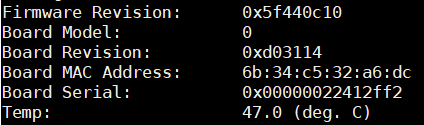
Note: If you get the following error message:
Traceback (most recent call last):
FileNotFoundError: [Errno 2] No such file or directory: ‘/dev/vmgfx33’
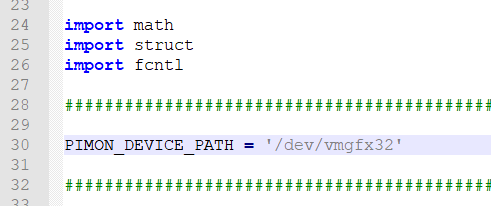
You have to change the PIMON_DEVICE_PATH variable in ./pyUtil/gpioLib/__init__.py to reflect the correct name for your device. Get the device with the following command:
# ls /dev/vmgfx*
/dev/vmgfx32
Change the variable to /dev/vmgfx32 (Or whatever the output above is) and save the file:
If you still get the error, delete the python cache directory: ./pyUtil/gpioLib/__pycache__
Follow up: ESXi-Arm on Raspberry Pi – Send CPU Temperature to Graphite
Crédits to: https://www.virten.net/2020/11/get-raspberry-pi-cpu-temperature-on-esxi-arm/