4 alternativas gratuitas ao Photoshop

O Photoshop é um dos nomes de referência no segmento dos software de edição de imagem. No entanto, o preço do Adobe Photoshop não está ao alcance de todos mas, a boa notícia é que, há boas alternativas.

Hoje damos a conhecer 4 alternativas gratuitas ao fantástico Photoshop.


pixlr_00

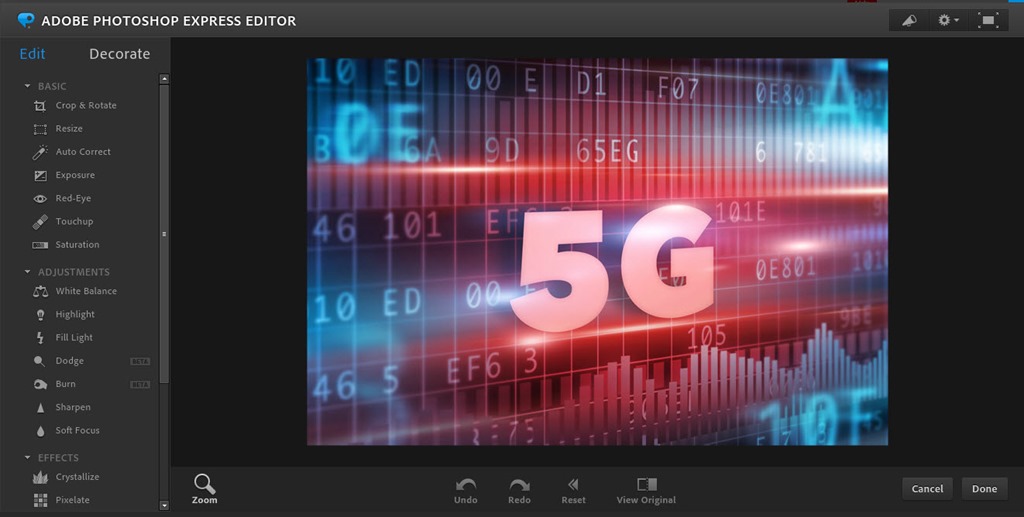
2. Photoshop Express Editor

Esta ferramenta da Adobe é fantástica porque, de forma gratuita, permite que qualquer pessoa possa editar uma fotografia, corrigir defeitos, equilibrar a luminosidade, acrescentar efeitos e filtros artísticos, molduras e outros pormenores de embelezamento.

A versão online do Photoshop Express Editor está disponível aqui.

adobe_00

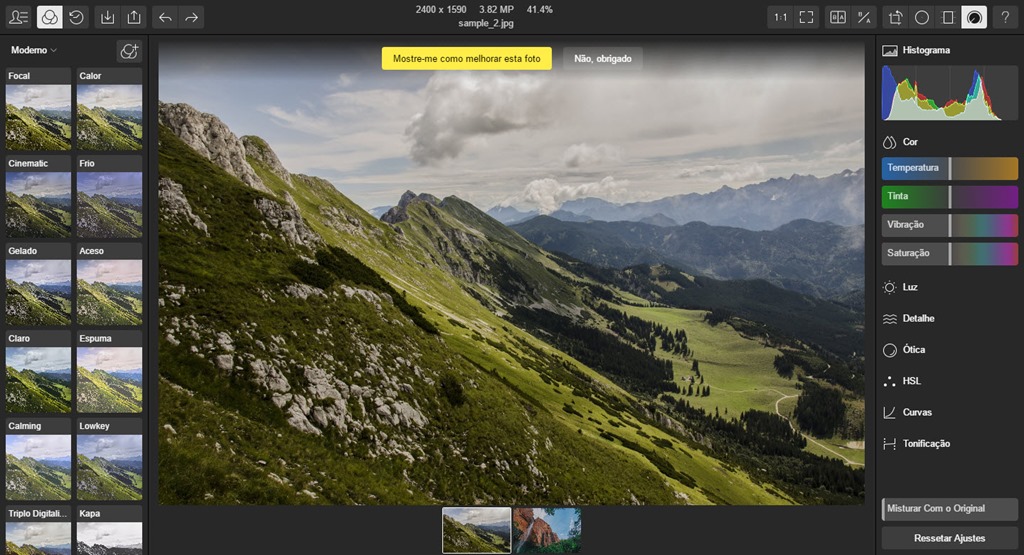
3. Polarr

Se precisa de uma ferramenta com bons filtros para aplicar a fotos então o Polarr é uma sugestão a ter em conta.Com as funções disponíveis, o utilizador pode facilmente melhorar as suas imagens e até tem interface em português.

Polarr_00

4. SumoPaint

SumoPaint é uma das ferramentas mais completas online para edição de imagens. Tal como as outras plataformas apresentadas, o SumoPaint  tem uma interface bastante elegante, fluída e bem organizada. Como ponto fraco, apenas a publicidade que é apresentada na própria interface.

SumoPaint

E são estas as nossas propostas para hoje para quem precisa de uma ferramenta de edição de imagem já com algum potencial. Como referido todas estas ferramentas estão disponíveis online e têm uma versão gratuita disponível. Experimentem e se conhecerem outras digam-nos.

céditos: https://pplware.sapo.pt/internet/4-alternativas-gratuitas-ao-photoshop/

Publicado em Dicas, Software | Deixe o seu comentário

Paint.NET: Alternativa ao Photoshop chega à Windows Store

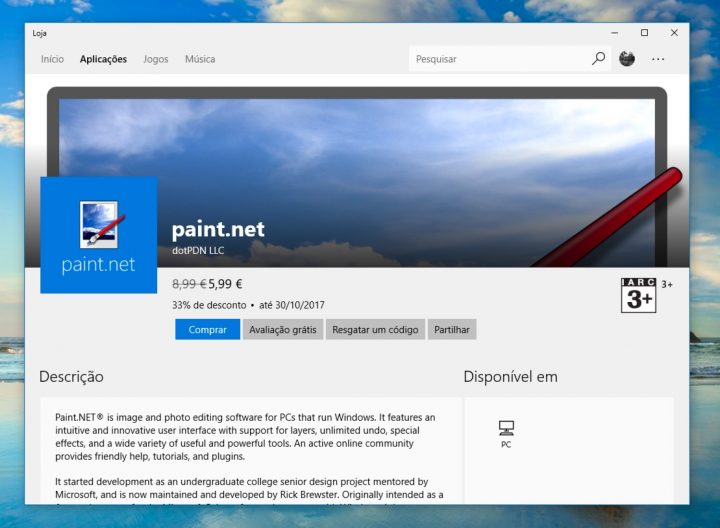
Depois de vários meses de espera, o Paint.NET chegou finalmente à loja de aplicações do Windows. Esta ferramenta de edição de imagem é uma alternativa barata ao popular Photoshop e agora até está em promoção (apenas 5,99€).

Se precisam de uma boa ferramenta de edição de imagem, experimentem o Paint.NET!

Paint.NET


O Paint.NET é uma boa ferramenta de edição de imagem, direcionada para Windows, que oferece uma interface bastante simples e intuitiva e também vários efeitos e muitas funções. Esta ferramenta suporta vários tipos de ficheiros de imagem, layers e traz também suporte para plugins.

O Paint.NET está agora disponível na loja de aplicações do Windows e até tem desconto. Quem instalar ainda hoje, usufrui de um desconto de 33%, pagando apenas 5,99€.

Paint.NET

Caso não pretenda pagar, pode também experimentar a ferramenta durante alguns dias gratuitamente. Se tem o Windows 10 instalado na sua máquina, aceda aqui e obtenha já o Paint.NET.

Nota: No site do projeto, o Paint.NET continua gratuito – ver aqui.

Créditos: https://pplware.sapo.pt/microsoft/windows/paint-net-alternativa-photoshop-windows-store/

Publicado em Software | Deixe o seu comentário

ESXCLI and ESXi Shell Commands

Most Useful ESXCLI and ESXi Shell Commands for Your VMware Environment

To manage ESXi servers, you can use the graphical user interface provided by VMware. This UI is the VMware vSphere Client, a standalone application allowing you to manage ESXi hosts and your VMware environment on Windows OS machines. You also have the VMware vSphere Web/HTML5 Client that can be used on any machine, as it is web-based and can be accessed through a web browser.

The majority of settings are available in the graphical user interface (GUI), though sometimes you may need to get some information or change a configuration that is not displayed in the GUI. In this case, using the command line interface (CLI) is what you need – it is possible to configure all settings, including the hidden ones in the command line, which is also referred to as the console. In addition to traditional commands that are the same in Linux and ESXi, ESXi has its own ESXCLI commands. This blog post has been created in the format of a catalog which lists useful ESXCLI commands that are part of the ESXi shell commands.


NAKIVO for VMware vSphere Backup

NAKIVO for VMware vSphere Backup

Complete data protection for VMware vSphere VMs and instant recovery options. Secure backup targets onsite, offsite and in the cloud. Anti-ransomware features.


How Do I Open the CLI in ESXi?

By default, ESXi shell is disabled for local and remote access; hence, you are not able to run ESXi shell commands until you enable the ESXi shell. VMware has made this restriction for security reasons. There are three main methods for enabling the command line interface in ESXi.

Using the ESXi default interface

In the ESXi Direct Console User Interface (DCUI), go to Troubleshooting Options, navigate to Enable ESXi Shell and Enable SSH strings and press Enter to enable each option.

After enabling the ESXi shell, press Alt+F1 to open the console on the machine running ESXi. You should enter your login and password after that (credentials of the root user can be used).

If you need to go back to the ESXi DCUI, press Alt+F2. The Enable SSH option allows you to open the ESXi console remotely by using an SSH client.

Configuring ESXi to be able to run ESXi shell commands

Using VMware Host Client

Open a web browser and enter the IP address of your ESXi host in the address bar, then log in. Go to Host > Actions > Services and click Enable Secure Shell (SSH). Now you can connect to the ESXi console by using your SSH client remotely. Similarly, you can enable the console shell on a local ESXi host in the Services menu.

Using vCenter and VMware vSphere Client

This method can be used if your ESXi host is managed by vCenter Server. In VMware HTML5 vSphere Client, go to Hosts and Clusters, select your ESXi host, select the Configure tab, open System > Services and click SSH in the list of services.

After that, hit Start to launch the SSH server once, or hit Edit Startup Policy and select Start and Stop with host if you wish to enable the SSH server for an extended period of time. You can also enable the ESXi shell in the Services menu.

Enabling remote access to the ESXi shell in VMware vSphere Client

In order to connect to the ESXi console remotely via SSH, in the Linux console, type a command like ssh 192.168.101.221, where 192.168.101.221 is the IP address of the ESXi server used in this example. You need to enter the login and password of the ESXi user in this case (root can be used by default).

Connecting to the ESXi console from Linux - read the warning before running ESXi shell commands

In Windows, you can use PuTTY as an SSH client for running ESXI shell commands remotely.

Using PuTTY as an SSH client in Windows for running ESXi shell commands remotely

ESXCLI Commands Overview

ESXCLI is a part of the ESXi shell, this is a CLI framework intended to manage a virtual infrastructure (ESXi components such as hardware, network, storage, etc.) and control ESXi itself on the low level. All ESXCLI commands must be run in the ESXi shell (console). Generally, ESXCLI is the command that has a wide list of subcommands called namespaces and their options. The ESXCLI command is present right after ESXi installation along with other ESXi shell commands.

You can locate ESXCLI and explore the nature of ESXCLI after executing the following commands:

which esxcli

ls -l /sbin/esxcli

ESXICLI is a complex script written in Python

As you see in the console output, ESXCLI is a script written in Python that is located in the /sbin/ directory. If you want to see the contents of the script, you can use the built-in text editor vi.

Thus, ESXCLI consists of branches that are the main categories (namespaces) of ESXCLI commands. Notice that ESXCLI commands are case-sensitive, similarly to other console commands used in ESXi. The entire list of all available ESXCLI namespaces and commands is displayed after running the command:

esxcli esxcli command list

The list of available ESXCLI commands depends on the ESXi version.

Hence, the list of top ESXCLI namespaces for ESXi 6.7 is as follows:

  • device – device manager commands
  • esxcli – commands related to ESXCLI itself
  • fcoe – Fibre Channel over Ethernet commands
  • graphics – VMware graphics commands
  • hardware – commands for checking hardware properties and configuring hardware
  • iscsi – VMware iSCSI commands
  • network – this namespace includes a wide range of commands for managing general host network settings (such as the IP address, DNS settings of an ESXi host, firewall) and virtual networking components such as vSwitch, portgroups etc.
  • nvme – managing extensions for VMware NVMe driver
  • rdma – commands for managing the remote direct memory access protocol stack
  • sched – commands used for configuring scheduling and VMkernel system properties
  • software – managing ESXi software images and packages for ESXi
  • storage – commands used to manage storage
  • system – commands for configuring VMkernel system properties, the kernel core system and system services
  • vm – some commands that can be used to control virtual machine operations
  • vsan – VMware vSAN commands

The main commands appear as verbs indicating the same action:

  • list – show the list of objects available for the defined namespace (for example, esxcli hardware bootdevice list – list available boot devices)
  • get – get the value of the defined setting or property (for instance, esxcli hardware clock get – check the time set)
  • set – set the necessary parameter manually (for example, esxcli hardware clock set -y 2019 -s 00 – set the year to 2019 and set the seconds to 00)
  • load/unload – load/unload system configuration (esxcli network firewall load – load the firewall module and firewall settings stored in the configuration file)

If you are unable to remember a particular ESXCLI command related to the appropriate namespace, you can enter the command and see a tip in the output of the console — for example, type:

esxcli network to see all available commands for the network namespace, then type:

esxcli network vm to check the commands for the vm namespace.

Viewing the ESXi shell commands for the ESXCLi network namespace

The ESXCLI log file is located in /var/log/esxcli.log

The data is written to this file if an ESXCLI command has not been executed successfully. If an ESXCLI command is run successfully, nothing is written to this log file.

Useful ESXCLI Commands

Now that you are familiar with the basic working principle of ESXCLI commands, let’s consider the particular examples of useful ESXCLI commands which can be used in VMware vSphere. The list of ESXCLI commands considered in this article is divided by categories equivalent to namespace names.

Checking hardware

By using the hardware namespace, you can view the full information about installed devices. In order to view installed PCI devices, run the following ESXCLI command:

esxcli hardware pci list | more

Check the amount of memory installed on the ESXi server:

esxcli hardware memory get

Checking memory installed in the ESXi server

View the detailed information about installed processors:

esxcli hardware cpu list

System settings

In this section, you can see the commands of the system esxcli namespace.

Check the precise ESXi version and build number, including the number of installed updated and patches:

esxcli system version get

Check the hostname of an ESXi server:

esxcli system hostname get

Check the ESXi installation time:

esxcli system stats installtime get

Checking ESXi installation time

Check the SNMP configuration:

esxcli system snmp get

Enter the ESXi host to the maintenance mode:

esxcli system maintenanceMode set --enable yes

Exit the maintenance mode:

esxcli system maintenanceMode set --enable no

After entering an ESXi host to the maintenance mode, you can shut down or reboot the host.

Power off an ESXi host:

esxcli system shutdown poweroff

The command for rebooting the host is similar:

esxcli system shutdown reboot

You can also set a delay and write a reason of rebooting the host to be saved in system logs:

esxcli system shutdown reboot -d 60 -r “Installing patches”

In this example, the delay is 60 seconds.

Another command is to set the custom welcome message instead of a standard background screen with a shaded inactive main menu where the “<F2> Customize System/View Logs <F12> Shut Down/Restart” tip and the IP address to manage the host are displayed. Notice that after setting a custom welcome message you will see only this set message on the black screen. You can type “Press F2” manually to avoid confusion. The custom message can be used for hiding information about your ESXi host on the display connected to the ESXi host when a user is not logged in.

esxcli system welcomemsg set -m="Welcome to NAKIVO! Press F2"

Verify whether the welcome message is already set:

esxcli system welcomemsg get

Changing the ESXi welcome message by using ESXCLI commands

Network settings

The network namespace is one of the largest namespaces of ESXCLI. Let’s explore the commands that can be useful for diagnostics.

Check the status of active network connections:

esxcli network ip connection list

Checking active network connections in ESXi by using ESXCLI

View the list of installed network adapters:

esxcli network nic list

Viewing the list of network adapters installed in an ESXi server

Display the information about network interfaces:

esxcli network ip interface list

Display the information about IP addresses of the network interfaces that are present on the server:

esxcli network ip interface ipv4 get

Display the network information for VMs:

esxcli network vm list

Checking the network information for VMs

View the domain search settings:

esxcli network ip dns search list

View the DNS servers set in the network settings:

esxcli network ip dns server list

List virtual switches and port groups:

esxcli network vswitch standard list

Show statistics for the vmnic0 network interface:

esxcli network nic stats get -n vmnic0<

Check the firewall status and rule settings:

esxcli network firewall get

esxcli network firewall ruleset list

Note: The default firewall policy is to drop traffic if the opposite rules are not set.

You can temporary disable the firewall on an ESXi host for troubleshooting:

esxcli network firewall set --enabled false

The firewall must be enabled with the command:

esxcli network firewall set --enabled true

It is recommended to have the ESXi firewall enabled for security reasons.

The network namespace includes many commands. Only basic and the most popular of them are considered in the Network section of today’s blog post. It is possible to configure a high number of network parameters with esxcli, but would require a long walkthrough that is out of scope for today’s article.

Storage

The storage namespace allows you to check and edit storage settings.

Check the information about mounted VMFS volumes:

esxcli storage vmfs extent list

View mappings of VMFS file systems to disk devices:

esxcli storage filesystem list

List all the iSCSI paths on the system:

esxcli storage core path list

Display the list of mounted NFS shares:

esxcli storage nfs list

Check SMART with esxcli

S.M.A.R.T. is useful for disk diagnostics and for preventing disk failure. You can read the S.M.A.R.T. data and, if you discover that something is wrong with your disk, you can make a timely decision to replace the disk.

First, list all storage devices and locate the unique device name (see the screenshot below):

esxcli storage core device list

Then, use the command to get the S.M.A.R.T. data of that disk device:

esxcli storage core device smart get -d naa.50026b7267020435

where naa.50026b7267020435 is the name of the device used in this example.

Using ESXi shell commands to check SMART

iSCSI

iSCSI is a widely used protocol for accessing shared storage on a block level, and there is a separate iscsi namespace in ESXCLI for managing the iSCSI storage.

Show the list of available iSCSI adapters:

esxcli iscsi adapter list

Re-discover and re-scan iSCSI adapters:

esxcli iscsi adapter discovery rediscover -A adapter_name

esxcli storage core adapter rescan -A adapter_name

Instead of -A adapter_name you can rescan all adapters by using the --all option.

Using ESXi shell commands to re-discover and re-scan iSCSI adapters

Software

Software packages intended for ESXi are usually distributed as VIB files (vSphere installation bundle). A VIB file is similar to a container with zipped packages that can be installed in the system, with a descriptor and a signature file. In turn, VIBs are usually distributed as files packed into an archive file in the standard ZIP format. You may need to include VIBs into an ESXi image in order to use the appropriate hardware or install VIBs in an existing system for applying a security patch.

You can view the list of VIB packages installed on your ESXi host:

esxcli software vib list

You can install a VIB with ESXCLI (the ESXi host must be in maintenance mode):

esxcli software vib install -d /vmfs/volumes/datastore1/patches/patch_name.zip

VM operations

The vm namespace can be used for operations on running virtual machines processes.

Check the list of running VMs and display their World IDs:

esxcli vm process list

Checking the World ID of the VM processes running on an ESXi host

You can kill the unresponsive virtual machine with ESXi shell commands. Using ESXCLI, in this case, can be helpful when a VM cannot be shut down via GUI, such as the GUI of VMware vSphere Client, VMware Host Client or VMware Workstation.

Shut down the VM by using the World ID displayed in the output of the esxcli vm process list command. In the current example, the World ID of the necessary VM is 75498.

esxcli vm process kill -w 75498 -t soft

If the soft command type was not helpful, consider performing an immediate shut down of the VM by using the hard method.

esxcli vm process kill -w 75498 -t hard

There are three available command options for the kill command:

soft – a correct signal is sent in the guest operating system to shut down a VM correctly;

hard – a VM is shut down immediately;

force - VM is powered off similarly to how a computer is powered off when unplugging the power cable. Only use this type of powering off the VM if the previous two types were unsuccessful.

ESXi SSH Commands

Besides ESXCLI commands, you can use a lot of ESXi shell commands. The ESXi shell commands list that may be useful for you is provided below.

Open the ESXi DCUI from the console (the colors are different when you connect to the ESXi shell via SSH):

dcui

Opening the ESXi DCUI the console remotely via SSH

Press Ctrl+C to go back to the command prompt.

Convert a thick provisioned virtual disk to a thin provisioned virtual disk by using vmkfstools:

vmkfstools -i
/vmfs/volumes/vmfs_datastore/vm_name/thick_disk.vmdk -d thin
/vmfs/volumes/vmfs_datastore/vm_name/new_thin_disk_name.vmdk

Among ESXi shell commands, vmkfstools is a powerful command for performing storage operations as well as managing storage devices, VMFS volumes, and virtual disks. Read more about thick and thin provisioning as well as virtual disk shrinking in the blog post.

Open the ESXi task manager:

esxtop

After opening the task manager with the esxtop command, you can switch between tabs by pressing the appropriate keys:

C – CPU

I – interrupt

M – memory

N – network

D – disk adapter

U – disk device

V – disk VM

P – power management

Find the file in the current directory:

find . -name filename.txt

Replace the . character with the name of the directory in which you would like to locate a file, and replace filename.txt with your file name. For example, if you wish to find a diskname.vmdk file in the /vmfs/volumes/ directory, run the command:

find /vmfs/volumes/ -name diskname.vmdk

Open the interactive VMware console:

vsish

Show loaded vmkernel drivers:

vmkload_mod --list

Check the settings of the swap partition:

esxcli sched swap system get

You can list users by using one of the following commands:

esxcli system account list

cat /etc/passwd or less/etc/passwd

Using ESXi shell commands to list existing system users

Creating a new user

There are at least two methods of creating a new ESXi user by using ESXi shell commands.

Using the adduser command

If you type the adduser command in the ESXi console, you will get the message:

-sh: adduser: not found

You should define the full path to the appropriate busybox binary to run this command:

/usr/lib/vmware/busybox/bin/busybox adduser

Now you can see the usage options for this command.

Finally, run the exact command to add an ESXi system user:

/usr/lib/vmware/busybox/bin/busybox adduser -s /bin/sh -G root -h / user1

Where:

-s /bin/sh is a shell used after user login;

-G root – the group name whose member is a new user (the root group);

-h / is a home directory (the root directory) of a new user;

user1 is the user name.

Enter a new password and confirm the password when prompted.

Using ESXi shell commands to add a new user in ESXi

Using ESXCLI

As an alternative, you can add a new user just with the one command by using esxcli:

esxcli system account add -d="NAKIVO user" -i="nakivo" -p="Password-Test321" -c="Password-Test321"

Where:

-d means the displayed description

-p is the password set for the new user

-c is the password confirmation

Which method of creating a new user in the command line is better? The single command used in the second method may appear to be the optimal method for creating a new user, but it is not entirely true on account of security reasons. If you’ve been attentive, you should be able to remember the warning message displayed right after logging in to the ESXi shell:

All commands run on the ESXi shell are logged and may be included in support bundles. Do not provide passwords directly on the command line. Most tools can prompt for secrets or accept them from standard input.

If security is a concern for you, enter commands without including passwords as plain text into the commands. If a password is needed, it is usually prompted and can be entered in the standard console input. For example, if you would likr to create a new user with ESXCLI, use a command like:

esxcli system account add -d="user2" -i="user2" -p -c

A password will be prompted separately and will not be displayed in the console while entering the password.

Using ESXCLI to add a new user in ESXi

Conclusion

Today’s blog post has covered a series of ESXi shell commands including ESXCLI commands. Using the command line interface in ESXi gives you more power in addition to nice graphical user interfaces of VMware vSphere Client and VMware Host Client for managing ESXi hosts. You can use ESXi shell commands for viewing and configuring settings that are hidden or not available in the GUI. Use the ESXi shell commands list provided in this blog post for fine ESXi tuning and experience the extra power of using the command line interface in VMware vSphere.

You can learn more by reading about PowerCLI, another type of the command line interface for managing VMware vSphere from Windows PowerShell.

Publicado em Dicas | Deixe o seu comentário

How to Use Browser Caching in WordPress

In this article, I’ll discuss the benefits of browser caching and how you can use it for your WordPress websites. In the first half of the article, you’ll learn to set up browser caching with Apache and Nginx server configuration. Then I’ll show you how to use third-party plugins for browser caching.

Browser Caching and Why You Should Use It

Browser caching is a technique which allows you to store your website’s resources on the client or browser side. This means the browser doesn’t need to download those resources (e.g. images or scripting), improving the overall load time of your webpages. This results in a better user experience since your website will load faster.

Apart from that, browser caching significantly improves your SEO ranking—it’s considered to be an essential requirement for a website. If you measure your web performance score with tools like Google PageSpeed, you’ll notice significant improvements after you leverage browser caching.

What exactly does a browser do when your website enables browser caching? Basically, when you request a webpage, a browser makes a lot of requests to the server in the background to load different resources like images, CSS, JavaScript, and font files. When browser caching is enabled, it stores all these resources on the client or user side. And thus, when a user browses other pages of your website, a browser doesn’t have to download these resources again from the server, as it can use the cached resources.

The benefits of using browser caching are twofold. Firstly, it reduces the number of HTTP requests a browser has to initiate to the server to load resources. Also, since it loads the required resources from the browser cache, the overall page speed is significantly improved.

Broadly speaking, there are two different ways you could implement browser caching for your WordPress websites. If you are comfortable editing a few configuration files, you could implement it by editing the server-specific configuration files. On the other hand, if you don’t have access to your server configuration or don’t want to risk messing it up, you could use third-party plugins which allow you to configure different caching options from the admin side.

How to Leverage Browser Caching With Apache and Nginx

In this section, we’ll go through the necessary steps to implement browser caching with the help of server-specific configuration files.

Browser Caching With the Apache Server

In Apache, the mod_expires module allows you to set expires and cache-control headers. Specifically, you could use ExpiresDefault and ExpiresByType directives to configure the cache lifetime in a more readable syntax. You can configure it in the .htaccess file in the root of your WordPress installation.

Go ahead and open the .htaccess file in your favorite text editor. Add the following code at the end of the file and save it.

<IfModule mod_expires.c>
ExpiresActive on
# whitelist expires rules
ExpiresDefault "access 1 month"
# Favicon (cannot be renamed)
ExpiresByType image/x-icon "access plus 1 week"

# Media: images, video, audio
ExpiresByType image/gif "access plus 1 month"
ExpiresByType image/png "access plus 1 month"
ExpiresByType image/jpg "access plus 1 month"
ExpiresByType image/jpeg "access plus 1 month"
ExpiresByType video/ogg "access plus 1 month"
ExpiresByType audio/ogg "access plus 1 month"
ExpiresByType video/mp4 "access plus 1 month"
ExpiresByType video/webm "access plus 1 month"

# Webfonts
ExpiresByType application/x-font-ttf "access plus 1 month"
ExpiresByType font/opentype "access plus 1 month"
ExpiresByType application/x-font-woff "access plus 1 month"
ExpiresByType image/svg+xml "access plus 1 month"

# CSS and JavaScript
ExpiresByType text/css "access plus 1 month"
ExpiresByType text/javascript "access plus 1 month"
ExpiresByType application/javascript "access plus 1 month"
<IfModule mod_headers.c>
Header append Cache-Control "public"
</IfModule>
</IfModule>

As you can see, we’ve configured browser caching for different types of files. For example, the directive ExpiresByType image/gif "access plus 1 month" tells the browser that it should cache all .gif files for a month. In the same way, we’ve configured the cache lifetime for the other extensions as well. Of course, you could configure the cache lifetime as per your requirements. You could choose from the following period types:

  • years
  • months
  • weeks
  • days
  • hours
  • minutes
  • seconds

Finally, we’ve used the Header append Cache-Control "public" directive to tell the browser that it’ll be stored in the public cache. With these settings in place, you’ve enabled browser caching for your WordPress website!

So that’s how you can leverage browser caching with Apache for your WordPress sites. In the next section, we’ll see how to achieve it with the help of Nginx.

Browser Caching With the Nginx Server

If you’re running your WordPress website with the Nginx server, you would need to edit the virtual host file of your domain. If you have shell access to your server, it’s really easy to access this file and edit it. If you’re not comfortable editing files from the shell yourself, I recommend you get the help of a professional developer. If there’s a syntax error in your file, it may break your site!

Go ahead and open the virtual host file of your website. It’s important to note that you’ll need either sudo or root access to be able to edit this file. In most cases, you’ll find it under the /etc/nginx/sites-enabled directory on your server. Add the following code in the server block.

server {
…
...
location ~* \.(x-icon|gif|png|jpg|jpeg|ogg|mp4|webm|x-font-ttf|svg|xml|css|js)$ {
expires 30d;
add_header Cache-Control "public, no-transform";
}
…
...
}

In the case of Nginx, we’ve used the location directive to configure file types for which we want to enable browser caching. Following that, the expires directive is used to configure the cache lifetime. And finally, the add_header directive is used to add the Cache-Control header.

Once you’ve saved the changes, you should test your Nginx configuration to make sure that the syntax is correct. For *nix-based systems—Linux, Unix, and macOS—you could run the nginx -t command to test it. For Windows systems, you could use the GUI tools to do it. Finally, if everything looks good, you can go ahead and restart your Nginx server. After the Nginx server is restarted, it should enable browser caching, and static resources will be cached on the client side.

In the next section, we’ll discuss how you can enable caching with the help of third-party plugins.

How to Enable Browser Caching With Third-Party Plugins

In WordPress, there’s barely anything which you can’t achieve with third-party plugins. And that’s true as well when it comes to browser caching. There are a lot of plugins that allow you to enable different caching features from the admin side. In this section, we’ll discuss the Leverage Browser Caching plugin, which is a popular one in this category.

Firstly, go ahead and download it from the WordPress plugin directory. Follow the standard WordPress plugin installation instructions to install it. And once it’s installed, you’re done! You don’t need to do any configuration at all!

It’s important to note that this plugin will only work with sites that use Apache as a web server, since it modifies the .htaccess file located in the root of your WordPress installation to enable browser caching. As the Leverage Browser Caching plugin writes into the .htaccess file, you want to make sure that this file is writable by the web server.

Apart from this plugin, there are a few other plugins as well that you could try and experiment to see how they work. I would encourage you to exercise different options to see how it affects your website performance.

Another powerful plugin that includes settings for browser caching is WP-Optimize. You can learn all about how to use WP-Optimize in our free course on essential WordPress plugins.

Conclusion

Today, we discussed how to use browser caching on a WordPress website. It’s an essential part of fine-tuning your website’s performance.

If you want to learn how to make a WordPress site from A to Z, be sure to check out our complete guide.

Credits: https://webdesign.tutsplus.com/how-to-use-browser-caching-in-wordpress–cms-36270t

Publicado em Dicas | Deixe o seu comentário

Extend LVM (disk space)

What is LVM Partition

Most of our standard images for OpenStack and VirtualBox virtual machines use LVM (Linux Logical Volume Manager) to provide the disk volume for the operating system, as well as additional storage volumes (if applicable). LVM makes it easy to resize and re-purpose space within Linux, usually without even requiring a reboot.

You can learn more about LVM here: LVM – Ubuntu – LVM is available for most Linux distros.

Check Existing Space

Before you can enlarge the disk, first you have to check to see if it is possible:

Check physical disk size versus the LVM size (using fdisk):

  • Run fdisk, to see if there is more space available that could be added to the LVM:
    sudo fdisk -l
  • In most of our basic images, this should show just a single physical device, such as:
    Disk /dev/vda: 32 GiB, 34359738368 bytes, 67108864 sectors – 32 GB physical disk
  • It will also show the partition being used for the LVM:
    Device Boot Start End Sectors Size Id Type
    /dev/vda1 2048 16777215 16775168 8G 8e Linux LVM

    In this case it is an 8 GB partition (/dev/vda1)
  • And finally it will also show the LVM itself:
    Disk /dev/mapper/COMPbase--vg-root: 8 GiB, 8585740288 bytes, 16769024 sectors

So, in this case, the Physical disk is 32 GB, but only 8 GB are currently allocated to the LVM, and no other partitions are using the rest of the space for anything else. So we can extend it!

Extend LVM using the script

If you are using one of our standard SCS images, either for OpenStack or for VirtualBox virtual machines, it usually comes with a small script called extend-lvm.sh. The script is found in the home directory of the student user under the extend-lvm folder. Older images may have it just in the student home directory itself rather than in a sub-folder.

To run the script:

  • Open a terminal
  • Go to the directory with the script, usually: cd ~student/extend-lvm/
  • Enter: sudo ./extend-lvm.sh /dev/vda – NOTE: the /dev/vda may be different on your system. It is the device you found in Check Existing Space above

That’s it! Now when you run fdisk, you should see the LVM partition is the full size of the physical disk: sudo fdisk -l

To update or download the script:

  • If you do not have the script, you can get it using git:
    git clone https://git.scs.carleton.ca/git/extend-lvm.git
  • If you have the script and it was pulled from the git repository, then you can pull updates:
    cd extend-lvm go into the extend-lvm git folder
    git pull to pull the updates
    NOTE: If you are unsure if it was pulled from the git repository, then check if there is a .git hidden folder in the extend-lvm folder (check for hidden folders with ls -la); If not, then you need to clone the repository using the git clone command above.

Extend LVM manually

Here are the steps to manually extend the LVM.

NOTE: We assume the same setup as the above Check Existing Space

    • Extend the physical drive partition:
        • sudo fdisk /dev/vda – Enter the fdisk tool to modify /dev/vda
          NOTE: End each one letter command by pressing [Enter]; if the instructions do not specify a specific response to a question, just press [Enter] to accept the default
        • p – p command prints the disk info, same as running fdisk -l /dev/vda
        • d – d command delete the last partition (in this case, /dev/vda1)
        • n e n command creates a new partition; e makes that an extended partition
        • t – t changes the type of partition
          lvm – Enter lvm as the partition type – or the GUID E6D6D379-F507-44C2-A23C-238F2A3DF928
          NOTE: This assumes, the disk uses GPT. You can also enter L when prompted to find the list of codes for the types, including the desired lvm
          If you are using an older version of fdisk with MBR/DOS rather than GPT, then in that case, use the 8e. If it is a newer version of fdisk, then GUID E6D6D379-F507-44C2-A23C-238F2A3DF928 should work for MBR/DOS as well
    • w – w writes the changes to disk and exits fdisk
  • Modify (extend) the LVM:
    • Tell LVM the physical partition size has changed: sudo pvresize /dev/vda1
    • Find the actual path of the LVM logical volume: sudo lvdisplay – The LV Path is the value needed
    • Tell LVM to extend the logical volume to use all of the new partition size: sudo lvextend -l +100%FREE /dev/COMPbase-vg/root – Using the LV Path from above
  • Resize the file system:
    sudo resize2fs /dev/COMPbase-vg/root

That’s it! Now, when you run sudo fdisk -l, it will show that the LVM is using all of the space on the physical disk!

Credits to: https://carleton.ca/scs/2019/extend-lvm-disk-space/

Publicado em Dicas | Deixe o seu comentário

HTML básico – códigos HTML

HTML (abreviação de Hypertext Markup Language) é uma linguagem de marcação utilizada na estruturação de páginas web. Sua sintaxe é bastante simples e, assim como a XML é baseada em tags, que representam os diversos elementos de uma página, como imagens e links.

Ao acessar uma página web através de um navegador, ele é capaz de interpretar o código HTML e renderizá-lo de forma compreensível para o usuário final, exibindo textos, botões etc. com as configurações definidas por meio das diversas tags que essa linguagem dispõe.

Atualmente a HTML encontra-se na versão 5 e é padronizada pelo W3C (World Wide Web Consortium), uma organização internacional responsável por estabelecer padrões para a internet, como a linguagem XML, CSS e o SOAP.

Estrutura básica de uma página HTML

A estrutura básica de uma página HTML pode ser vista na Listagem 1, na qual podemos ver as principais tags que são necessárias para que o documento seja corretamente interpretado pelos browsers.

<!DOCTYPE html>
<html>
<head>
<meta charset="UTF-8"/>
<title>Document</title>
</head>
<body>
<!-- Conteúdo -->
</body>
</html>
Listagem 1. Estrutura básica de uma página HTML

Linha 1: a instrução DOCTYPE deve ser sempre a primeira a aparecer em uma página HTML para indicar ao browser qual versão da linguagem usada. Nesse caso, estamos trabalhando com a HTML5, versão na qual a declaração do DOCTYPE é bastante simples, como podemos ver na listagem;

Linhas 2 e 10: abertura e fechamento da tag html, que delimita o documento. Sendo assim, todas as demais tags da página devem estar nesse espaço;

Linhas 3 e 6: abertura e fechamento da tag head, que define o cabeçalho do documento. O conteúdo nesse espaço não é visível no browser, mas contém instruções sobre seu conteúdo e comportamento. Dentro dessa tag, por exemplo, podem ser inseridas folhas de estilo e scripts;

Linha 4: a tag meta, nesse caso, especifica qual conjunto de caracteres (character set ou charset) será usado para renderizar o texto da página. O UTF-8 contém todos os caracteres dos padrões Unicode e ASCII, sendo, portanto, o mais utilizado em páginas web. A mesma tag meta, porém com outros atributos, pode ser utilizada para outros fins, como na SEO (Search Engine Optimization);

Linha 5: a tag title define o título da página, aquele que aparece na janela/aba do navegador;

Linhas 7 e 9: abertura e fechamento da tag body, marcando o espaço no qual deve estar contido o conteúdo visual da página. As demais tags que representam texto, botões etc. devem ser adicionadas nesse intervalo;

Linha 8: nessa linha podemos observar a sintaxe para adição de comentários em HTML. Esse trecho não é renderizado pelo browser.

Para desenvolver páginas com HTML basicamente precisamos de um editor de texto, como o Bloco de Notas do Windows, Nano e Emacs no Linux, entre vários outros. Há, ainda, editores com opções avançadas, como recursos de syntax hilghligt e autocomplete, como Sublime Text, Atom, Brackets e Visual Studio Code, que podem ser usados para editar documentos HTML.

Independentemente do editor utilizado, podemos simplesmente copiar o código da Listagem 1 para um deles e salvar o arquivo com extensão .html. Em seguida, podemos abrir esse arquivo em um browser.

Tags do HTML

Um documento HTML é composto por tags, as quais possuem um nome e aparecem entre os sinais < e >, como vimos na Listagem 1, por exemplo, em <html> e <head>. Naquele exemplo também vimos que algumas tags precisam ser abertas e fechadas, como em <body> </body>. Nesse caso, a tag de fechamento deve conter a barra / antes do nome. Outras, porém, não precisam ser fechadas, como a tag <meta>. Nesses casos, a adição da barra / no final da própria tag, como vemos na Linha 4 da Listagem 1 é opcional.

Outro aspecto importante da linguagem é que ela é case insensitive, ou seja, não leva em consideração a diferença entre letras maiúsculas e minúsculas. No entanto, o uso apenas de letras minúsculas tem sido utilizado como padrão pelos desenvolvedores.

Além dessas características, as tags também possuem atributos, como vemos na Linha 4 da Listagem 1, na qual a tag meta possui o atributo charset=”UTF-8”. Essas propriedades definem algumas características adicionais de cada tag e em alguns casos são obrigatórias. Seus valores devem aparecer entre aspas duplas, como no exemplo acima, ou em aspas simples, caso o próprio valor contenha aspas duplas.

Cabeçalhos do HTML

Cabeçalhos são normalmente utilizados para identificar páginas e seções e possuem aparência diferenciada do restante do texto. No HTML há seis níveis de cabeçalhos/títulos que podem ser utilizados por meio das tags h1, h2, h3, h4, h5 e h6, sendo h1 o maior/mais relevante e h6 o menor/menos relevante.

De acordo com as regras de SEO, é recomendado que uma página possua apenas uma tag <h1> que indique seu assunto, pois essa tag informa aos motores de busca qual sua principal palavra-chave.

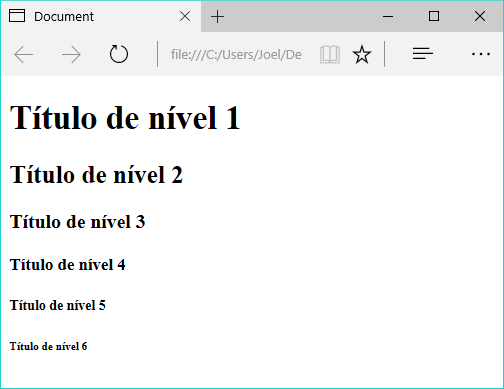
Na Listagem 2 podemos ver como utilizar essas tags, e na Figura 1 temos o resultado desse código. Para testar esse código, basta copiá-lo para o espaço indicado na Linha 8 da Listagem 1 e salvar o documento com a extensão .html.

<h1>Título de nível 1</h1>
<h2>Título de nível 2</h2>
<h3>Título de nível 3</h3>
<h4>Título de nível 4</h4>
<h5>Título de nível 5</h5>
<h6>Título de nível 6</h6>
Listagem 2. Diferentes níveis de cabeçalho

Execute o código

Diferentes níveis de cabeçalho
Figura 1. Diferentes níveis de cabeçalho

Parágrafos no HTML

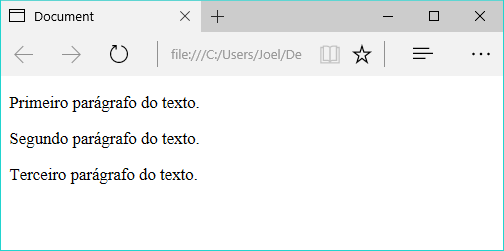
Parágrafos de texto são gerados na HTML por meio das tags <p> </p>. Esse é um exemplo de tag cuja disposição na tela se dá em forma de bloco, ou seja, um parágrafo é posto sempre abaixo do outro.

O código da Listagem 3 adiciona três parágrafos, que podem ser visualizados na Figura 2.

<p>Primeiro parágrafo do texto.</p>
<p>Segundo parágrafo do texto.</p>
<p>Terceiro parágrafo do texto.</p>
Listagem 3. Adicionando parágrafos

Execute o código

Parágrafos visualizados na página
Figura 2. Parágrafos visualizados na página

Imagens no HTML

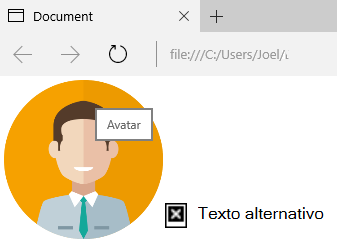
A inserção de imagens em uma página HTML pode ser feita por meio da tag img, que recebe no atributo src o endereço do arquivo a ser carregado. Além desse, outros dois atributos importantes são o alt, que indica um texto alternativo que será exibido caso o arquivo não possa ser carregado, e title, que indica o texto que aparecerá como tooltip ao passar o mouse sobre a figura.

O código da Listagem 4 insere uma imagem a partir do arquivo avatar.png, localizado na mesma pasta do arquivo HTML, e uma tag img apontando para um arquivo inexistente. Observe na Figura 3 que enquanto a primeira aparece corretamente, a segunda é exibida com um ícone de erro o texto alternativo que informamos. Note, ainda, que sobre a primeira figura está sendo exibido o tooltip definido no atributo title.

<img src="avatar.png" alt="Texto alternativo" title="Avatar" />
<img src="arquivo_inexistente.jpg" alt="Texto alternativo" title="Outra figura"/>
Listagem 4. Inserindo imagem

Execute o código

Exemplos de uso da tag img
Figura 3. Exemplos de uso da tag img

No caso da tag img, ainda temos as tags figure e figcaption que serão abordadas no tópico de HTML Semântico, porém, a sua estrutura é simples e é representada pelo código abaixo:

<figure>
   <img src="http://meusite.com.br/assets/imagem.jpg" alt="Imagem">

   <figcaption>Legenda da figura 1</figcaption>
</figure>
Listagem 4.1. Imagem com legenda

Links são normalmente utilizados para direcionar o usuário para outras páginas, ou para outras partes da mesma página. Nos dois casos, utilizamos a tag a, que possui o atributo href no qual indicamos o destino daquele link.

A Listagem 5 mostra como adicionar um link para outra página, neste caso, indicada pelo arquivo pagina2.html.

<a href="pagina2.html">Página 2</a>
Listagem 5. Inserindo link

Já a Listagem 6 mostra como adicionar um link para um elemento na mesma página. Nesse caso, ao clicar no link o browser mudará o foco para o elemento que possui o atributo id igual àquele indicado no href.

<a href="#paragrafo3">Ir para o parágrafo 3</a>
<!--outros elementos-->
<p id="paragrafo3">Parágrafo no rodapé.</p>
Listagem 6. Inserindo link com id

Note também que nesse caso o href requer ainda o sinal de cerquilha (#) antes do id do elemento que será o foco do link.

Tabelas no HTML

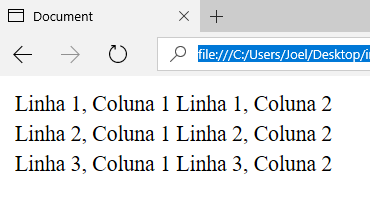
Tabelas são elementos utilizados com frequência para exibir dados de forma organizada em linhas e colunas. No HTML, elas são formadas por três tags básicas: table, para delimitar a tabela; tr, para indicar as linhas; e td para formar as colunas. A Listagem 7 mostra um exemplo simples de tabela com três linhas e duas colunas, e seu resultado pode ser visto na Figura 4.

<table>
<tr>
<td>Linha 1, Coluna 1</td>
<td>Linha 1, Coluna 2</td>
</tr>
<tr>
<td>Linha 2, Coluna 1</td>
<td>Linha 2, Coluna 2</td>
</tr>
<tr>
<td>Linha 3, Coluna 1</td>
<td>Linha 3, Coluna 2</td>
</tr>
</table>
Listagem 7. Exemplo de uso de tabelas

Execute o código

Exemplo de tabela com três linhas e duas colunas
Figura 4. Exemplo de tabela com três linhas e duas colunas

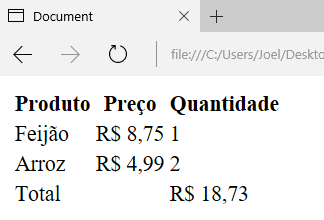
Existem ainda outras três tags utilizadas para delimitar, de forma mais organizada, as partes da tabela: thead para o cabeçalho; tbody para o corpo; e tfoot para o rodapé. A Listagem 8 traz um exemplo de tabela mais complexa, utilizando todas as tags. Seu resultado é apresentado na Figura 5.

<table>
<thead>
<tr>
<th>Produto</th>
<th>Preço</th>
<th>Quantidade</th>
</tr>
</thead>
<tbody>
<tr>
<td>Feijão</td>
<td>R$ 8,75</td>
<td>1</td>
</tr>
<tr>
<td>Arroz</td>
<td>R$ 4,99</td>
<td>2</td>
</tr>
</tbody>
<tfoot>
<tr>
<td>Total</td>
<td></td>
<td>R$ 18,73</td>
</tr>
</tfoot>
</table>
Listagem 8. Tabela com cabeçalho e rodapé

Execute o código

Tabela com cabeçalho e rodapé
Figura 5. Tabela com cabeçalho e rodapé
Por padrão, as tabelas não possuem bordas. Isso deve ser adicionado por meio das CSS.

Listas no HTML

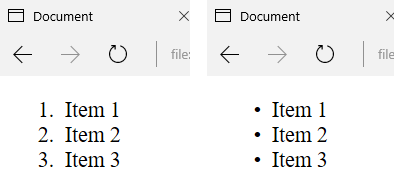
Listas são elementos úteis para organizar e ordenar itens que estão relacionados de alguma forma. No HTML é possível criar três tipos de listas: ordenadas (com a tag ol), não ordenadas (com a tag ul), e de definição (por meio da tag dl).

Na Listagem 9 temos um exemplo de lista ordenada, enquanto a Listagem 10 traz um exemplo de lista não ordenada. Em seguida, a Figura 6 mostra o resultado dos dois códigos. Observe que cada item das primeiras listas é definido pela tag li.

<ol>
<li>Item 1</li>
<li>Item 2</li>
<li>Item 3</li>
</ol>
Listagem 9. Lista ordenada

Execute o código

<ul>
<li>Item 1</li>
<li>Item 2</li>
<li>Item 3</li>
</ul>
Listagem 10. Lista não ordenada

Execute o código

Listas ordenada e não ordenada
Figura 6. Listas ordenada e não ordenada

No caso das listas ordenadas temos o atributo type que permite especificar o tipo de marcador a ser usado: números (padrão), números romanos ou letras.

<ol type="I">
<li>Item 1</li>
<li>Item 2</li>
<li>Item 3</li>
</ol>
Listagem 9.1. Lista ordenada por número romano maiúsculo

Os valores permitidos para esse atributo são:

  • 1 – números (padrão)
  • i – números romanos minúsculos
  • I – números romanos maiúsculos
  • a – letras minúsculas
  • A – letras maiúsculas

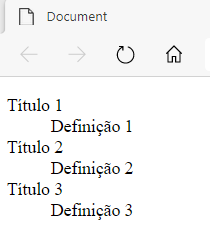
As listas de definição têm um comportamento um pouco diferente, uma vez que cada item é composto por um título (dt) e uma definição (dd), semelhante ao que ocorre em dicionários, nos quais temos os verbetes e suas definições. Na Listagem 11 temos um exemplo desse tipo de lista, com seu resultado ilustrado na Figura 7.

<dl>
<dt>Título 1</dt>
<dd>Definição 1</dd>
<dt>Título 2</dt>
<dd>Definição 2</dd>
<dt>Título 3</dt>
<dd>Definição 3</dd>
</dl>
Listagem 11. Exemplo de lista de definição

Execute o código

Listas de definição
Figura 7. Listas de definição

Formulários no HTML

Formulários são normalmente utilizados para integrar a página HTML a algum processamento no lado servidor. Nesses casos, a página envia dados para uma aplicação (Java, PHP, .NET etc.), que os recebe, trata e retorna algum resultado.

No HTML, geralmente usamos a tag form para delimitar a área na qual se encontram os campos a serem preenchidos pelo usuário, a fim de serem enviados para processamento no back-end (enquanto a página HTML é chamada de front-end da aplicação).

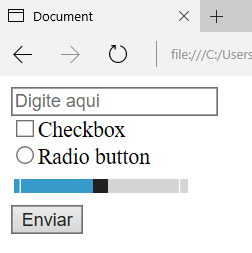
A Listagem 12 mostra um exemplo de formulário com vários tipos de campos para entrada de dados e um botão para submetê-los ao servidor. Na Figura 8 vemos seu resultado.

<form action="salvar_dados.php" method="post">
<input type="text" placeholder="Digite aqui"> <br/>
<input type="checkbox">Checkbox <br/>
<input type="radio">Radio button <br/>
<input type="range"> <br/>
<input type="submit" value="Enviar">
</form>
Listagem 12. Formulário com campos

Execute o código

HTML básico - códigos HTML
Figura 8. Formulário para envio de dados

Formatação de texto

As tags de formatação de texto ajudam a destacar trechos da parte escrita da página, seja para fins de SEO ou por requisitos do conteúdo. Formatações como negrito e itálico podem ser aplicadas com facilidade utilizando as várias tags disponíveis para esse fim:

  • b e strong para negrito/texto forte;
  • i e em para itálico/ênfase;
  • sup e sub para sobrescrito e subscrito, respectivamente;
  • ins e del para indicar trechos que foram incluídos ou removidos, respectivamente;
  • small para textos menores que o padrão;
  • mark para texto destacado.
Apesar da tag <b> e <strong> terem resultados visualmente idênticos, eles têm usos diferentes. A tag <b> deve ser utilizada quando quer se destacar algo que é apenas visual, como por exemplo, deixar um link com mais visível. A tag <strong> por sua vez, além de destacar o visual, dá um destaque semântico ao texto, então se o conteúdo que você quer dar destaque é uma parte relevante do texto, utilize a tag <strong>. O mesmo vale para as tags <i> e <em>, onde a tag <i> é utilizada apenas para formatação visual e a tag <em>dá ênfase semântica ao texto, não devendo ser utilizada para uso puramente estético.

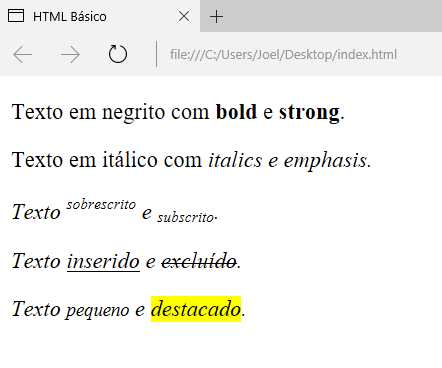
Na Listagem 13 vemos exemplos de uso dessas tags, e seu resultado pode ser observado em seguida, na Figura 9.

<p>Texto em negrito com <b>bold</b> e <strong>strong</strong>.</p>
<p>Texto em itálico com <i>italics<i> e <em>emphasis</em>.</p>
<p>Texto <sup>sobrescrito</sup> e <sub>subscrito</sub>.</p>
<p>Texto <ins>inserido</ins> e <del>excluído</del>.</p>
<p>Texto <small>pequeno</small> e <mark>destacado</mark>.</p>
Listagem 13. Tags de formatação de texto

Execute o código

Textos com formatação especial
Figura 9. Textos com formatação especial

Áudio no HTML

Com HTML também é possível inserir áudio e vídeo nas páginas com facilidade. Para áudio, podemos utilizar a tag audio, da mesma forma que apresentada na Listagem 14.

<audio controls src="musica.mp3" >
Seu browser não suporta áudio.
</audio>
Listagem 14. Inserindo áudio

Na tag audio, o atributo src aponta para o arquivo de áudio que será executado (MP3, OGG ou WAV). Já o atributo controls indica que devem ser exibidos os controles de gerenciamento do áudio (botões play, pause etc.). Além dele, outros também merecem destaque: autoplay, para fazer com que o áudio seja executado assim que for carregado; loop, para que o áudio seja executado repetidas vezes.

Caso o browser não ofereça suporte a essa tag, o texto contido eu seu interior será exibido.

Também podemos informar mais de um arquivo de áudio (opções alternativas de formato, por exemplo). Nesse caso, precisamos utilizar a tag source, como no exemplo da Listagem 15.

<audio controls src="musica.mp3" >
<source src="musica.ogg" type="audio/ogg">
<source src="musica.mp3" type="audio/mpeg">
</audio>
Listagem 15. Inserindo áudio com a tag source

Dessa vez, os arquivos serão buscados na ordem em que aparecem na lista. Caso um não seja localizado ou não possa ser carregado, o browser buscará imediatamente o próximo.

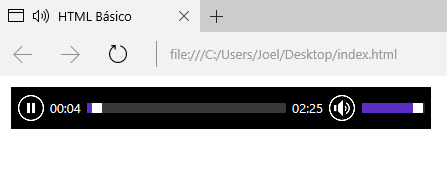
A Figura 10 ilustra o resultado desses códigos, com o controle de áudio exibido no browser. Note também que no topo da janela (na aba do navegador) é exibido um ícone informando ao usuário que essa página está executando um áudio.

HTML básico - códigos HTML
Figura 10. Áudio em execução na página

Vídeo no HTML

Semelhante ao áudio, também podemos inserir vídeos nas páginas HTML utilizando a tag video, adicionada na HTML5, como na Listagem 16.

<video src="video.mp4" width="640" height="480" controls>
Seu browser não suporta vídeo HTML5.
</video>
Listagem 16. Inserindo vídeo

Dessa vez, além dos atributos já vistos no áudio, também precisamos informar a largura (width) e a altura (height) do vídeo, a fim de mantê-lo adequado ao layout.

O código da Listagem 17 pode ser utilizado quando desejarmos informar mais de um arquivo de vídeo como opções de carregamento, da mesma forma que vimos na tag audio. Nesse caso, os formatos suportados são MP4, WebM e Ogg.

<video width="640" height="480" controls>
<source src="video.webm" type="video/webm">
<source src="video.mp4" type="video/mp4">
</video>
Listagem 17. Inserindo vídeo

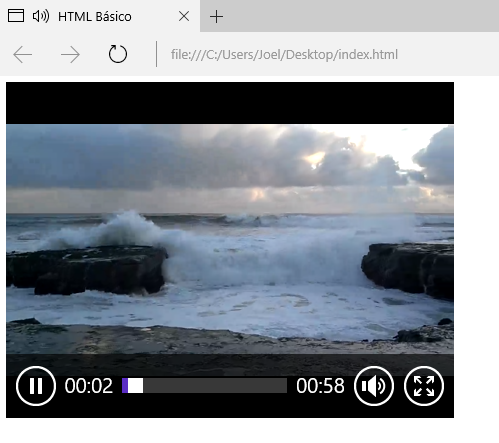
O resultado agora pode ser visto na Figura 11.

Vídeo em execução na página
Figura 11. Vídeo em execução na página

Div e Span no HTML

As tags div e span são duas das mais utilizadas no HTML, com objetivos distintos, porém com grande importância para a composição do layout das páginas e formatação do texto.

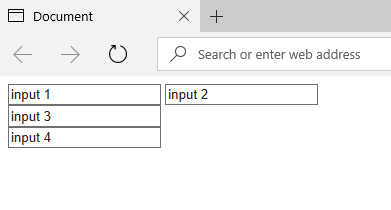
As divs são normalmente utilizados para representarem containers para outros elementos, agrupando-os visualmente dentro de um bloco que pode conter dimensões e posição definidas. Por padrão, uma div não possui aparência características visuais definidas, isso precisa ser feito via CSS ao atribuir bordas, cores etc. Sua principal característica, no entanto, é que essa tag representa um elemento do tipo bloco, ou seja, que quando adicionado na página, automaticamente gera uma nova linha no layout (semelhante a um parágrafo), ao invés de ser alocado lateralmente nos demais componentes.

O código da Listagem 18 demonstra um uso básico das divs.

<input type="text" value="input 1">
<input type="text" value="input 2">
<div><input type="text" value="input 3"></div>
<div><input type="text" value="input 4"></div>
Listagem 18. Inserindo divs

Execute o código

Perceba no resultado da Figura 12 que, enquanto os dois primeiros inputs são dispostos lateralmente, os dois últimos aparecem um abaixo do outro, uma vez que estão dentro de divs diferentes.

Exemplo de uso das DIVs
Figura 12. Exemplos de uso das divs

Já a tag span é um elemento do tipo inline, ou seja, quando adicionado na página, ele é inserido lateralmente após os demais componentes, diferente das divs que são elementos do tipo bloco.

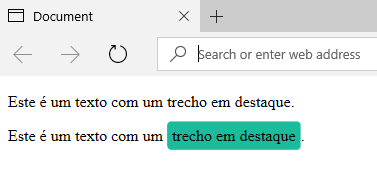
Elementos span, por padrão, também não possuem nenhuma característica visual definida, isso precisa ser feito via CSS para destacar ou aplicar uma formatação especial para um certo trecho do texto. Por exemplo, a Listagem 19 demonstra o uso do span em dois casos. No primeiro, a tag não conta com nenhum atributo adicional; no segundo, adicionamos a ela uma aparência diferenciada via CSS.

<p>Este é um texto com um <span>
trecho em destaque</span>.</p>
<p>
Este é um texto com um <span
style="background: #1abc9c; border-radius:5px; padding:5px">
trecho em destaque</span>.
</p>
Listagem 19. Trabalhando com span

Execute o código

O resultado pode ser visto na Figura 13 e, como esperado, no primeiro caso não conseguimos perceber nenhuma diferença visual devido ao uso do span.

Exemplo de uso do SPAN
Figura 13. Exemplo de uso do span

Neste artigo vimos uma breve introdução à linguagem HTML para inicinates, uma das bases do desenvolvimento web e que atualmente também vem sendo amplamente utilizada na criação de aplicativos mobile híbridos. Portanto, conhecer essa linguagem é fundamental para quem deseja desenvolver aplicações.

Créditos: https://www.devmedia.com.br/html-basico-codigos-html/16596

Publicado em Dicas | Deixe o seu comentário

7 Ferramentas Para Criar Portefólios Digitais

O Portefólio não é em si mesmo um fim, mas um processo que ajuda a desenvolver a aprendizagem.” (Klenowski, 2002)

Os termos utilizados ao longo dos anos para designar os portefólios têm sido muito diversos: Dossiers, diários de bordo, porta-fólios, processo-fólios, etc…

Surgiram como uma modalidade do campo das artes para apresentar, expor ou compilar um conjunto de trabalhos realizados pelos artistas. É fácil entender que esta é uma ferramenta muito útil para várias profissões onde é imprescindível poder demonstrar ou comprovar as capacidades, competências ou qualidade de trabalho.

Esta procura de reconhecimento motivou a tentativa de utilização dos portefólios em contextos educativos. A organização de trabalhos realizados pelos alunos sempre (ou quase sempre) existiu, mas, a partir do momento em que se tentou incorporar uma metodologia avaliativa por portefólio, percebeu-se que essa compilação não era apenas um acumular de folhas (porta-folhas) mas um instrumento de trabalho muito mais amplo, no qual podem constar uma seleção de trabalhosdocumentosmateriais recursos, que permitam analisar percursos, produção, evolução, crítica e reflexão.

A estrutura bem definida de um portefólio permite criar um instrumento que não seja apenas uma compilação de documentos (dossier) mas um conjunto de evidências que identifique um processo continuado e reflexivo.

De qualquer forma, estes conceitos nem sempre estão presentes na criação de um portefólio, continuam a existir muitas resistências algumas crenças e paradigmas bastante enraizados.

binary 2450188 640

A transição/adaptação dos portefólios analógicos (por vezes ainda utilizados) para os portefólios digitais fez-se (ou faz-se) de forma progressiva. As ferramentas para a sua criação têm evoluído de forma muito rápida nos últimos 20 anos.

Existem cada vez mais aplicativos que permitem criar portefólios digitais (e-portefólios ou webfólios) de forma simples, intuitiva e com recurso a uma infinidade de recursos multimédia, ao alcance de qualquer utilizador com competências básicas na área das TIC.

Curiosamente, os e-portefólios também tiveram como principais impulsionadores os profissionais ligados às artes, em particular associadas ao grafismo e à imagem. Numa fase inicial, quase sempre optavam por manter os formatos analógico e digital em simultâneo (pela falta de confiança nos sistemas de armazenamento).

pexels photo 1029757 scaled
Photo by Format from Pexels

ALGUMAS VANTAGENS DA UTILIZAÇÃO DE PORTEFÓLIOS DIGITAIS

Existem inúmeros benefícios para os alunos que utilizam portfólios no seu processo de aprendizagem.

Os portefólios:

  • permitem o registo da aprendizagem e da evolução num período de tempo;
  • fornecem aos alunos um local com visibilidade para o seu trabalho;
  • podem ser usados como ferramentas de auto-avaliação, auto-reflexão e desenvolvimento pessoal;
  • possibilitam melhor o conceito de evolução;
  • proporcionam um envolvimento ativo na aprendizagem;
  • podem servir como um método de autodescoberta e construção da confiança;
  • estimula a prática reflexiva;
  • ajudam a identificar os pontos fortes de fracos dos alunos e planificar as melhorias;
  • propiciam o feedback dos professores e dos colegas;
  • ajudam a melhorar as competências ao nível da escrita;
  • preparam os alunos para a criação de portefólios profissionais;

Entre muitos outros.

A ESCOLHA DA FERRAMENTA PARA CRIAÇÃO DE E-PORTEFÓLIOS

Criar e manter um portefólio digital é um processo cada vez mais simples e, quando utilizado em contexto educativo, poderá documentar vários dos itens necessários para a avaliação dos alunos em áreas transversais associadas, por exemplo, às competências previstas no perfil do aluno à saída do Secundário. Pode ser utilizado no contexto de uma disciplina/área disciplinar ou de uma forma mais abrangente.

Ao criar um espaço online, que pode ser público, privado ou partilhado, os alunos podem apresentar um processo de evolução, partilhar documentos/produtos criados, um quadro de objetivos definidos, as reflexões sobre as temáticas abordadas e, com criatividade, os interesses pessoais nos vários domínios da sua vida pessoal/académica, etc.., devidamente documentados/comprovados com recurso a folhas de cálculo, apresentações, vídeos, animações, áudios, fotos, entre muitas outras opções.

young woman thinking with pen while working studying at her 6384
Photo by Kaboompics .com from Pexels

Dependendo da idade dos alunos e do tipo de portefólio que se deseja criar, a escolha das ferramentas poderá suscitar algumas dúvidas. A oferta é imensa e, por isso, a seleção da melhor opção pode ser uma tarefa difícil.

A escolha da ferramenta deve ser feita por cada aluno, contudo, na hora de apresentar esta possibilidade, podemos sempre apresentar algumas alternativas previamente testadas.

Deixo aqui uma lista com a escolha de 6 ferramentas para criar portefólios

1- Google Sites

Uma excelente ferramenta da Google para criar Portefólios. A estrutura do site pode ser facilmente adaptável ao que é solicitado pelos professores. Permite a integração direta de todas as aplicações da google de forma gratuita (texto, folha de cálculo, vídeo, imagem, apresentações, etc.). Os alunos com conta de email Google podem criar e hospedar os seus próprios portefólios digitais no Google Sites de formas simples, fácil e intuitiva. Não existem limitações na quantidade de páginas criadas e o seu conteúdo pode ser partilhado com professores, colegas e familiares.

2 – WordPress

Este é, talvez, um dos serviços de criação de blogues mais conhecidos e utilizados. Apesar de existir uma lógica de entrada por datas nos blogues, esta ferramenta também permite criar estruturas de páginas com criação de ligações em menus, tal como nos sites. Aqui, podem ser incluídos todos os elementos multimédia que os alunos necessitem para o seu portefólio. Um pouco mais complexo na construção do que o Google Sites mas, sem dúvida, com mais potencialidades.

3 – Weebly

Este é outro bom site que os alunos podem usar para criar os seus portfólios digitais. Na sua versão gratuita o Weebly possibilita a criação de uma website com grande qualidade na estrutura e na apresentação, sempre com tecnologia Drag & Drop que facilita bastante a construção dos espaços e a integração dos conteúdos sem ter conhecimento de programação em HTML.

4 – Wix

Este serviço de Internet permite criar um site personalizado, comparável ao Weebly, mas com mais opções nas ferramentas disponibilizadas e maior qualidade ao nível do design gráfico, na minha opinião. Com a conta básica gratuita é possível criar um website que funcione como portefólio escolar de uma forma muito fácil.

5 – O FreshGrade  é um serviço de portfólio digital muito popular em muitas escolas dos EUA. O FreshGrade permite que professores e alunos criem portfólios digitais multimédia e está especialmente dedicado a esta funcionalidade. Permite garantir mais privacidade aos alunos, o professor consegue criar e gerir as contas dos alunos, atribuir tarefas privadas e acompanhar a entrega dos trabalhos, interagindo, também com a família. Tem uma versão base gratuita para professores e alunos.

6 – O Book Creator  é uma excelente ferramenta para criar e-books multimédia. Pode ser usado como um aplicativo para iPad ou no navegador Chrome e os alunos podem usá-lo para criar um e-book que mostre exemplos dos seus melhores vídeos, imagens e trabalhos escritos.

7 – Bulb Digital Portefolios– Serviço gratuito especializado em portefólios digitais e salas de aula virtuais. É muito simples de configurar e pode ser usado pelos alunos e pelos professores. Ideias e dicas: bulb para professores

laptop 1483974 1280
Imagem de Monoar Rahman Rony por Pixabay

Avaliação De Portfólios Digitais

avaliação de um portefólio irá depender do seu tipo, do formato e do grau de abrangência. Pode ser um documento que é avaliado por um ou por vários professores e estará sempre dependente dos critérios definidos pela escola e pelos grupos disciplinares.

Existem, também online, muitos exemplos de tabelas com os parâmetros de avaliação genéricos e específicos para este tipo de documento. Deixo-vos um exemplo (EPortfolio – Digital Portfolio – Rubric – Universidade de Wisconsin).

É importante referir que esta ferramenta também pode ser muito importante para a criação de portefólios digitais para professores e quaisquer outros profissionais.

Créditos da Imagem de destaque

Photo by Jean Bertordo from Pexels

Créditos: https://www.educatech.pt/7-ferramentas-para-criar-portefolios-digitais/

Publicado em Dicas | Deixe o seu comentário

App Inventor – Arduino

I provide 15 tutorial links about App Inventor communicating with Arduino Uno. The tutorials start with a Bluetooth connection and they are developed ending with a monitor for 2 potentiometers, leds, buttons and small supervisory using procedure blocks, canvas, etc

Tutorial 1/15: connecting with bluetooth

Tutorial 2/15: Led ON / OFF

Tutorial 3/15: Led ON / OFF – Changing Button Color

Tutorial 4/15: Led ON/OFF – Using a single button on App Inventor

Tutorial 5/15: Slider changes LED intensity

Tutorial 6/15: Joining Slider / Button in App Inventor and Leds Arduino

Tutorial 7/15: Checking Status of an Arduino Pushbutton (button) in App Inventor

Tutorial 8/15: Monitoring 02 Potentiometers

Tutorial 9/15: now monitoring the status of 02 Potentiometers and 01 Pushbutton

Tutorial 10/15: Complete Project – Bt, Pot, Button, Slider, Leds

Tutorial 11/15: 8Leds 8 Buttons – Mode1

Tutorial 12/15: 8Leds 8 Buttons – Mode1: Using Procedure Block

Tutorial 13/15: Small Supervisory using Canvas – Part 1

Tutorial 14/15 : small supervisory using Canvas – Part 2

Tutorial 15/15: two ways to install the HC-05 module on Arduino and communicate to AppInventor

Credits:

More “Tutorials for MIT App Inventor”

Publicado em Dicas | Deixe o seu comentário

Criação de formulários com assistentes do LibreOffice Base

Primeira tela do assistente de criação de formulário no LIbreOffice Base

A criação de formulários é um dos melhores recursos programas de base de dados. Num artigo anterior vimos a utilização de tabelas como contentores de informações. Os formulários são a maneira mais conveniente de entrar nesses contentores. Como esta série de artigos é introdutória, vamos concentramos no uso de assistentes.

Os assistentes trabalhar com certos parâmetros predefinidos, mas facilmente modificáveis. Mas, se precisarmos de algo mais específico, teremos que criar um banco de dados do zero. Isso fará parte de outra série de artigos.

A criação de formulários. Pensando em conforto.

Muitas pessoas usam bases de dados nas suas atividades diárias. A maioria faz com as funções limitadas de um programa de folha de cálculo. A própria Microsoft não inclui nenhum capítulo sobre o Access nos livros publicados no Microsoft Office 2019. O LibreOffice também não tem documentação atualizada. O último Manual do LibreOffice Base é a versão 4.

É verdade que, embora mínimo, o uso de um programa de base de dados requer algum conhecimento teórico. Nenhum utilizador profissional, muito menos um amador que não seja apaixonado por computação, costuma se dar ao trabalho de adquiri-la. Porém, o tempo perdido em aprender a usar é mais do que recuperado mais tarde.

É difícil encontrar bibliografia atualizada sobre gestores de bases de dados. O LibreOffice não o atualiza a partir da versão 4. Quanto à Microsoft, a maior parte é da versão 2013 do Access

Criação de formulários usando o assistente

Um formulário pode ter diferentes formatos. A forma mais simples é a mesa.

Em uma mesa:

  • Cada campo possui uma coluna.
  • Cada registro corresponde a uma linha.
  • A linha superior é reservada para a identificação dos campos.

Quando terminarmos, o assistente de criação de tabelas nos oferece a possibilidade de inserir dados diretamente na tabela ou criar um formulário. Depois de escolher a opção correspondente, clique em Concluir.

Na última tela do assistente de criação de tabelas podemos acessar o assistente de formulários

O assistente de criação de tabelas nos permite acessar o assistente de criação de formulários

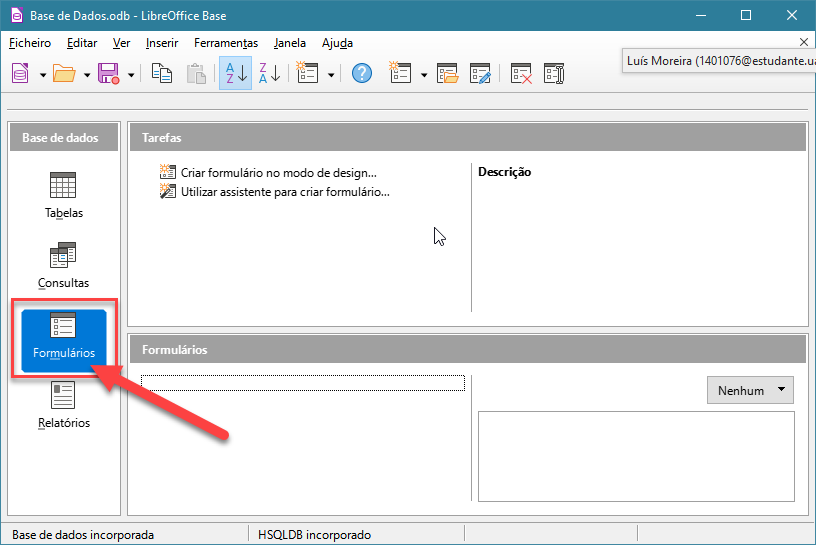
Para acessar o assistente de criação de formulário, devemos clicar no ícone correspondente na janela do programa de banco de dados.

A partir da janela principal do LibreOffice Base podemos acessar os diferentes acidentes

Podemos lançar o assistente de formulário na seção correspondente da janela principal.

Em tabelas e consultas snós escolhemos a mesa Ativos

Na primeira tela do assistente de criação de formulário selecionamos a tabela base e os campos que vamos usar

Nesta tela escolhemos uma tabela e os campos dela que vamos adicionar ao formulário

Clique na seta dupla para copiar todos os campos para a coluna da esquerda. Clique em Avançar.

As telas a seguir são usadas quando vamos inserir dados em tabelas relacionadas. No momento, vamos ignorá-los. Clique em Avançar.

Estética da forma

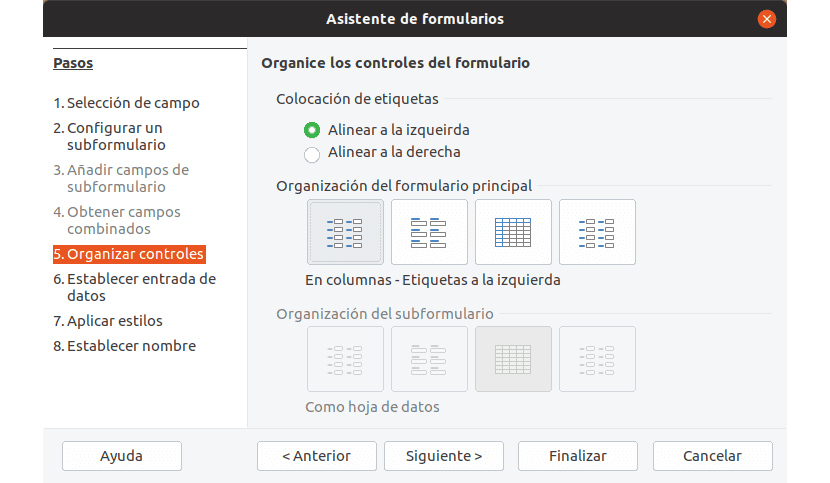
Nesta tela podemos selecionar a forma como os campos de um formulário serão ordenados.

Nesta tela podemos determinar o alinhamento e a disposição dos campos de um formulário.

Agora podemos escolher o layout dos controles do formulárioo.

Nós chamamos controle do formulário para cada um dos campos a serem preenchidos e para a etiqueta que o identifica. Podemos escolher duas opções de alinhamento; direita e esquerda.

Em termos de layout, as opções são:

  • Em colunas, com rótulos à esquerda.
  • Ordenado em colunas, com rótulos na parte superior. Como planilhas de dados.
  • Agrupados em blocos, os rótulos sobem

Assim que isso for determinado, clique em Avançar para ir para a próxima tela.

O próximo parâmetro determina se os dados inseridos anteriormente serão visíveis ou não no formulário de entrada de dados.

Na janela de entrada de dados, podemos definir se os dados podem ser visualizados ou modificados

Para proteger os dados inseridos, esta janela nos permite estabelecer certas restrições

Caso a resposta seja não, podemos adotar algumas medidas para evitar modificações. Estes são.

  • Impedir a modificação dos dados já inseridos no formulário
  • Não permitir a adição de novos dados
  • Torne impossível excluir os dados existentes.

Clique em Avançar para ir para a próxima tela

Uma forma deve ser agradável aos olhos. Isso não é supérfluo; quanto mais fácil é visualizar um formulário, mais certeza é de que os dados foram inseridos corretamente.

Portanto, a penúltima tela é dedicada à escolha de uma cor e forma de borda.

Os estilos nos permitem criar formulários que são mais fáceis de ver

Uma combinação de cores escuras e bordas 3D tornará o formulário mais fácil de ver.

Quando terminarmos de escolher, clique em Avançar.

No final, damos um nome a ele e podemos começar a trabalhar com o formulário.

Na última tela atribuímos um nome ao formulário e podemos começar a utilizá-lo.

A última tela permite nomear o formulário, corrigir erros ou começar a utilizá-lo.

Percebo que estou alongando isso mais do que uma novela com um grande público. Tenha paciência, vamos chegar à parte divertida, mas primeiro você precisa estabelecer as bases.

Publicado em Dicas | Deixe o seu comentário

ESXi-Arm on Raspberry Pi – Send CPU Temperature to Graphite

With the recently released ESXi-Arm-based driver for the Raspberry Pi’s GPIO interface, it is possible to poll the Pies CPU temperature. With the provided module, I’ve created a quick script that you can run on your Raspi to send the CPU temperature to a Graphite host.


I’ve created 2 scripts that are available on Github (github.com/fgrehl/esxi-raspi). I’ve also modified the pimon library to automatically use the correct vmgfx device so that you no longer have to fix the pimonLib/__init__.py file.

pimon_temp.py (github.com/fgrehl/esxi-raspi/blob/main/pyUtil/pimon_temp.py)
The pimon_temp.pty script prints the current temperature on a given interval. If you run the script without arguments, it will print the temperature every 10 seconds:

# python pimon_temp.py
Polling CPU temperature every 10 seconds...
CPU Temperature: 48.0 C

If you want faster or slower output, just add the interval in seconds as the first argument:

python pimon_temp.py 2
Polling CPU temperature every 2 seconds...
CPU Temperature: 47.0 C
CPU Temperature: 48.0 C

pimon_tempgraphite.py (github.com/fgrehl/esxi-raspi/blob/main/pyUtil/pimon_tempGraphite.py)
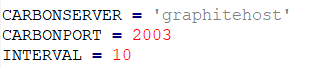
The pimon_tempgraphite.py script sends data to a Graphite host. The Carbon Server has to be configured in the script itself:

Port 2003 outgoing is blocked by default in the firewall, so the shell is going to stuck when you run the script. As this is a non-production system, I just disabled the firewall:

# esxcli network firewall set --enabled false

You can then start the script.

# python pimon_tempGraphite.py
servers.esx9-virten-lab.cputemp 48.0 1604949554
servers.esx9-virten-lab.cputemp 49.0 1604949564
servers.esx9-virten-lab.cputemp 47.0 1604949574


Run the script automatically on ESXi Startup
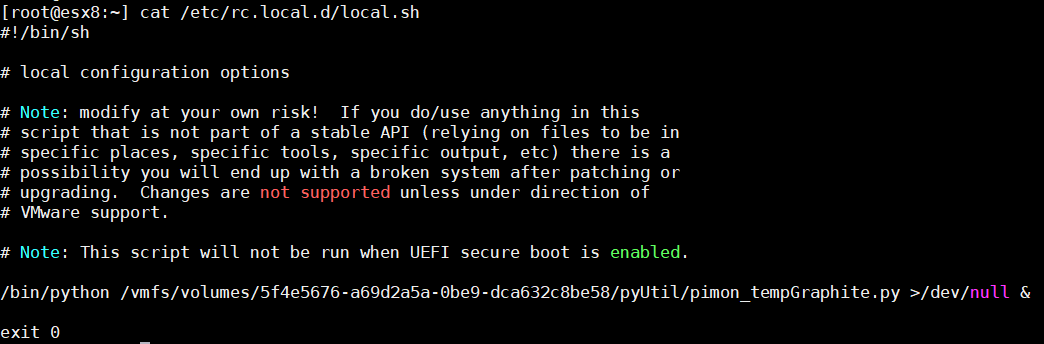
If you want to run the script automatically on startup, you can add it to the /etc/rc.local.d/local.sh file. Make sure to add the command before the “exit 0” command.

Add the following line (Replace with your datastore name or ID):

/bin/python /vmfs/volumes/[Datastore]/pyUtil/pimon_tempGraphite.py >/dev/null &

Make sure to run it asynchronously (& at the end ) and pipe the output to /dev/null. The file should look like this:

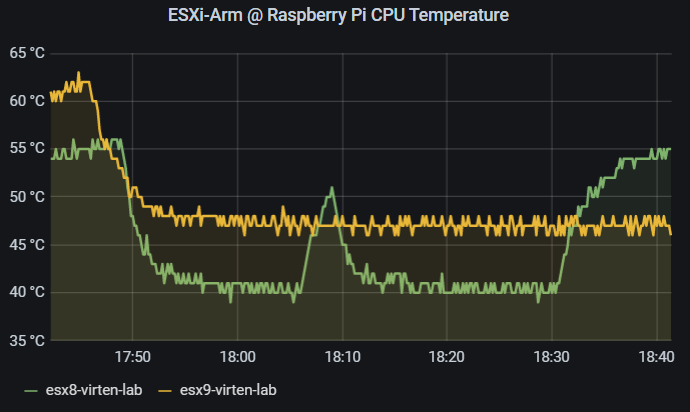
The following graph has been created with Grafana, an open-source visualization frontend for Graphite:

Troubleshooting
If you get the following error message:

sock.connect((CARBONSERVER, CARBONPORT))
TimeoutError: [Errno 110] Connection timed out

Switch of the ESXi Firewall

# esxcli network firewall set --enabled false

In 1 out of 1000 polls, the script can’t read temperature data and sends a 0 to graphite.
servers.esx8-virten-lab.cputemp 40.0 1605030894
[Errno 110] Connection timed out
servers.esx8-virten-lab.cputemp 0 1605030904
servers.esx8-virten-lab.cputemp 40.0 1605030914

As a workaround, I updated the script to only send data when the temperature is not “0”. Don’t apply this lazy workaround when your Raspi runs with a liquid nitrogen cooler.
github.com/fgrehl/esxi-raspi/commit/8f425853d68335bd7776746414c655efba72292c

Publicado em Dicas | Deixe o seu comentário